
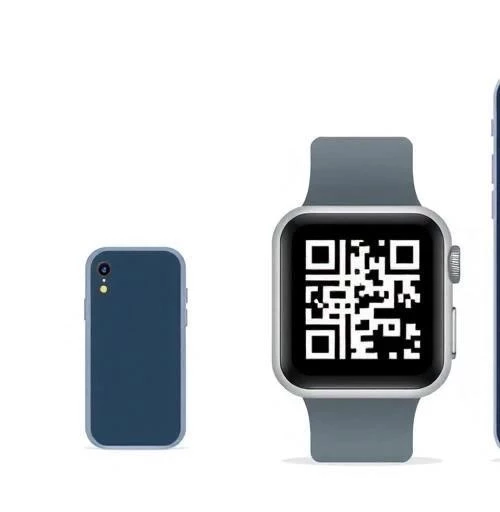
Apple Watch does not provide one universal feature for importing any QR code. The right method depends on what the code represents. Tickets‚ boarding passes‚ loyalty cards‚ and some event passes may be added to Apple Wallet and then used on the watch. For a plain QR-code image or a code that Wallet does not support‚ use a compatible watch app or display the image from a synced photo album.
Method 1: Add a pass to Apple Wallet
- On your iPhone‚ open the email‚ website‚ airline app‚ ticketing app‚ or other source that contains the pass.
- Look for Add to Apple Wallet and tap it. Review the pass details‚ then confirm by tapping Add.
- Make sure the iPhone is paired with your Apple Watch and that both devices use the Apple Account you expect.
- On the watch‚ open the Wallet app and find the pass. Depending on the pass and your settings‚ it may appear automatically after it is added on the iPhone.
To show the code‚ tap the pass in Wallet. At a reader‚ hold the watch display toward the scanner and keep it steady. Some passes can be opened quickly by double-clicking the side button‚ but availability and behavior depend on the pass‚ region‚ and watchOS version. If a pass is missing‚ check Wallet on the iPhone first and confirm that the pass provider supports Apple Watch.
Method 2: Show a QR-code picture
If the code is supplied only as an image‚ you can try syncing it to the watch through Photos. On the iPhone‚ save the image to Photos. In the Watch app‚ open My Watch > Photos‚ turn on photo syncing if needed‚ and choose a synced album. After the album is available on the watch‚ open Photos‚ locate the image‚ and show it to the scanner.
This option is useful for a static code‚ but it is less convenient than a Wallet pass. The image may be small‚ and a screenshot can be difficult for some readers to scan. Enlarge the code on the watch if possible‚ raise the display brightness‚ and avoid glare. Do not crop out the code’s border or alter its colors. Test the image with the intended scanner before relying on it at a venue or while travelling.
Method 3: Use a compatible app
Some services and third-party apps can store a QR code on Apple Watch‚ provide a watchOS app‚ or add a complication that opens the code quickly. Install the app on the iPhone‚ follow its instructions to import or create the code‚ and check whether it offers an Apple Watch version. A complication usually acts as a shortcut; it may not show the full code directly on the watch face.
Availability‚ features‚ and fees vary by app. Check its privacy information and confirm that it supports your watchOS version before adding personal information. A code that changes frequently‚ such as a login or payment code‚ may not work as a saved image. Use the service’s official app for those codes and keep the iPhone nearby if the watch app requires it.
If the code does not appear or scan
- Check that the pass or image is still available on the iPhone and that syncing has completed.
- Keep the watch and iPhone close together‚ connected‚ and updated. Restarting them may resolve a temporary sync issue.
- Clean the display‚ increase brightness‚ and hold the code at a readable distance from the scanner.
- Ask the provider whether the code is valid on a watch. Some scanners accept only the original app or a printed ticket.
Important limitations
Apple Watch is designed to display supported passes and images; it is not a general-purpose QR scanner with a camera. You generally cannot make an arbitrary code into a native watch face simply by saving it. For a reusable pass‚ Wallet is usually the simplest option; For a one-time static code‚ synced Photos or a trusted compatible app may be more suitable. Avoid storing codes that grant access to sensitive accounts unless you understand how the chosen app protects them.
2 Comments. Оставить новый
The steps are organized and explain that Apple Watch support depends on the pass provider and watchOS settings. A note about checking image readability before relying on a static QR code could make the guidance more complete.
The article clearly distinguishes between adding a supported pass to Apple Wallet and displaying a QR-code image through Photos. The practical scanning tips are useful, though the final sentence appears incomplete.