
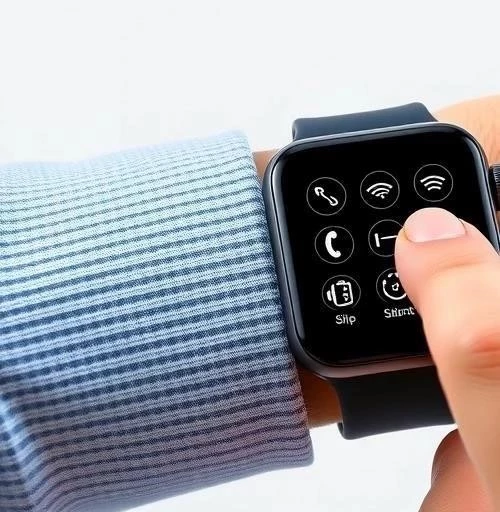
Your Apple Watch has a tiny command deck tucked behind one button: Control Center. It holds useful switches for everyday life, from Silent Mode and Focus to battery level, Wi‑Fi, and the flashlight. The gesture depends on your watchOS version, so start with the method that matches the software on your wrist.
On watchOS 10 or later: press the side button
Press the flat side button once—the button below the Digital Crown. Control Center should appear immediately, whether you are looking at the watch face or using an app. Pressing the side button again, or pressing the Digital Crown, closes it. Think of the side button as the doorway and the Crown as the exit back to your watch face.
Be careful not to mix up the two controls. The Digital Crown is the round, turning wheel; the side button is the separate, flatter button underneath it. A quick press is all you need. You do not have to hold the button down, and a long press may open a different feature depending on your settings.
On watchOS 9 or earlier: swipe up
If your watch has an older version of watchOS, begin at the watch face and swipe upward from the very bottom edge of the screen. Control Center will slide into view. To leave it, swipe down from the top or press the Digital Crown. This older gesture works differently inside an app: touch and hold the bottom edge, wait for Control Center to peek out, then swipe up.
Not sure which version you have? On the watch, open Settings, then tap General and About; look for the watchOS version. You can also check the Watch app on your paired iPhone under General and About. If the side-button method does nothing, checking the version is a better first move than repeatedly swiping at the screen.
Find the controls you need
Once Control Center is open, scroll to see its tiles. The icons can show options such as battery percentage, Silent Mode, Theater Mode, Focus, Airplane Mode, Wi‑Fi, and the flashlight; available controls vary with the watch model, software, and settings. Tap a tile to switch a feature on or open its options. Some icons change appearance when active, so take a moment to check the screen rather than guessing.
Want a favorite control closer to the top? If your version of watchOS offers an Edit button at the bottom of Control Center, tap it to arrange the tiles. Drag a control using its handle, then tap Done. The exact layout and editing options can vary by software version, so don’t worry if your screen looks a little different from someone else’s tutorial.
If it won’t open
- Check your gesture: watchOS 10 and later use the side button; watchOS 9 and earlier use an upward swipe from the watch face.
- Press, don’t hold: On newer software, make one short press of the side button.
- Check the screen: A passcode, Water Lock, or another special mode may affect what you can do. Unlock the watch or follow the on-screen prompt, then try again.
- Restart if needed: If the correct action still fails, restart the watch and test once more. If a button seems physically stuck or unresponsive, contact Apple Support.
A quick memory trick
Newer watchOS? Press the side button. Older watchOS? Swipe up from the watch face. That small difference turns a frustrating hunt into a one-second habit. Once Control Center appears, your watch’s most useful quick settings are only a tap away—like a miniature control room, ready whenever your day changes direction;