
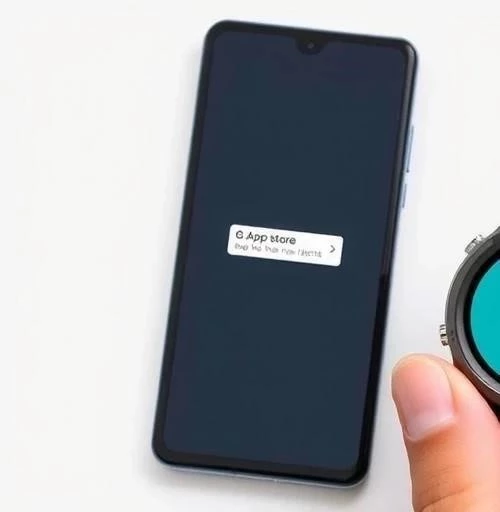
The Samsung Galaxy Watch 4 runs Wear OS with Samsung’s One UI Watch interface. Apps for the watch are installed through Google Play, either directly on the watch or from a compatible Android phone. Available apps depend on your region, software version, and whether the developer supports Wear OS.
Before you begin
- Charge the watch and connect it to Wi-Fi or keep it paired with your phone over Bluetooth.
- Make sure the watch is set up using the Galaxy Wearable app on a compatible Android phone.
- Sign in to a Google account on the watch. Play Store downloads require an account.
- Check that the watch has enough free storage and is running current software. Some apps require a particular version of Wear OS.
Install an app directly on the watch
- Wake the Galaxy Watch 4 and press the Home button to open the apps screen.
- Open Play Store. If prompted, select the Google account you want to use.
- Search for an app by tapping the search icon. You can use the on-screen keyboard, handwriting input, or voice search. Alternatively, browse the available categories.
- Open the app’s listing and check its description, compatibility, and permissions. Confirm that it offers a version for Wear OS; a phone-only app may not be installable on the watch.
- Tap Install. Keep the watch connected while the download and installation finish.
- Return to the apps screen and tap the app’s icon to open it. Follow any setup instructions shown on the watch.
Install from your Android phone
You can also use Google Play on the phone paired with the watch. Open the Play Store, search for the app, and open its listing. If the app supports Wear OS and the watch is connected to your Google account, the listing may show an option to install it on the watch. Select the Galaxy Watch 4 as the target device, then confirm the installation. The download may complete after the watch reconnects to the internet.
Some apps have both a phone component and a separate watch component. Install the phone app when required, then use its listing or setup instructions to add the watch version. Installing an app on the phone alone does not always install it on the watch. The Galaxy Wearable app is useful for pairing and managing watch settings, but Google Play is the usual source for Wear OS apps.
Open, update, or remove an app
To find an installed app, press the Home button and browse the apps screen. You may be able to add its icon to a watch face complication or rearrange app icons through watch settings. For updates, open Play Store on the watch, find the app, and choose Update if that option appears. Automatic updates may be available in Play Store settings.
To uninstall an app, open Settings on the watch, choose Apps, select the app, and tap Uninstall. Menu wording can vary slightly by software version. You can also manage or remove some apps through their Play Store listing.
If installation does not work
- The app is unavailable: Check that the listing supports Wear OS and is offered in your country. A phone-only app cannot be installed as a watch app.
- The download is stuck: Check the Wi-Fi or Bluetooth connection, restart the watch, and try again. If needed, free storage by removing unused apps.
- The app does not appear: Wait for installation to finish, then check the full apps screen. Confirm that you selected the watch as the installation device.
- The app will not open: Update the app and watch software, then restart the watch. Review requested permissions in Settings and grant only those needed for the features you use.
Download apps from Google Play or another source you trust. Avoid installing files from unfamiliar websites: unsupported software can create security risks or fail to work correctly. Availability and menu names may change as Google and Samsung update their services.


8 Comments. Оставить новый
The phone-based installation option adds a useful alternative for people who prefer browsing apps on a larger screen.
The instructions are organized in a practical order, from preparing the watch to opening the installed app.
The compatibility reminder is useful, since not every Android app has a Wear OS version.
The article appropriately points out that app availability can vary by region and software version.
It is helpful that the article mentions storage, software updates, and internet connectivity before installation.
The distinction between phone-only apps and apps that support Wear OS helps set realistic expectations.
The guide clearly explains the two available installation methods and notes the basic setup requirements.
The steps for searching and installing apps directly on the watch are straightforward to follow.