
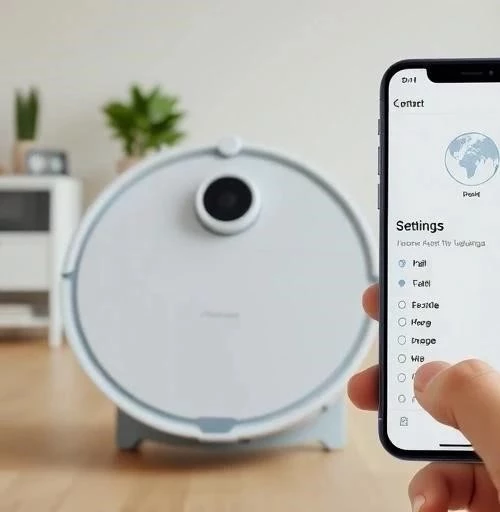
Your Xiaomi robot vacuum may know every corner of your home, but its announcements can still sound like they belong in another country․ The good news: on many models, you can change the robot’s spoken voice in the Xiaomi Home app․ The exact menu names vary by model, app version, and region, so treat this as a reliable map rather than a promise that every button will have the same name․
First, identify which language you want to change
There are two different settings that are easy to mix up:
- Robot voice: the language used for spoken alerts, such as “Cleaning started” or “Please check the main brush․”
- App language: the language of menus and controls on your phone․
Changing the app language does not always change the vacuum’s voice, and changing the voice pack does not translate the app․ Choose the setting that matches your goal․
Change the vacuum’s spoken language
- Open the Xiaomi Home (also called Mi Home) app and sign in to the account linked to your vacuum․
- Tap your robot vacuum on the home screen to open its device page․
- Tap the three-dot menu in the upper-right corner․ Depending on the model, look for Voice settings, Voice and volume, Voice pack, or a similarly named option․
- Open the voice or language list, select the pack you want, and tap Download or Apply if prompted․
- Keep the vacuum connected to Wi-Fi and wait for the download and installation to finish․ A confirmation message—or a test announcement—usually means the new voice is ready․
Some models offer only a small set of languages; others include additional voice packs, sometimes with playful or regional voices․ If you see no language option, don’t assume the robot is being stubborn: that model, firmware, or sales region may not support downloadable packs․
Change the app’s display language
If the menus are the problem, change the language on your phone first․ Xiaomi Home may follow your phone’s system language, or it may provide its own language selector under Profile → Settings → Language․ The labels and route can differ between Android, iOS, and app versions․ After changing the setting, close and reopen the app; in some cases, you may need to sign in again․
If the language option is missing
- Check the exact model․ Open the device information page or inspect the label on the vacuum․ Instructions for one Xiaomi or Roborock model may not apply to another․
- Update carefully․ Update Xiaomi Home through your phone’s app store, and check for official device firmware updates in the vacuum’s settings․ Keep the robot docked and online during an update․
- Check the region․ Some devices and voice packs are available only in particular regions․ The app’s selected region can affect which devices or options appear․ Don’t switch regions casually: it may make a device disappear from the app or disrupt other connected products․
- Refresh the connection․ Close and reopen the app, check Wi-Fi, and revisit the device page․ If a download stalls, try again while the robot is charging and the connection is stable․
- Consult the model’s official guide․ If the menu is still absent, check Xiaomi support or the manual for your exact model and market․
What to avoid
Be cautious with unofficial firmware, region-changing tricks, or voice files downloaded from random sites․ They can fail to install, remove features, or leave the vacuum unusable․ A factory reset is rarely the first answer to a missing voice setting; it may erase Wi-Fi and map configuration without adding language support․
A quick final check
After applying a new voice pack, raise the robot’s volume if needed and trigger a harmless announcement from the app, if that option is available․ If the menus changed but the robot still speaks its old language, you probably changed the app interface rather than the voice pack․ If neither setting appears, compatibility—not a secret button—is the likeliest explanation․ Find the exact model number, then check its official instructions before changing regions or trying workarounds․
In short: open the vacuum’s device page in Xiaomi Home, look in its voice settings, download a supported pack, and give the robot a moment to install it․ Soon, its little status reports can sound less like mysterious mission control and more like a helpful housemate․

8 Comments. Оставить новый
Concise and considerate: it tells readers what to try, what the labels might look like, and why their own screen may not match the instructions exactly.
A useful reminder that changing the words on your phone is not necessarily the same as changing the words coming from your vacuum. Two settings, two very different jobs.
A helpful little guide for anyone whose vacuum sounds like it has taken a surprise language course. Clear steps, without making a simple setting feel like a technical expedition.
The note about regional availability is especially useful. When an option is missing, it may be a model limitation—not a secret button hiding in plain sight.
This makes a mundane app setting feel oddly charming. Somewhere between “download” and “apply,” a household appliance gets a fresh voice.
The distinction between the robot’s voice and the app’s language is a small detail with a big payoff. It saves readers from wandering through menus looking for the wrong kind of “translation.”
The Wi-Fi reminder is practical, but the article also has a nice touch of patience—download the voice pack, let it finish, then listen for the robot’s new hello.
I like the “reliable map” approach: technology menus shift like sand, and this guide leaves room for different models instead of pretending every screen is identical.