
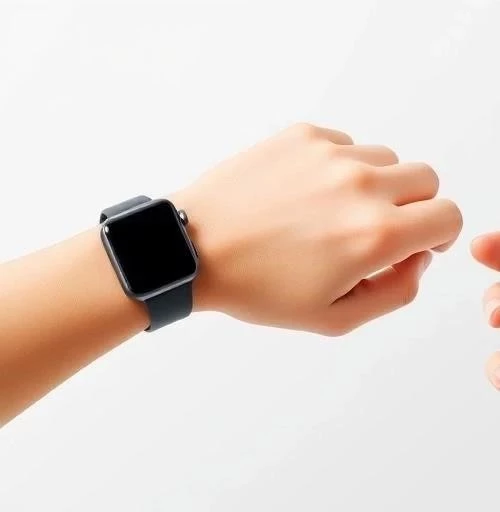
Think of the pairing as a tiny introduction: your watch has the time‚ your phone has the app‚ and Bluetooth is the handshake between them. The most reliable way to bring an HONOR MagicWatch 2 and an HONOR 50 together is through the Huawei Health app—not by pairing them from the phone’s Bluetooth menu first.
Before the first handshake
- Charge the watch and keep it close to the HONOR 50.
- Turn on Bluetooth and connect the phone to the internet.
- Install or update Huawei Health. Get it from an official Huawei or HONOR source‚ such as the Huawei AppGallery or Huawei’s official support website. Availability can vary by region.
- If the app asks for HMS Core‚ install or update that component using the official source it recommends.
- Allow the permissions the app needs‚ especially Bluetooth and nearby-device access. Depending on your Android version‚ it may also request location permission for Bluetooth scanning.
The HONOR 50 may already have Google services‚ but that does not replace Huawei Health: the watch uses Huawei’s health-app pairing process. Avoid unofficial download sites and “driver” apps—the watch does not need a mysterious extra intermediary.
Pair the watch‚ step by step
- Wake the MagicWatch 2. Press and hold its side button if the screen is dark. Choose your language if prompted. For a fresh setup‚ leave the watch on its pairing screen.
- Open Huawei Health on the HONOR 50 and sign in or create an account if asked. Menu names can shift slightly between app versions.
- Tap Devices‚ then choose Add or the plus sign. Select Smart watch‚ followed by HONOR MagicWatch 2. If your app offers a nearby-device search‚ you can use that instead.
- Wait while the phone scans. When your watch appears‚ tap its name. Check that the model shown on the phone matches the watch you are holding.
- A pairing request should appear on one or both screens. Confirm it on the phone and‚ if prompted‚ on the watch. Do not dismiss the request just because it looks like a second confirmation; it is the final handshake.
- Allow notifications‚ contacts‚ call alerts‚ or other features you want to use. You can usually change these permissions later in Huawei Health or your phone’s settings.
Once connected‚ keep the app open for a moment. It may download a watch face‚ sync health data‚ or offer a firmware update. Keep both devices nearby‚ leave Bluetooth on‚ and avoid restarting either device during an update.
If the watch does not appear
- Check the basics: turn Bluetooth off and on‚ make sure the watch is charged‚ and move it within a metre or two of the phone. Close and reopen Huawei Health.
- Check app permissions: open the HONOR 50’s Settings and find Huawei Health. Allow nearby devices or Bluetooth access; on some Android versions‚ allow location while scanning. Also make sure battery-saving settings are not shutting the app down in the background.
- Undo an old pairing: if the watch was connected to another phone‚ disconnect or remove it from that phone’s Huawei Health app. On the HONOR 50‚ remove any old MagicWatch 2 entry from Bluetooth settings‚ then try adding it again from Huawei Health.
- Restart both devices. A reboot can clear a stuck Bluetooth scan without erasing your data.
- Reset only as a last resort: if the watch remains bound to a previous phone or setup keeps failing‚ use the watch’s Settings to reset it to factory defaults. This erases data stored on the watch. Then repeat the pairing process from the beginning.
If Huawei Health cannot install‚ update it only through an official Huawei/HONOR channel and follow any HMS Core prompt shown by the app. Exact availability and menu wording depend on your country‚ Android version‚ and app release. If the watch is already linked to an account you cannot access‚ a reset may not bypass account protections; contact HONOR or Huawei support with proof of ownership.
After connection: make it yours
In Huawei Health‚ open the watch’s device page to choose notification apps‚ adjust health-tracking options‚ browse watch faces‚ and check for updates. If notifications do not arrive‚ check both Huawei Health’s notification settings and Android’s notification access and battery settings. For calls‚ enable the relevant call-alert option and keep Bluetooth connected.
The shortest recipe: install Huawei Health from an official source‚ start “Add device” inside the app‚ select MagicWatch 2‚ and approve the pairing request; Once the two screens agree‚ the watch and HONOR 50 are ready to share the small useful things—steps‚ alerts‚ and the time—without making a fuss about it.
5 Comments. Оставить новый
This guide turns Bluetooth pairing into a polite little dance instead of a wrestling match. The reminder to start in Huawei Health—not the phone’s Bluetooth menu—is the crucial step that saves readers from a frustrating false start.
I appreciate how the article puts safety beside simplicity: official app sources, sensible permissions, and a clear warning against mystery “driver” apps. It’s practical tech advice with the reassuring feel of someone switching on the hallway light before you walk in.
The tiny “handshake” metaphor gives a dry setup process a bit of charm, while the numbered sequence keeps the advice grounded. A helpful map for getting two devices introduced without making the reader feel like a Bluetooth detective.
A considerate guide for a setup that can otherwise feel like knocking on the wrong digital door. The notes about regional availability, changing menu labels, and permissions make it feel prepared for real-world variations, not just an ideal screenshot.
The strongest detail is the reminder to check that the model on screen matches the watch in hand. That small pause is like reading the name tag at a crowded party—easy to overlook, and very useful when it matters.