
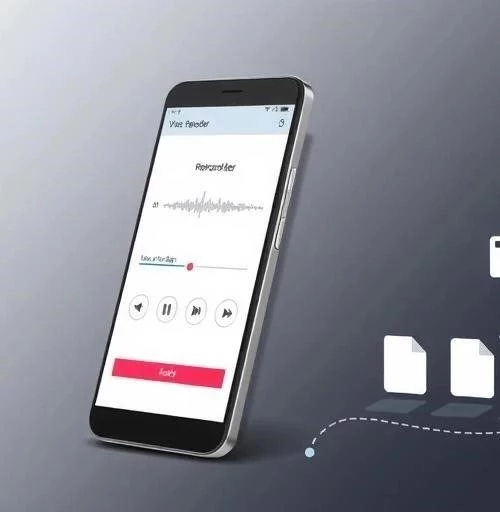
On most Xiaomi phones, recordings made with the built-in Recorder app are saved in the phone’s internal storage, commonly in the MIUI/sound_recorder folder. The precise location can vary with the phone model, Android or HyperOS version, and Recorder app, so the quickest way to find a recording is usually to open the app itself.
Find a recording in the Recorder app
- Open Recorder (sometimes called Sound Recorder) from the home screen or app drawer.
- Go to the recordings list, which may be shown as Recordings or All recordings.
- Tap a file to play it. Press and hold it, or open its menu, to see options such as Share, Rename, or Details.
This is the most reliable route because the app can display recordings even when Android’s file manager does not show the underlying folder. If you only need to send or back up a file, use Share and choose a destination such as email, a messaging app, or cloud storage.
Look for the files in File Manager
To browse the storage directly, open Xiaomi’s File Manager and check Internal storage for:
MIUI/sound_recorder
Depending on the software version, recordings may instead appear in a folder named Recordings, Recorder, or another app-specific directory. Use File Manager’s search function and search for the recording’s title or for common audio formats such as .m4a, .aac, or .amr. The format and filename depend on the app and settings. Sort files by date if you know when you made the recording.
Some Android versions limit access to certain app folders, especially locations under Android/data. If a folder is hidden, empty, or blocked, that does not necessarily mean the audio has been deleted. Check the Recorder app first, then use its share or export option to copy the file to a folder you can access.
Where are call recordings?
Call recordings are not always stored with ordinary voice memos. If call recording was enabled and supported on your device, open the Phone app and check its call history or recording controls. Xiaomi’s phone software and regional versions differ, so the menu and storage location can vary. A call recording may also be listed in the Recorder app, but do not assume that every phone saves it in the same folder.
How to copy or back up a recording
- Share it: Select the recording in Recorder and send it to another app or storage service.
- Copy it: In File Manager, select the audio file and copy it to Documents, Music, or a USB drive.
- Transfer it: Connect the phone to a computer with a USB cable, choose file-transfer mode, and browse the phone’s internal storage.
Cloud backup is not guaranteed simply because a recording is on the phone. Check the Recorder app and your backup settings, and confirm that the file is actually present in the cloud before deleting the local copy.
If a recording seems to be missing
Check the Recorder app’s full list, search internal storage, and confirm that you are viewing the correct date or account. Also check whether the file was renamed, moved, or placed in a recently deleted folder. Avoid clearing Recorder’s app data or uninstalling the app until important recordings have been exported: those actions can remove local files or app records.
In short: start in the Recorder app; then check Internal storage/MIUI/sound_recorder in File Manager. If that path is absent, search by filename or audio type, since Xiaomi’s folder structure can differ between devices and software versions.


5 Comments. Оставить новый
The advice to use the app share or export option is sensible, especially when Android restricts access to certain folders. It offers readers a straightforward alternative instead of assuming a missing folder means the recording is gone.
The article gives a practical first step by directing readers to the Recorder app, where files may be visible even when browsing storage is confusing. That makes the guidance useful for people who are not familiar with Android folders.
The explanation appropriately notes that folder locations can differ across devices and software versions. Including several possible folder names and a search option helps avoid presenting one path as universally correct.
The distinction between ordinary voice recordings and call recordings is helpful because they may be handled by different apps. The article could be more complete if it continued with specific steps for checking call recordings.
The suggestions to search by filename or audio format and sort by date are clear and actionable. These details make the guidance useful even when a recording has been saved under an unfamiliar name.