
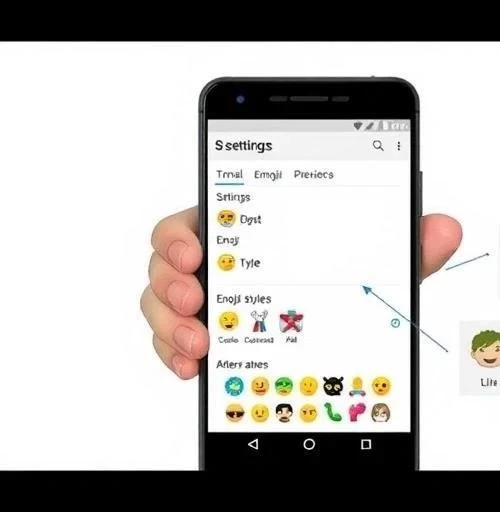
If you want the emojis on your Xiaomi to look different, the right method depends on your phone’s software, region, and keyboard. Xiaomi does not provide one universal “emoji style” switch that changes every emoji everywhere. The safest option is to check the Themes app for a compatible font or theme. If that does not work, you can change the emoji set in certain keyboards or apps, but those changes may only affect what you see while typing.
Check the Themes app
On many Xiaomi phones running MIUI or HyperOS, the Themes app can install fonts. Some fonts include a different emoji design, although availability varies by device, software version, and region.
- Open Themes.
- Tap Fonts, or use the search icon and search for “emoji” or a font style you like.
- Open a font’s details and check its preview and compatibility information.
- Download it, then tap Apply. If prompted, restart your phone.
- Open a few apps and check whether the emoji appearance has changed.
Menu names can differ between MIUI and HyperOS releases. In some versions, fonts are inside a profile or customization section. If you cannot find a Fonts tab, update the Themes app and system software, then check again. Do not install a font file from an unfamiliar website just because it claims to work on every Xiaomi model.
Try a built-in font or theme setting
Some phones let you change the system font through Settings > Display or Settings > Wallpaper & personalization. Select a built-in font and see whether it changes emoji as well as ordinary text. Many fonts change only letters, however, and Android may continue to display its standard emoji. Applying a full theme can also change icons, colors, and lock-screen elements, so review the preview before applying it.
Know what a keyboard can—and cannot—change
Keyboards such as Gboard let you browse, search for, and insert emoji. Their emoji panel may have its own layout, suggestions, stickers, or GIFs, but selecting another keyboard usually does not replace the system emoji design in every app. The emoji you send are encoded as text characters; the recipient’s phone or app chooses how to draw them. As a result, the same emoji can look different on Xiaomi, iPhone, and web platforms.
To select a different keyboard, open Settings > Additional settings > Languages & input (the wording may vary), choose Manage keyboards, enable the keyboard you trust, and set it as the default. This changes the typing tool, not necessarily the system-wide artwork. Emoji stickers or “kitchen” combinations are images, not a replacement font.
Why a new style may not appear everywhere
- Apps can use their own emoji. Messaging and social apps may draw emoji independently of the system font.
- Fonts have fallbacks. If a selected font does not include a particular character, Android may show its standard emoji instead.
- Older software behaves differently. An update can alter font support or reset a customization.
- Other people see their own version. A changed font on your phone does not change the appearance on a recipient’s device.
After applying a font, test several emoji in Settings, a notes app, and your usual messenger. Close and reopen the apps, or restart the phone, before deciding that the change failed. If only some apps show the new style, that is usually an app-specific limitation rather than a fault with your phone.
About region changes and root methods
Online guides sometimes recommend changing the phone’s region to reveal more themes, or replacing system emoji files with root tools. Region settings may affect which content the Themes app displays, but results are not guaranteed and menu availability differs by country and software build. Change a region only if you understand the possible effects on services and settings.
Rooting the phone or installing unofficial emoji modules is not recommended for most users. These methods can weaken security, cause boot problems, interfere with updates, or require a factory reset. They may also stop working after an update. Avoid APKs and font packages from unknown sources, and never grant an app broad access merely to change emoji.
If the change does not work
Confirm that the font was actually applied in Themes, restart the phone, and check for a system or Themes app update. If the font is missing, unsupported, or produces unreadable symbols, return to Themes and reapply the default font. You can also open Settings > Apps > Manage apps > Themes and clear its cache; avoid clearing data unless you are prepared to reset app preferences.
Bottom line
Start with the official Themes app and a compatible font; it is the simplest low-risk way to try a different emoji appearance on Xiaomi. Remember that no theme or keyboard is guaranteed to change emoji in every app. If your phone does not offer a suitable font, keeping the default system style is safer than installing an untrusted modification.

9 Comments. Оставить новый
Helpful explanation of why changing emoji can depend on the Xiaomi model and software version. The warning about fonts from unfamiliar websites is especially useful.
Good practical advice. Checking a font preview and compatibility before applying it is a sensible step.
I like that the article avoids promising one universal setting. Xiaomi features really can differ by region and software version.
I appreciate that this distinguishes system-wide emoji changes from what a keyboard displays. That difference can save a lot of confusion.
The Themes app steps are straightforward, and the note that menus vary across MIUI and HyperOS makes the guide more realistic.
This is a balanced overview of the options, with helpful reminders to check several apps and restart the phone if prompted.
The keyboard section makes an important point: changing the emoji panel may not change how emoji appear throughout the phone.
Clear and easy to follow. Mentioning that full themes may also change icons and colors helps readers know what to expect.
A useful guide for anyone trying to customize a Xiaomi phone without installing questionable files. The compatibility reminders are great.