
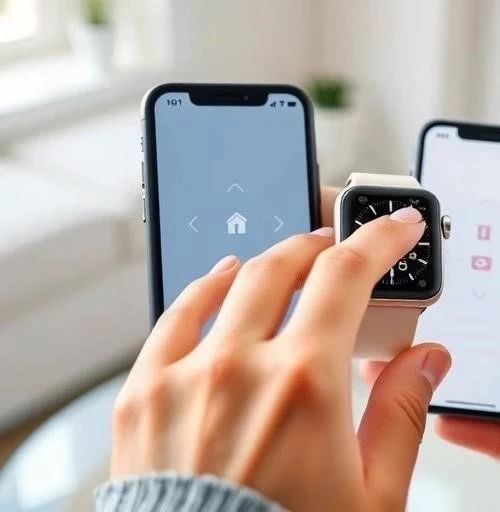
Your Apple Watch can show the time in more ways than a tiny clock on your wrist․ It can run a little ahead to help you leave on time, switch between 12- and 24-hour displays, or turn a favorite photo into a watch face․ The key is knowing which settings change the actual time and which only change how it looks․
First, know where the time comes from
In normal use, Apple Watch gets its time from the paired iPhone, which gets it from a network time source․ That means the simplest fix for an incorrect clock is usually to check the iPhone—not to hunt for a manual time-setting screen on the watch․ Keep the phone connected and make sure its date, time, and time zone are correct․
Set the correct time on your iPhone
- On your iPhone, open Settings, then tap General and Date & Time;
- Turn on Set Automatically․ If it is already on but the time is wrong, check that the iPhone has an internet connection and that Location Services can determine your time zone․
- If you need to choose a time zone yourself, turn off Set Automatically, tap Time Zone, and enter a city․ You may also be able to set the date and time manually on this screen․
- Give the watch a moment to sync․ If it does not update, keep the iPhone and watch nearby, make sure Bluetooth and Wi-Fi are enabled, and restart both devices․
Menu names can vary slightly with your iOS version․ If your iPhone is managed by a workplace or school, some date-and-time options may be restricted․
Make the watch run a little fast
Want a nudge that gets you out the door before the real deadline? Apple lets you advance the time shown on the watch face without changing the underlying time used for alarms, notifications, and events․
- On Apple Watch, open the Settings app․
- Scroll down and tap Clock․
- Tap +0 min or the displayed offset, turn the Digital Crown to choose how many minutes ahead to show, then tap Set․
The face can be set up to 59 minutes ahead․ This is a display trick, not a time-zone change: your calendar and scheduled alarms still follow the actual time․ To undo it, return to Settings > Clock and set the offset back to zero․
Choose 12-hour or 24-hour time
For a 24-hour digital readout, open the Watch app on your iPhone, tap Clock, and switch on 24-Hour Time․ This setting applies to digital time displays where supported; an analog face still uses hands․ If the option is unavailable or the display does not change, check your software version and the particular face or complication you are using․
Change the face, not the clock
A new face can make the watch feel like a new instrument․ Touch and hold the current face, swipe through the available faces, and tap one to use it․ To personalize it, touch and hold again, tap Edit, then turn the Digital Crown to change colors or details․ Swipe to the complications screen to choose what appears in small face slots, such as weather, a timer, or your next appointment․ You can also add and arrange faces in the iPhone’s Watch app․
Complications are more than decoration: they put useful information beside the time․ A world clock complication, for example, can show another city without changing your watch’s own time zone․ Some faces support more complications than others, so try a few layouts before settling on one․
Set a chime or spoken time
For a gentle hourly reminder, open Settings > Clock on the watch and turn on Chimes․ Choose a sound if the option appears․ To have the watch announce the time when you touch and hold the face with two fingers, enable Speak Time in the same Clock settings․ These features may behave differently when Silent Mode or a Focus is active․ They are useful reminders, but they do not alter the clock itself․
If the time still looks wrong
- Check the time zone․ A correct hour with the wrong city often points to the iPhone’s time-zone setting․
- Check the offset․ If the watch is only a few minutes ahead, look under Settings > Clock for the display adjustment․
- Check the face․ A world clock complication may be showing a different city, or a digital face may use a different format․
- Reconnect and restart․ Bring the devices together, check their connection, then restart them if needed․
- Update software․ If menus or behavior do not match these steps, update iOS and watchOS when convenient and consult Apple Support for your model․
A tiny ritual for a more useful watch
Set the real time correctly first; then choose how the watch presents it․ Keep a second-city clock for travel, add a calendar complication for busy mornings, or advance the face by a few minutes if that small psychological head start helps․ Your Apple Watch can be precise and personal at once: one dependable source of time, dressed in a style that fits your day․


4 Comments. Оставить новый
Clear, calm, and refreshingly free of tech mysticism. I like that the advice starts with the phone’s network time source, then moves to the watch’s display offset—like tracing a river upstream before adjusting the clock on its bank.
This turns a surprisingly confusing setting into a small map: correct the source, let the devices sync, or deliberately let the face run ahead. A useful read for punctual dreamers and anyone who has ever tapped around Settings hoping time would explain itself.
A clock that can lie politely is a charming idea, and this article explains exactly how that trick works without making it sound like time travel. The iPhone troubleshooting steps are especially helpful for anyone blaming the watch for a problem that began elsewhere.
This guide draws a useful line between changing the time itself and merely nudging the watch face ahead—a distinction easy to miss when you’re racing out the door. The “59 minutes” detail is a neat little pocket of practical wisdom.