
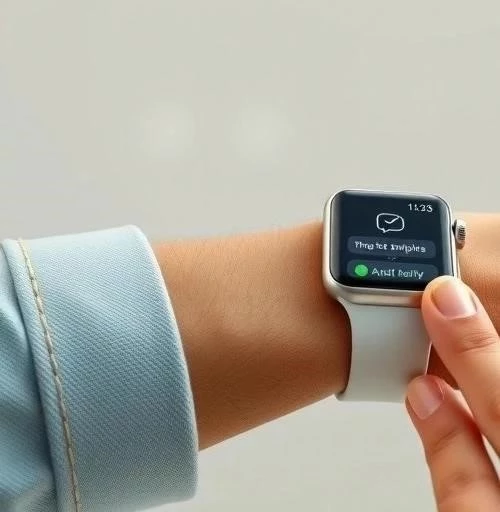
You can reply to WhatsApp messages from your Apple Watch without taking out your iPhone. The quickest option is to respond from a notification. If WhatsApp is available as an app on your watch, you can also open it to view conversations and reply there. The exact options may vary with your watchOS version, WhatsApp version, and settings.
Reply from a notification
- Make sure your iPhone and Apple Watch are paired, connected, and using the same Apple Account.
- On your iPhone, open Watch, tap Notifications, and check that WhatsApp alerts are allowed or mirrored to the watch. Also check Settings > Notifications > WhatsApp on the iPhone.
- When a WhatsApp message arrives, raise your wrist or tap the alert to read it. Scroll down and tap Reply, if that option appears.
- Choose a reply method, review the message, then tap Send.
Ways to compose your reply
Dictation: Tap the microphone and speak naturally. Wait for the words to appear, check names and punctuation, and correct any mistakes before sending. Dictation is useful when typing on the small screen would be awkward; in a noisy place, however, it may mishear you.
Quick replies: Select a suggested response to answer in one tap. These are convenient for brief messages, but may not fit the conversation. If your watch offers editable default replies, customize them in the Watch app on your iPhone.
Scribble or keyboard: Depending on your Apple Watch model, software, language, and screen settings, you may be able to write letters with a finger or type using an on-screen keyboard. Use this for short, specific answers when speaking is inconvenient.
Emoji or voice message: If the reply screen offers emoji, tap one to send it. Some versions may also let you record and send audio. Available controls depend on the installed WhatsApp app and software, so check the screen rather than assuming every option is supported.
Reply in the WhatsApp app
If WhatsApp is installed on your Apple Watch, press the Digital Crown, open the app, and select a conversation. Tap the reply control and use one of the input methods shown. If you cannot find the app, check the App Store on the watch or the available-app list in the Watch app on your iPhone. Update WhatsApp and watchOS if needed.
If replies are missing
First, confirm that WhatsApp notifications are enabled on the iPhone and mirrored to the watch. A muted chat, Focus mode, a locked watch, or an active iPhone may change when or where an alert appears. Keep Bluetooth and Wi-Fi or cellular connectivity available, and restart both devices if alerts remain stuck. Check for software updates before troubleshooting further.
If you can read a message but see no Reply button, open the notification fully and scroll to its bottom. Some alerts or message types may not offer interactive replies. Open WhatsApp on the watch, if installed, or answer from the iPhone instead.
Privacy and practical tips
Notification previews can expose message text on your wrist. To limit this, adjust WhatsApp preview settings on the iPhone and notification privacy options in the Watch app. For reliable dictation, speak clearly and keep the watch near your mouth. Keep replies short: the watch is best for acknowledgements and quick answers, while longer messages are easier to compose on an iPhone.
In short: enable WhatsApp notifications, tap an incoming alert, choose Reply, and select dictation, a quick response, text, or another option offered by your device. If the controls differ, use the WhatsApp app or iPhone; features vary by software version and watch model.
9 Comments. Оставить новый
The note that quick replies may not suit the conversation adds useful perspective. One-tap responses are convenient, but readers are reminded to choose a reply that actually fits.
A helpful guide for anyone hoping to respond without taking out an iPhone. Its cautious wording about app, watchOS, and settings differences makes the guidance more reliable.
This is clearly organized, with setup checks separated from the different ways to compose a reply. That structure makes the instructions easier to follow while using a watch.
The comparison of dictation, quick replies, and on-screen input is helpful. The article explains not only what each method can do but also when it may be less convenient.
The reminders to check both the iPhone and Watch notification settings are practical. A missing alert can be caused by configuration, so checking those settings is a sensible first step.
This is a useful overview because it distinguishes replying from a notification from replying in the WhatsApp app. That helps readers choose the method that best fits their situation.
The advice to review dictated text before sending is especially worthwhile. Speech recognition can mishear names or punctuation, and a quick check can prevent an unintended message.
I appreciate the caveat that available features vary by device and software version. It avoids promising that every Apple Watch user will see the same reply options.
The explanation of notification replies is straightforward and practical. It also appropriately avoids treating optional controls, such as audio replies, as universally available.