
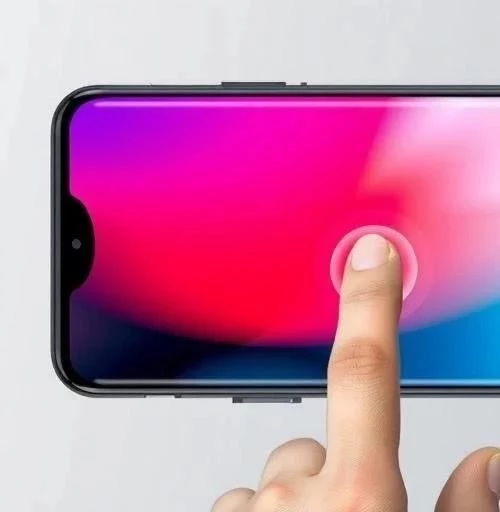
The Xiaomi 13 Lite has an in-display fingerprint sensor. It is located beneath the front screen‚ in the lower part of the display‚ rather than on the back of the phone or in the side power button. When the screen is awake‚ look for the fingerprint symbol near the bottom; this marks the area to touch.
How to unlock the phone
- Wake the display by tapping it or pressing the power button.
- Place the registered fingertip over the fingerprint icon near the bottom of the screen.
- Keep the finger still briefly while the phone reads it. If recognition succeeds‚ the display unlocks.
The sensor works through the display‚ so there is no separate fingerprint button to press. The power key on the phone’s side is used to wake or lock the device‚ but it is not the fingerprint reader. Likewise‚ the cameras and other elements on the rear panel are unrelated to fingerprint recognition.
Setting up fingerprint unlock
If no fingerprint has been added‚ open Settings and find Passwords & security or the fingerprint and screen-lock options. Menu wording can vary with the installed MIUI version and region. Set a screen lock‚ such as a PIN‚ pattern‚ or password‚ if prompted‚ then choose the fingerprint option and follow the on-screen instructions. Touch and lift the same finger as directed so the phone can register different parts of it. You can add more than one finger if the settings allow it.
After setup‚ the fingerprint symbol may appear on the lock screen or when an app requests authentication. Its exact visibility can depend on the display settings and software version. If the icon is not immediately visible‚ wake the screen and check the lower portion of the display rather than searching for a physical sensor on the frame.
If the sensor does not recognize a finger
- Check finger placement. Cover the on-screen icon with the center of the fingertip and hold it steady. Avoid touching only the edge of the marked area.
- Clean and dry the screen and finger. Moisture‚ oil‚ dust‚ or lotion can interfere with reading. Wipe the screen gently with a soft‚ clean cloth.
- Try another registered finger. If that works‚ remove and register the troublesome fingerprint again in Settings.
- Check the screen protector. A thick‚ damaged‚ poorly fitted‚ or incompatible protector may reduce recognition. Follow Xiaomi’s guidance for the protector and fingerprint settings; do not remove it unless you are comfortable doing so.
- Restart and update the phone. A restart or available system update may resolve a temporary software issue.
When adding a fingerprint‚ use the same natural position in which you normally unlock the phone. Registering the fingertip carefully‚ without rushing through the prompts‚ can improve everyday reliability. If recognition remains inconsistent‚ delete the saved print and set it up again with a clean‚ dry finger and an unobstructed sensor area.
Fingerprint unlock and security
The fingerprint reader is a convenient way to unlock the Xiaomi 13 Lite and approve supported actions‚ but it does not replace the backup screen lock. The phone may ask for the PIN‚ pattern‚ or password after a restart‚ after certain security events‚ or when fingerprint authentication is unavailable. This is normal and helps protect access to the device.
In short: the Xiaomi 13 Lite fingerprint sensor is built into the display‚ near its lower edge. Wake the screen and place a registered fingertip over the on-screen fingerprint mark. If the mark is difficult to locate‚ consult the lock-screen prompts or fingerprint settings rather than looking for a sensor on the back or side.

3 Comments. Оставить новый
The setup instructions are helpful, and the note that menu names may vary by software version adds useful context.
The article clearly explains that the Xiaomi 13 Lite uses an in-display fingerprint sensor and distinguishes it from the side power button.
The troubleshooting advice emphasizes proper finger placement and keeping the screen and fingertip clean, which addresses common recognition issues.