
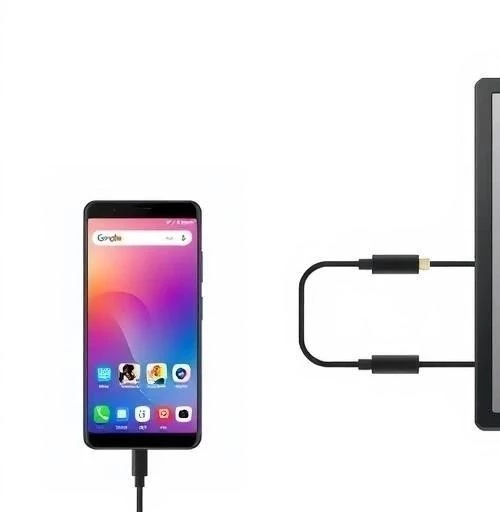
You can connect a Redmi Note 8 Pro to a television with a USB cable‚ but the result depends on what you want to do. A cable may let a compatible TV browse photos or videos stored on the phone. It will not normally mirror the phone’s screen. The Note 8 Pro’s USB-C port does not support standard wired video output‚ so a basic USB-C-to-HDMI adapter is not a solution.
Connect the phone directly to the TV
- Turn on the TV and connect the phone to one of its USB ports using a suitable USB-A-to-USB-C data cable. A charge-only cable will not transfer files.
- Unlock the phone. If a USB notification appears‚ tap it and select File transfer or Transfer files. On some MIUI versions‚ the notification is labelled “Charging this device via USB.”
- Using the TV remote‚ open the TV’s USB or media browser. Choose the phone‚ if it appears‚ then browse to a folder such as DCIM/Camera or Movies and select a supported file.
TV support for Android phones varies. Some televisions recognize the phone as a media device; others show only a charging notification‚ display an empty folder‚ or do not list it at all. Certain TV file browsers cannot read a phone’s MTP connection‚ even when file transfer is enabled. Try another data cable or USB port‚ keep the phone unlocked‚ and check the TV manual for supported USB devices and formats. Changing the phone’s USB mode may help‚ but it cannot make an incompatible TV support MTP.
If you only need to show photos or videos
A dependable alternative is to copy the files to a USB flash drive and plug that drive into the TV. Connect the drive to the phone with a USB-C OTG adapter‚ open a file manager‚ and copy the selected media. If the phone prompts you to allow access to the USB device‚ approve it. The drive’s file system and the video or photo format must be supported by the television. Check available space before copying large videos‚ and safely eject the drive when finished.
For screen mirroring
USB file access is not the same as displaying the phone’s live screen. For mirroring‚ use a wireless option instead: connect the TV and phone to the same Wi-Fi network‚ open Settings or Control Center on the phone‚ tap Cast‚ and select the TV or compatible streaming device. Menu names can differ by MIUI version. If the TV does not appear‚ enable its screen-mirroring function or use a Chromecast-compatible device. A standard USB-C-to-HDMI dongle will not provide video from this model.
Quick troubleshooting
- Try a known data-capable cable‚ not just a charging lead.
- Unlock the phone and select file transfer when prompted.
- Check that the TV is on the correct USB input and supports the file format.
- If the TV cannot browse the phone‚ use a flash drive for media or cast wirelessly for screen mirroring.
In short: USB can work for accessing media on a compatible TV‚ but it does not offer direct wired screen mirroring on the Redmi Note 8 Pro.


9 Comments. Оставить новый
A concise and practical guide. I’d be interested in seeing the rest of the screen-mirroring section and its wireless alternatives.
The explanation of MTP support on televisions is useful. It clarifies that the issue may be the TV rather than the phone or cable.
Clear, practical steps. The reminder to use a data-capable cable rather than a charge-only cable could save readers a lot of troubleshooting.
I appreciate that the guide explains why the phone may charge but still not appear in the TV’s file browser. Compatibility can be confusing.
The distinction between transferring files and mirroring the screen is especially helpful. It sets realistic expectations before anyone buys an adapter.
A straightforward explanation of the Redmi Note 8 Pro’s USB limitations. It’s good to know that a basic USB-C-to-HDMI adapter won’t provide screen mirroring.
This is easy to follow and does a good job of separating media playback from screen casting. Those are often mistaken for the same thing.
Helpful troubleshooting advice, especially keeping the phone unlocked and checking the TV’s supported file formats.
The USB flash drive suggestion is a useful workaround for people who only want to view photos or videos on their TV.