
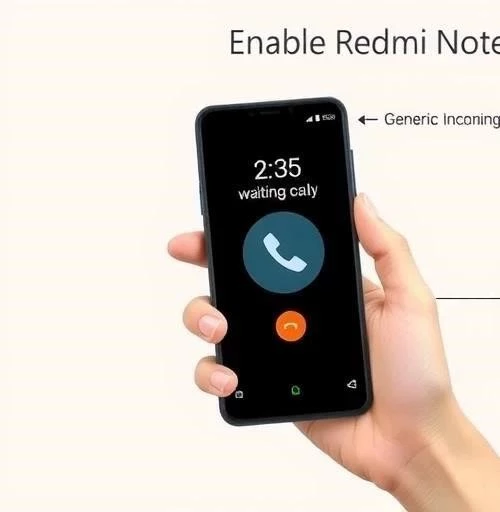
Your Redmi Note 7 can let a second caller tap you on the shoulder while you are already speaking. The feature is called Call waiting: instead of hearing a busy tone, the new caller waits, and your phone lets you know. You can then hold the first call and answer the second, or ignore it and continue talking.
One small but important distinction: call waiting does not give you a second phone number or a second active conversation. It manages incoming calls to a SIM while that SIM is already in a call. The feature usually has to be supported by your mobile operator, too.
Turn it on in the Phone app
- Open the Phone app—the one you use to make calls.
- Tap the menu icon. Depending on your app and MIUI version, this may be three dots in the corner or a settings icon.
- Open Settings, then look for Calling accounts, SIM cards & mobile networks, or a similarly named option.
- If your Redmi Note 7 has two SIM cards, select the SIM for which you want call waiting.
- Tap Additional settings (sometimes called Supplementary services).
- Open Call waiting and switch it on. If prompted, wait a few seconds while the phone contacts your carrier.
The exact labels can shift between MIUI releases and Phone app versions. On some Redmi Note 7 builds, the route is Phone → menu → Settings → Calling accounts → [SIM] → Additional settings → Call waiting. On others, the SIM selection appears earlier. Follow the names you see rather than searching for one exact screen;
What happens when another person calls?
During a call, you should hear a short beep or see an incoming-call screen. The controls vary, but usually let you put the current caller on hold and answer the new one, end the first call and answer, or reject the new call. If you answer, the first person is normally placed on hold—not silently merged into a conference. Use the on-screen call controls to switch between callers.
Try it with a friend after enabling the setting. Make one call to your Redmi Note 7, then ask someone else to call the same number. Keep the first call connected and watch for the notification. Avoid testing with an urgent conversation: call waiting is a traffic signal, not a promise that every network will behave identically.
If you can’t find the setting
- Check the selected SIM. Call waiting is generally configured separately for each SIM. If you use two SIMs, repeat the steps for the other one if needed.
- Search Settings. Type “call waiting” in the Settings search box, if your MIUI version has one. You can also search within the Phone app’s settings.
- Use a network code only if your carrier supports it. Some operators use
43#to activate call waiting and#43#to check its status. Codes are not universal: confirm the correct code with your operator before dialing. A code may need to be entered using the SIM you want to configure. - Ask your carrier to enable the service. If the switch is missing, greyed out, or returns an error, call waiting may not be provisioned on your plan or network. Ask support to check the service for that specific SIM.
When the switch is on but nothing happens
First, restart the phone and check the setting again. Make sure the SIM has cellular service and can make ordinary voice calls. If you are using two SIMs, confirm that the incoming call is reaching the same number and SIM that is already on a call. A call to SIM 2 while SIM 1 is busy is not always treated as call waiting; dual-SIM behavior depends on the phone’s radio setup and the operator.
Also check whether call forwarding, “Do Not Disturb,” or a carrier voicemail rule is changing what happens to incoming calls. These features are separate from call waiting, but can affect what you notice. If you recently changed networks, replaced your SIM, or updated the Phone app, ask the operator to refresh the feature on its network and then test again.
Do not confuse call waiting with call forwarding. Forwarding sends calls elsewhere; waiting alerts you to another call while you are speaking. Nor does it guarantee that you can keep two calls active at once: the network and your plan decide which supplementary services are available.
A quick checklist
- Open the Phone app settings.
- Select the correct SIM and enable Call waiting under additional or supplementary settings.
- Test by calling your number while another call is connected.
- If it fails, contact your operator before trying an unfamiliar dial code.
Once the carrier and phone agree, your Redmi Note 7 becomes a tiny switchboard: one caller can stay on hold while another gets through. The setting is simple; the network behind it is the part that sometimes needs persuading;
1 Comment. Оставить новый
A helpful guide that treats call waiting like a polite tap on the shoulder rather than a mysterious phone feature. The reminder that carrier support matters—and that dual-SIM menus can differ—saves readers from blaming their Redmi when the setting simply isn’t available.