
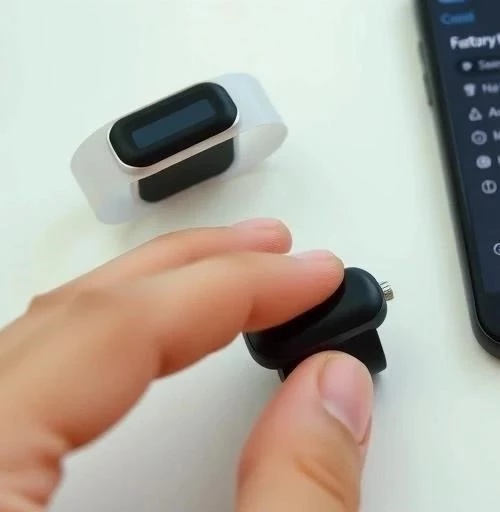
Your Mi Band 3 is a tiny companion with a surprisingly long memory: it keeps settings‚ pairing details‚ and unsynced activity close at hand․ If you are passing it on‚ fixing a stubborn connection‚ or simply starting over‚ a factory reset can clear the band itself․ Think of it as a clean slate—not a reset button for your phone‚ and not a magic eraser for data already stored in an app․
Before you begin
If the band still connects to your phone‚ open the Mi Fit app (now commonly called Zepp Life) and let it sync first․ Unsynced steps and other activity may be lost when you reset․ Keep the band charged‚ and remember which account it is linked to․ A reset does not necessarily remove the band from your account or automatically unpair it from the phone․
Also‚ the Mi Band 3’s menus can look slightly different depending on its firmware and language․ The names below are the usual ones; swipe through the band’s screens if an item is not immediately visible․
Reset the band from its screen
- Wake the Mi Band 3 by tapping its display or pressing the touch button below the screen․
- Swipe through the menu until you reach More‚ then tap the button to open it․
- Swipe to Settings and open that menu․
- Find Factory reset and select it․ If a confirmation appears‚ press and hold the touch button as instructed․
- Wait while the band clears its settings and returns to its initial setup screen․ Keep it charged and do not interrupt the process․
Once the reset is complete‚ the band is ready to be paired again․ In Zepp Life‚ sign in to the account you want to use‚ choose the option to add a device‚ select the Mi Band‚ and follow the on-screen prompts․ Confirm the pairing request on the band if one appears․ If it belongs to someone else‚ ask them to remove it from their app and account before you try to connect it․
If you cannot find “Factory reset”
Check that you have opened the band’s own More → Settings menu‚ rather than looking in the phone app․ Scroll through every item; the small screen can make menus easy to skim past․ If the option is absent‚ update the companion app‚ sync the band‚ and check again․ Menu availability may depend on firmware․ Do not follow instructions for resetting an Android phone: they are unrelated and could erase the wrong device․
If the band will not pair afterward
First‚ make sure Bluetooth is on and the band has charge․ In Zepp Life‚ look for the old Mi Band under the account’s device settings and choose Unpair or Remove device․ On your phone‚ you can also forget an old Bluetooth entry‚ then restart Bluetooth and try adding the band through the app—not through the phone’s Bluetooth menu alone․ Keep the band close to the phone while pairing․
If it still refuses to connect‚ close and reopen the app‚ restart the phone‚ and try once more․ A reset cannot bypass an account link left by a previous owner; that person may need to unlink the band․ If the screen is frozen‚ place the band on its charger and allow it to charge before trying the menu again․ The Mi Band 3 does not have the same reset options as a smartphone‚ so avoid random button combinations or unofficial firmware tools․
What the reset changes
A factory reset clears the band’s local settings and pairing state․ It does not factory-reset your phone‚ delete your Mi account‚ or guarantee removal of synced records from the app or cloud․ If you are selling or giving the band away‚ sync what you need‚ reset it‚ and then remove it from your account in the companion app․ That final unlink is the small but important step that lets its next owner begin without inheriting your digital footsteps․

1 Comment. Оставить новый
A reset guide with its feet on the ground: it separates what the band can erase from what lives in the app or account, preventing a small troubleshooting step from turning into a data surprise. The calm, practical details make this feel less like a manual and more like a reassuring map through a tiny maze.