
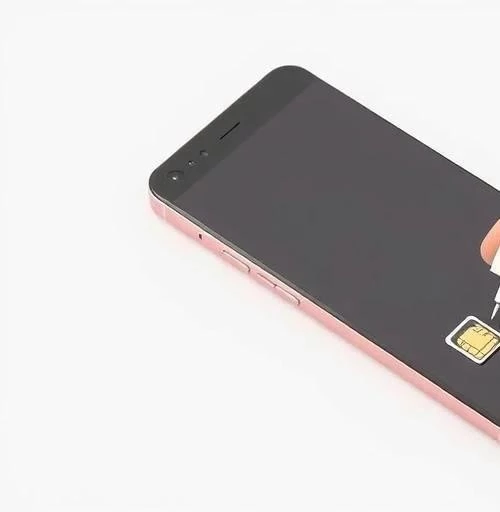
The Xiaomi Redmi 4X uses a removable SIM tray on the side of the phone. The tray supports two SIM cards, or one SIM card and a microSD memory card, depending on how it is configured. Before starting, check the card sizes and tray positions so that each card fits correctly. Do not force a card or the tray into the phone.
What you need
- A compatible SIM card. The Redmi 4X uses a hybrid tray; the SIM positions may take different card sizes. Compare your cards with the tray outlines or check the phone’s documentation.
- The SIM-eject tool supplied with the phone. If it is unavailable, use a straightened paper clip with a narrow end. Avoid needles or other sharp objects that could damage the opening.
Insertion steps
- Turn the phone off. Hold the power button and choose the power-off option. Wait until the display is completely dark before removing the tray.
- Find the tray. Look along the phone’s side for a small rectangular outline with a pinhole beside it. The pinhole is the eject mechanism; it is not a microphone opening.
- Eject the tray. Place the phone on a stable surface. Insert the tool straight into the tray’s pinhole and press gently until the tray releases. Do not twist the tool or push at an angle.
- Remove the tray carefully. Pull it out with your fingers, keeping it level. Notice the shape and position of the card recesses before placing anything in them.
- Position the card or cards. Match each SIM’s clipped corner to the outline in the tray. The metal contacts should face the direction indicated by the tray’s shape. For dual-SIM use, place a compatible card in each SIM recess. To use a memory card instead of a second SIM, put the microSD card in the shared position, if supported by the tray.
- Reinsert the tray. Keep the cards flat and seated in their recesses. Align the tray with its slot and slide it in gently until it sits flush with the phone’s edge. If it catches or will not go in smoothly, pull it out and check the card orientation rather than pressing harder.
- Restart the phone. Turn the Redmi 4X on and wait for it to detect the SIM. Enter the SIM PIN if requested. Check the signal indicator or open the mobile-network settings to confirm that the card is recognised.
If the SIM is not detected
Switch the phone off and remove the tray again. Check that the card is the correct size, lies flat, and has not shifted. Inspect the contacts for visible dirt or damage; do not scrape them or apply liquid. Reinsert the tray gently, then restart the phone. If possible, test the SIM in another compatible device, or try a known-working SIM in the Redmi 4X. This can help identify whether the issue is with the card or the phone.
If the phone reports “No SIM,” confirm that the card is active with your mobile provider and that airplane mode is off. A damaged card, tray, or reader may require assistance from the provider or a qualified repair service. Avoid opening the phone yourself.
Important notes
The second SIM and microSD card share a hybrid position, so they generally cannot be used there at the same time. The exact card arrangement depends on the tray version. Follow the recess outlines rather than relying on a picture of a different Redmi 4X model. If the tray is bent or does not sit flush, stop and have it checked; using the phone with a misaligned tray can damage the slot.
6 Comments. Оставить новый
The article explains the hybrid tray arrangement and notes that a memory card may share a position with a second SIM. Checking the phone documentation before insertion is a practical recommendation.
The step-by-step format makes the process easy to follow. The suggestion to place the phone on a stable surface and keep the tray level adds helpful detail.
The safety guidance is straightforward, particularly the advice to use the supplied eject tool or a narrow paper clip and avoid sharp objects.
The explanation distinguishes the tray eject pinhole from a microphone opening, an important detail for users unfamiliar with the phone. The preparation section also identifies the basic tools needed.
The article highlights card orientation and tray alignment, which can help prevent common insertion problems. It also advises checking the fit rather than applying force.
The instructions provide a clear sequence for powering off the phone, ejecting the tray, and inserting the cards. The reminders not to force the tray or cards are useful.