
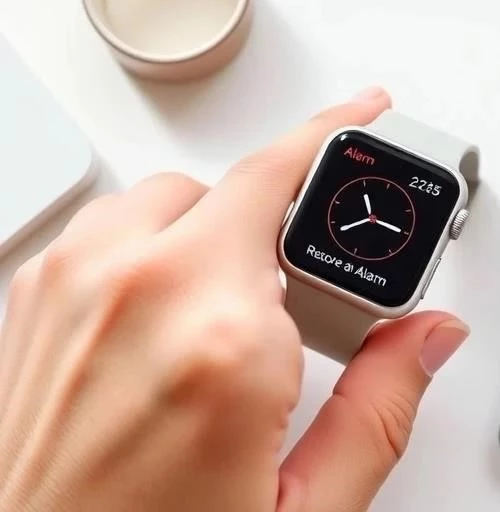
An Apple Watch alarm is a tiny lighthouse for your morning: it should appear when you need it, tap your wrist, and guide you out of sleep․ If yours has vanished—or is present but mysteriously quiet—start by finding out which kind of “missing” you’re dealing with․ The alarm app, an individual alarm, and an iPhone alarm mirrored to your watch are related, but they are not the same thing․
Look for the Alarms app
Press the Digital Crown to open the app list or app grid, then look for Alarms․ If you use the grid, turn the Crown to zoom in, or switch to the list view if the icons have become a crowded constellation․ You can also ask Siri on the watch: “Open Alarms․”
If the Alarms app is gone, it may have been deleted․ On supported versions of watchOS, Apple’s built-in apps can be downloaded again:
- Press the Digital Crown and open the App Store on your watch․
- Tap Search and look for Alarms․
- Choose the app published by Apple, then tap the download button․
- After installation, open it and check whether your alarms are back․
If you cannot find the app in the watch’s App Store, open the App Store on your paired iPhone and search for Apple’s Alarms app there․ Availability and labels can differ slightly by software version․ Make sure the watch is connected to Wi-Fi or its iPhone and has enough battery to finish the download․
Re-create an alarm that was deleted
An alarm list can look empty even though the app itself is working perfectly․ Open Alarms, tap Add Alarm (the plus button, if shown), and turn the Digital Crown to set the hour and minutes․ Confirm the time, then tap the alarm to adjust options such as repeat days, label, and snooze․
For a weekday wake-up, set the repeat schedule rather than relying on memory to recreate it each evening․ Give the alarm a clear label—“Train,” “Medication,” or “Wake up”—so a list of times feels less like a row of unexplained numbers․ If you need a one-time reminder, check that repeat is off․
Check whether your iPhone alarm should appear
Apple Watch does not necessarily display every alarm set on the iPhone automatically․ To have eligible iPhone alerts reflected on your watch, check the iPhone’s Watch app:
- Open the Watch app on your iPhone․
- Tap My Watch, then open Clock․
- Turn on Push Alerts from iPhone, if that option is available․
This setting is for notifications about iPhone alarms; it is not a magic restore button for an alarm that has been deleted from the watch․ If you want a dependable wake-up alarm on your wrist, create it directly in the watch’s Alarms app too․ After changing the setting, set a test alarm a few minutes ahead and see what happens․
The alarm is there, but it does not wake you
First, test the watch while you are awake․ Set an alarm two or three minutes ahead, wear the watch snugly, and keep the screen visible․ That quick experiment helps separate a settings problem from a sleep routine problem․
- Check the time and repeat days․ A․m․/p․m․ errors or an unexpected repeat schedule can make an alarm seem to have disappeared․
- Check sound and haptics․ Open the alarm’s options and confirm that the alert is configured as you expect․ In Settings > Sounds & Haptics, review alert volume and haptic settings․
- Remember Silent Mode․ Silent Mode can change how the watch alerts; it does not automatically mean that every alarm is useless․ If you depend on vibration, confirm that haptics are enabled and feel strong enough․
- Wear the watch properly․ A loose band can make wrist taps easy to miss․ The watch should sit comfortably against your skin, not slide around․
- Check power and charging․ A watch that runs out of battery cannot deliver an alert․ If you sleep with it on, charge it before bed and confirm that enough battery remains for the night․
Also consider where the alarm was created․ An alarm on the iPhone and one on the watch can behave differently, depending on your notification settings and which device is being worn or used․ For an important early start, set a watch alarm and keep a separate backup—such as an iPhone alarm—until you have tested your setup․
If the app or alarm still will not return
Restart the Apple Watch and its paired iPhone, then check again․ If the watch software is outdated, install available updates from the iPhone’s Watch app under General > Software Update․ Keep the devices nearby, connected, and charged while an update runs․
If only one alarm behaves strangely, delete that alarm and create it again․ If the Alarms app repeatedly disappears, will not download, or fails to open, check Apple’s current support guidance for your watchOS version or contact Apple Support․ Avoid erasing the watch as a first move: that is a much larger fix than a missing alarm usually deserves․
A two-minute recovery checklist
- Find or reinstall the Alarms app․
- Create a fresh alarm directly on the watch․
- Verify its time, repeat schedule, sound, and haptics․
- Enable iPhone alarm alerts in the Watch app if you want them mirrored․
- Run a short test before trusting it overnight․
Once the test alarm taps your wrist on schedule, your morning lighthouse is back․ The best recovery is not merely making the icon reappear; it is proving that the alarm you depend on can actually reach you․


1 Comment. Оставить новый
The “tiny lighthouse” image makes a frustrating tech problem feel surprisingly human. I especially like the distinction between a missing app and a missing alarm—two dark corners that can look identical until you know where to shine the beam. The practical steps are clear without turning the watch into a maze of menus.