
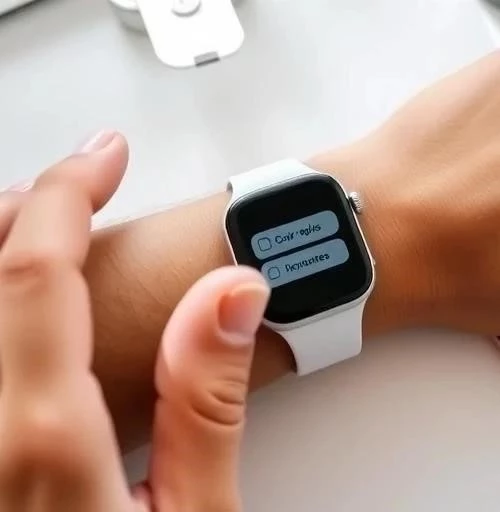
Quick replies let you answer a message from your wrist without typing a full response. You can choose a suggested reply or create your own reusable phrases‚ such as “On my way” or “I’ll call you later.” The wording and availability of some options can vary slightly by watchOS and iOS version‚ but you can manage your personal replies in the Watch app on your iPhone.
Customize your default replies
- Keep your Apple Watch paired with your iPhone‚ then open the Watch app on the phone.
- Tap My Watch if that tab is not already selected.
- Scroll down and tap Messages.
- Choose Default Replies. You’ll see the phrases available when you respond to a message.
- Tap a reply to change its wording. To create a new one‚ tap Add Reply‚ enter a short phrase‚ and save it.
Use language you would naturally send‚ and make each phrase easy to recognize at a glance. For example‚ you might add “I’m in a meeting‚” “Please send me the details‚” or “Thanks—I’ll get back to you.” These are templates‚ not automatic responses: you select one before it is sent.
Send a quick reply from your watch
When a message notification arrives‚ raise your wrist or tap the notification to open the conversation. Tap Reply‚ then select a suggested response or one of your saved default replies. Depending on the screen and software version‚ you may need to scroll to see all the choices. Tap a phrase to send it.
You can also respond with dictation‚ Scribble‚ emoji‚ or the keyboard if your watch model and settings support those methods. These options are useful when a saved phrase does not fit. Review dictated or written text before sending‚ particularly when names or similar-sounding words could be misunderstood.
Smart Replies and saved replies
Apple Watch may show Smart Replies: suggestions generated from the message you received. They are different from your default replies. A Smart Reply is contextual and can change from one conversation to another; a default reply is a phrase you have chosen to keep available. If the suggestions do not appear‚ open the message and look for Reply or scroll through the available response options. The exact layout may differ across watchOS versions.
Some apps provide their own response options‚ and not every messaging app supports the same reply features. The steps above apply to the Messages settings provided by Apple. If you use a third-party messaging service‚ check its Watch app or iPhone app for additional options.
Edit‚ remove‚ and organize phrases
Return to Watch on your iPhone‚ then go to My Watch > Messages > Default Replies. Tap a saved phrase to revise it. To remove a phrase‚ use the editing controls shown on that screen; the available controls can differ by software version. If an Edit button appears‚ use it to manage the list. Keep frequently used responses near the top if your version lets you reorder them.
Short replies are usually easiest to select on a small display. Avoid storing several phrases that mean almost the same thing. A compact set for common situations is faster to scan and makes it less likely that you’ll tap the wrong response.
If your replies do not appear
- Confirm that the Watch is paired with your iPhone and that Messages notifications are enabled.
- Check that you opened the message conversation and selected Reply; replies may not be offered in every notification or app.
- Reopen the Watch app and verify that your phrases are still listed under Default Replies.
- Restart both devices if changes do not appear‚ and install available iOS or watchOS updates if the problem continues.
Once configured‚ quick replies make routine messages easier to handle without reaching for your phone. Add a few phrases you genuinely use‚ test them in a conversation‚ and adjust the list whenever your needs change.
3 Comments. Оставить новый
The step-by-step instructions make customization easy to follow, and the examples are useful for everyday situations. The reminder to review dictation before sending is a helpful touch.
A useful overview for anyone who wants to respond more quickly from their wrist. Mentioning that features can vary by software version helps set realistic expectations.
This is a clear, practical guide to setting up and using quick replies on Apple Watch. I especially appreciate the distinction between Smart Replies and saved replies.