
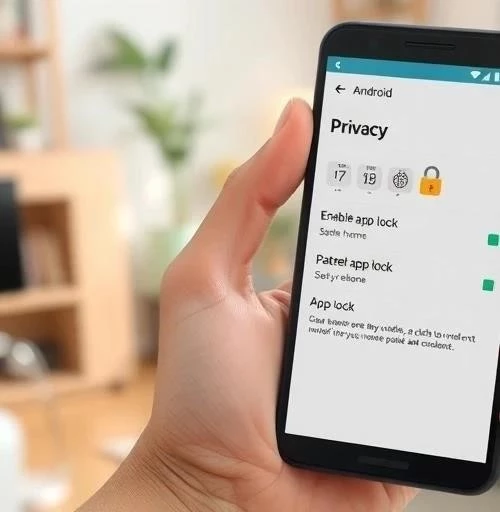
You can protect individual apps on a Xiaomi Redmi 9 with MIUI’s built-in App lock feature. It asks for a pattern, PIN, or password before a selected app opens. Menu names and locations can differ slightly depending on your MIUI version, but the steps below cover the usual options.
Turn on App lock
- Open Settings on your phone.
- Scroll down and tap Apps, then choose App lock. On some versions, App lock is listed directly in Settings. You can also open the Security app and find App lock there.
- Tap Turn on or Set password. Create an unlock pattern when prompted. Depending on the software version, you may be able to choose a PIN or password instead. Enter it again to confirm.
- Sign in to your Xiaomi Account if the phone offers this option. Linking an account can help with recovery if you forget the lock. Follow the on-screen instructions; account linking may be optional.
- The phone will show a list of installed apps. Switch on the lock beside each app you want to protect, such as Messages, Photos, email, or a banking app.
- Leave Settings and open one of the selected apps to test the lock. Enter your pattern, PIN, or password when asked.
Use fingerprint or face unlock
If your Redmi 9 has fingerprint or face unlock configured, App lock may let you use it for convenience. Open Settings > Apps > App lock, tap the gear icon or settings menu, and look for options such as Unlock with fingerprint or Face unlock. Enable only the methods you want to use. Your App lock password remains important: it may still be requested after a restart, settings change, or failed biometric attempt.
Choose when apps relock
In App lock settings, check for an option controlling when locked apps are protected again. Depending on your MIUI build, choices may include locking immediately, after the screen is locked, or after leaving an app for a short time. For stronger privacy, select the immediate option if available. You can also hide notification content from the lock screen through the phone’s notification settings, since App lock does not necessarily conceal message previews.
If App lock is missing
First, search Settings for “App lock” or check the Security app. Menu placement varies by MIUI version and region. Install available official system updates, then restart the phone and search again. If the feature is still unavailable, your software build may not offer it in the same location. Avoid unknown third-party locker apps: they may request broad permissions and cannot provide the same system integration.
If you forget the password
On the App lock screen, look for Forgot password? and follow the recovery instructions, which may ask you to verify your Xiaomi Account. If recovery is not offered, check Xiaomi’s official support guidance for your software version before resetting the phone; a factory reset can erase personal data. Keep a current backup, never share your unlock code, and remember that App lock protects access to apps—it does not replace a secure screen lock.


9 Comments. Оставить новый
Helpful explanation of the relock settings. Choosing immediate locking seems like a good recommendation for privacy.
The reminder to link a Xiaomi Account for recovery is helpful, especially for anyone who might forget their pattern.
Good overview of the setup process. Testing a locked app afterward is a simple but useful step.
The biometric section is a useful addition. It makes clear that a password or pattern may still be needed in some situations.
Clear and practical instructions. I appreciate the note that App lock can be found in different places depending on the MIUI version.
A concise, practical guide for protecting private apps without installing extra software.
I like that this explains both the usual Settings route and the option to use the Security app.
Straightforward and easy to follow. The examples of apps to protect help readers decide where to start.
This guide avoids assuming every Redmi 9 has the same menu layout, which makes it more useful.