
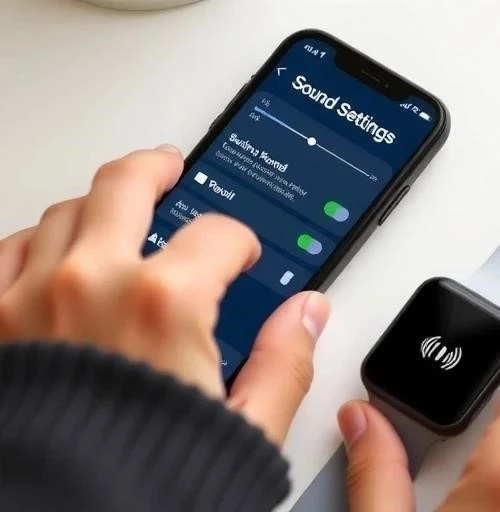
If you want to give your Apple Watch Series 3 a different sound for incoming calls‚ there is an important limitation: watchOS does not provide a setting for choosing a separate ringtone or installing a custom ringtone on the watch. You can adjust the watch’s alert volume‚ turn audible alerts off‚ and use haptic alerts. You can also change the ringtone on the paired iPhone‚ but that does not add a ringtone-selection menu to the watch.
Can you select a ringtone on the watch?
No. Apple Watch Series 3 does not let you browse‚ buy‚ or assign ringtone files in the way an iPhone does. The Watch app on the iPhone also has no control for selecting a separate Apple Watch ringtone. If you have looked through the settings and cannot find a list of tones‚ this is expected—not a fault with your watch.
Incoming-call alerts are managed by the watch’s call and sound settings. Depending on how your iPhone and watch are configured‚ the phone may play its chosen ringtone while the watch gives an audible alert‚ a vibration‚ or both. Changing the iPhone’s ringtone changes the sound used by the iPhone; it should not be treated as a way to install a custom sound on the watch itself.
Adjust sound and vibration on Apple Watch
- Press the Digital Crown to open the app list or Home screen.
- Open Settings on the watch.
- Tap Sounds & Haptics.
- Use the Alert Volume control‚ or turn the Digital Crown‚ to make alerts louder or quieter.
- Choose whether Silent Mode is on. When silent mode is enabled‚ the watch mutes many audible alerts but can still tap your wrist if haptic alerts are enabled.
- Turn Haptic Alerts on or off to control vibration for alerts. If available‚ select the prominent haptic option for a stronger tap.
The names and arrangement of controls can vary slightly with the watchOS version installed. You can also adjust sound and haptic controls from the paired iPhone: open the Watch app‚ tap My Watch‚ and choose Sounds & Haptics. If a control is not shown there‚ check the Settings app directly on the watch.
Change the ringtone on the paired iPhone
If your goal is to change the sound your iPhone plays when someone calls‚ use the iPhone rather than the watch:
- Open Settings on the iPhone paired with your Apple Watch.
- Tap Sounds & Haptics (on some iOS versions this may be called Sounds).
- Tap Ringtone.
- Tap a tone to preview and select it. If you have a custom ringtone available on the iPhone‚ it may appear in this list.
This changes the iPhone’s ringtone‚ not a ringtone file stored on the Apple Watch. The watch can still provide its own call notification according to its sound‚ silent-mode‚ and haptic settings. Test with an incoming call to see how your particular setup behaves.
If the watch does not make a sound
- Check Silent Mode and raise Alert Volume in Sounds & Haptics.
- Make sure the watch is not in a Focus mode that silences or filters calls. Check the Focus settings on both devices if they are shared.
- Check that the watch is unlocked and being worn. Wrist detection and connection status can affect how alerts are delivered.
- Confirm that the iPhone and watch are connected and that calls are reaching the paired iPhone. Bluetooth‚ Wi-Fi‚ cellular availability‚ and call settings can affect notifications.
- Restart both devices if settings appear correct but call alerts still do not behave as expected. Install only software updates that are offered for your specific devices.
What about custom sounds?
A sound file‚ song‚ or custom ringtone cannot be assigned as an Apple Watch Series 3 call tone through the watch’s standard settings. Adding music to the watch for listening is a different feature and does not change call alerts. Likewise‚ changing a contact’s ringtone on the iPhone may customize that contact’s calls on the phone‚ but it does not create a separate custom-tone option on the watch.
In short: you cannot directly change or add a ringtone on Apple Watch Series 3. To make alerts more noticeable‚ adjust Alert Volume or enable haptics. To choose a different iPhone ringtone‚ change it in the iPhone’s Sounds & Haptics settings.


5 Comments. Оставить новый
The article clearly explains that Apple Watch Series 3 does not support choosing a separate ringtone and distinguishes watch settings from iPhone ringtone settings.
The step-by-step instructions make it easy to find the sound and haptic controls on the watch.
The article sets clear expectations about ringtone limitations and notes that settings may differ slightly by watchOS version.
This is a concise guide to adjusting alert volume and vibration on Apple Watch Series 3.
The explanation of Silent Mode and haptic alerts is useful for readers who want to adjust how incoming calls are announced.