
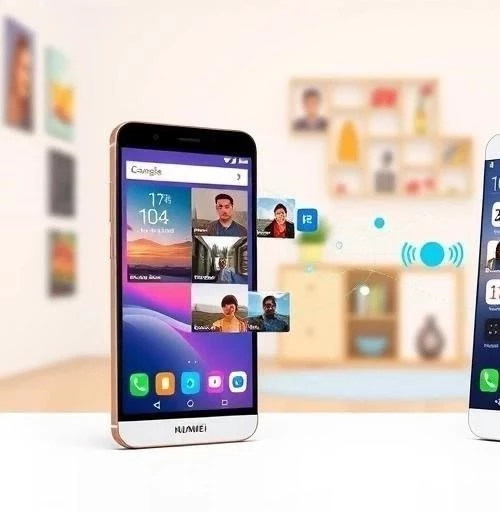
Moving data from a Huawei phone to a Xiaomi is straightforward if you choose a method that fits the amount and type of information. A direct wireless transfer is convenient for most users, while a computer or cloud storage can be more reliable for large archives. Before starting, keep both phones charged, connect them to Wi-Fi if needed, and do not erase the Huawei until you have checked the Xiaomi.
Method 1: Use Xiaomi’s Mi Mover
Mi Mover, also called Xiaomi Switch on some devices, is designed to copy data to a Xiaomi phone. Menu names and availability vary by model and software version, so search Settings or Xiaomi’s app store if you cannot find it.
- Install or open Mi Mover on both phones if the app is available for each.
- On the Xiaomi, choose the option indicating that it is the new or receiving phone.
- On the Huawei, choose the old or sending phone, then follow the prompts to connect the devices. Keep them close together.
- Select the data categories offered, review the selection, and start the transfer. Leave both screens on until it finishes.
This is often the simplest choice because it can move several categories in one session. However, the items supported depend on the phones and app versions. Check the result rather than assuming every app, account, or setting was copied.
Method 2: Transfer files wirelessly
For photos, videos, documents, and music, use a file-sharing app such as ShareMe if it is available on both devices. Open the app, select Send on Huawei and Receive on Xiaomi, then connect using the QR code or local Wi-Fi instructions. Keep the phones on the same local connection and avoid closing the app during transfer. This method is useful when you want to choose specific files instead of migrating the whole phone.
Android’s Quick Share may also work between compatible devices; Turn on Wi-Fi and Bluetooth, choose files, tap Share, and select the Xiaomi when it appears. Availability and names can vary by software version.
Method 3: Use a computer
A computer is a dependable option for a large photo or video library. Connect the Huawei by USB, unlock it, and select File transfer on the phone if prompted. Copy the folders you need to the computer. Then connect the Xiaomi, select File transfer, and copy the files into suitable folders, such as DCIM or Documents. Open a few files on the Xiaomi before deleting anything from the source phone.
Contacts, messages, and apps
Contacts can be synchronized through an account supported on both phones, or exported from Huawei as a VCF file and imported on Xiaomi. Calendar availability depends on where it is stored. Messaging histories and app data may require each app’s own backup-and-restore feature; transferring an app icon does not necessarily transfer its data. Huawei phones without Google services may not offer Google backup, so use local transfer or the relevant app’s supported method.
Final checks
Compare photo counts, open important documents, and confirm that contacts and chats are present. Keep the Huawei unchanged until these checks are complete. For private files, use a trusted transfer method and avoid public Wi-Fi. The best approach is usually Mi Mover for a broad migration, with computer or wireless file sharing as a practical fallback.
5 Comments. Оставить новый
The guide gives a practical overview of transferring data from Huawei to Xiaomi and appropriately recommends checking the new phone before erasing the old one. That reminder is important because transfer tools may not copy every app or setting.
The preparation advice is sensible: charging both phones, using Wi-Fi where needed, and delaying the reset of the Huawei can prevent avoidable problems. The guide would be even more useful if the remaining methods also included steps for contacts and messages.
The separate wireless file-transfer option is useful for readers who only need selected photos, videos, or documents. The instructions to keep the devices nearby and leave the app open also address common causes of interrupted transfers.
The article is easy to follow because it distinguishes a full-phone migration from sharing individual files. Mentioning that menu names and app availability vary by software version helps readers understand why their screens may differ.
It is helpful that the article explains Mi Mover as a convenient option while noting that availability and supported data can vary by device. This makes the advice more realistic than presenting one transfer method as guaranteed to work for everyone.