
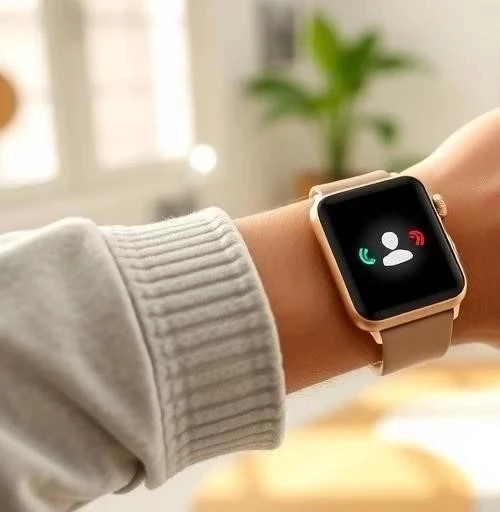
Apple Watch Series 3 can make and receive calls in different ways, depending on whether it is the GPS model or the GPS + Cellular model. A GPS watch can use the iPhone’s connection when the phone is nearby. A Cellular model can also connect to a mobile network when it is away from the iPhone, provided cellular service has been set up and is available. The exact options depend on your carrier and location.
Before you start
- Pair the watch with an iPhone and complete the basic setup in the Apple Watch app.
- For calls through the iPhone, keep the phone powered on and within Bluetooth range, or make sure both devices can use a supported Wi-Fi connection.
- For calls away from the iPhone, you need the GPS + Cellular version, an eligible carrier plan, and cellular service enabled on the watch. A GPS-only Series 3 does not have its own mobile-network connection.
- Check that Airplane Mode is off and that the watch has sufficient battery power.
Make a call from the watch
- Press the Digital Crown to open the Home screen, then tap the Phone app.
- Choose a contact, a recent call, or Favorites. Depending on the screen shown, you can also tap Keypad to enter a number.
- Tap the person’s number or the call button to start the call. If prompted, select an available audio route.
You can also ask Siri to call a person in your contacts. Raise your wrist and speak, or press and hold the Digital Crown, then say something such as “Call Alex.” Check that the name or number is correct if you have similar contacts. Siri needs a suitable connection, and the watch may ask you to confirm the call.
Answer and control calls
When a call comes in, tap the green answer button to speak through the watch’s built-in microphone and speaker. Tap the red button to decline. If you want to answer on your iPhone instead, use the phone’s controls. During a call, use the Digital Crown to adjust volume. Tap the mute control to silence your microphone, or tap the end-call button when finished.
For more privacy or clearer sound, connect compatible Bluetooth headphones to the watch. You can also transfer a call between the watch and iPhone using the call controls available on the devices. The available audio options can vary with the connection and software version.
Set up cellular service
On a GPS + Cellular Series 3, open the Apple Watch app on the paired iPhone. Tap My Watch, then Cellular and Set Up Cellular. Follow the carrier’s instructions to add the watch to an eligible plan. In many cases the watch shares the iPhone’s number for billing or caller identification, but plan terms and setup differ by carrier. Contact the carrier if the setup option is missing or activation fails.
After activation, the watch can use cellular service when it is out of Bluetooth range and not connected through Wi-Fi, as long as coverage is available. Cellular capability does not mean every call will work everywhere: signal strength, account status, carrier support, and roaming rules may affect service. Check with your carrier before relying on roaming.
If a call does not work
- Confirm whether your watch is GPS or GPS + Cellular. Only the Cellular model can connect to a mobile network by itself.
- For an iPhone-connected call, check Bluetooth and Wi-Fi, keep the iPhone online, and verify that it can make calls.
- For a cellular call, check the plan and coverage. In Control Center, look for the cellular indicator; contact the carrier if service is not active.
- Restart both devices, check their connection settings, and install compatible available software updates if possible.
Apple Watch Series 3 is an older model, and current carrier, software, or iPhone compatibility may limit setup. If pairing or cellular activation is unavailable, check Apple’s and your carrier’s current support information. The key distinction remains simple: nearby iPhone connectivity can support calls on either model, while independent mobile-network calling requires the Cellular model and an active supported plan.
1 Comment. Оставить новый
The guide clearly distinguishes between the GPS and GPS Cellular models and gives practical steps for making and answering calls. The final sentence appears to be cut off, so completing that instruction would make the article more polished.