
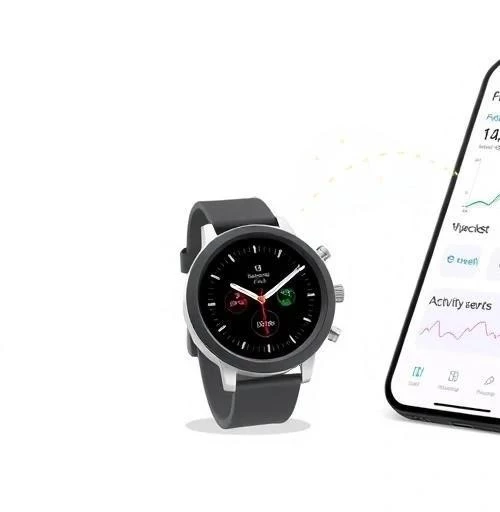
The short answer: you can’t pair an Apple Watch directly with Zepp Life. There is no “Add Apple Watch” button‚ hidden Bluetooth trick‚ or official bridge that turns Zepp Life into the Watch’s companion app. Apple Watch pairs with Apple’s Watch app; Zepp Life is designed for compatible Xiaomi and Amazfit-era wearables‚ such as certain Mi Bands.
But your data can still share a neighborhood. On an iPhone‚ Apple Health may act like a small town square: Apple Watch sends supported health information there‚ and Zepp Life may also be allowed to write selected information there. That can bring some data together in Apple Health—but it does not make Apple Watch appear as a device in Zepp Life‚ nor does it guarantee that Watch measurements will flow back into Zepp Life.
First‚ decide what you’re trying to connect
- Pair the watch itself: use the Apple Watch app on your iPhone. Zepp Life cannot do this.
- See information from both devices in one place: check Apple Health permissions and supported data types.
- Send Apple Watch data into Zepp Life: there is no standard‚ official direct method. Be cautious of third-party apps claiming otherwise.
Set up Apple Watch the normal way
- Turn on Bluetooth and Wi-Fi on your iPhone. Keep the phone and watch close together.
- Press and hold the Apple Watch side button until the Apple logo appears.
- Open the Watch app on the iPhone and follow the pairing instructions. If the setup animation doesn’t appear‚ choose the option to pair manually.
- Finish setup‚ then open the Health app and check that the Watch is recording the categories you care about‚ such as steps or workouts.
This creates an Apple Watch–iPhone connection—not an Apple Watch–Zepp Life connection. Keeping that distinction clear saves a surprising amount of troubleshooting.
Let Zepp Life share supported data with Apple Health
- Install or open Zepp Life on your iPhone and sign in.
- Pair your supported band from inside Zepp Life‚ following the app’s on-screen instructions. Don’t try to add it through the Apple Watch app.
- In Zepp Life‚ look under Profile for Add accounts‚ Third-party accounts‚ or an Apple Health option. Names and menus can vary by app version and region.
- Choose Apple Health and review the permission screen. Allow only the categories you want Zepp Life to share. You can revisit access in the iPhone’s Health settings.
- Open Apple Health‚ tap your profile picture‚ then look for Apps or Data Access & Devices. Select Zepp Life to review which categories it may read or write.
Now check a specific category in Health—for example‚ Steps—and inspect Data Sources & Access. You may see entries from Apple Watch and Zepp Life. Their order can affect which source Health prioritizes for a particular metric. If the numbers differ‚ don’t assume one device has stopped working: the devices may measure or record activity differently.
What the Health bridge can—and can’t—do
Health is a shared record‚ not a universal translator. If Zepp Life writes band data into Health‚ Apple Health can display it alongside eligible Apple Watch data. If Apple Watch writes steps or workouts into Health‚ that does not mean Zepp Life can import those records. Support is app- and category-specific‚ and synchronization may be delayed. Sleep‚ heart rate‚ calories‚ and workouts may each behave differently.
So‚ if your goal is simply to view activity from both devices in Apple Health‚ linking Zepp Life to Health is the sensible first experiment. If your goal is to see Apple Watch readings inside Zepp Life’s own charts‚ the honest answer is that the official apps generally don’t provide that direct route.
If nothing appears
- Confirm that the band has synced with Zepp Life and that Zepp Life has Health permission for the exact category in question.
- Open both apps‚ allow a little time‚ and check the category’s data sources in Apple Health.
- Make sure you’re using the correct companion app for your wearable. Some newer Xiaomi or Amazfit products use Mi Fitness or Zepp rather than Zepp Life.
- Update the apps and iOS‚ then restart the iPhone and wearable if syncing remains stuck.
- Avoid pairing the same band repeatedly in Bluetooth settings. If it is already bound to another app or account‚ follow that manufacturer’s unpairing instructions first.
Privacy before convenience
Health information is personal. Grant only the permissions you need‚ and remember that revoking access can stop future sharing without necessarily deleting information already stored elsewhere. Before installing a third-party “sync bridge‚” check its developer‚ privacy policy‚ subscription terms‚ and the exact direction of transfer. Never hand over your Apple ID password to an unofficial syncing tool.
The practical verdict
You can’t connect Apple Watch to Zepp Life as a paired device. Pair Apple Watch through the Watch app‚ pair a compatible band through Zepp Life‚ and use Apple Health as a possible meeting point for supported information. Think of it as two runners logging laps on separate tracks‚ with Health keeping the shared scoreboard—not one watch controlling the other.
3 Comments. Оставить новый
The “small town square” image makes the data-sharing distinction click: Apple Health is a meeting place, not a secret bridge between devices. Clear, useful, and refreshingly honest about the limits.
This article untangles a surprisingly knotty question without making the reader feel foolish. Its key takeaway lands neatly: pair the Watch with Apple, and let Health—not Zepp Life—be the shared noticeboard.
A good guide for anyone caught between two wearable worlds. I especially appreciate the warning against magic-sounding third-party apps—sometimes the most helpful tech tip is knowing which door simply doesn’t exist.