
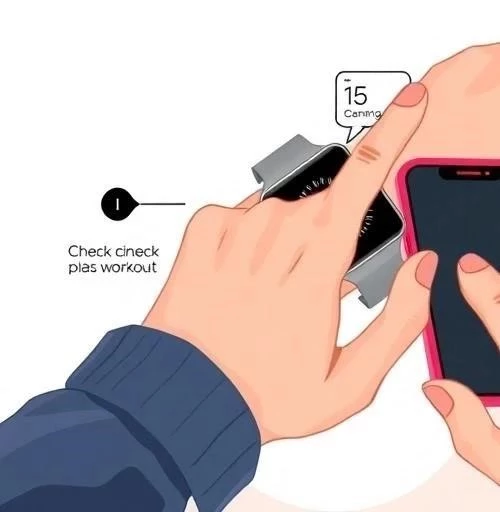
Apple Watch SE is a smartwatch for notifications, communication, activity tracking and everyday tasks. The exact features can vary by generation, watchOS version and region. Most setup and controls are shared across models. For current instructions on a particular version, consult Apple Support.
Before you begin
Charge the watch and make sure your iPhone is compatible with its model and software. Turn on Bluetooth and Wi-Fi on the iPhone, connect it to the internet, and sign in to your Apple Account. Apple Watch SE is designed to be set up with an iPhone; it cannot be fully configured from an Android phone.
Pair and set up the watch
- Put the watch on your wrist and press and hold the side button until the Apple logo appears.
- Hold the iPhone near the watch. When the pairing prompt appears, tap Continue. If it does not appear, open the Watch app on the iPhone and choose Add Watch.
- Tap Set Up for Myself, then use the iPhone camera to scan the animation on the watch. If scanning is unavailable, choose manual pairing and follow the displayed instructions.
- Choose whether to restore a backup or set up the watch as new. Sign in when prompted, review the settings, and create a passcode if you want one.
- Keep the devices close together while information and apps sync. This may take several minutes.
During setup, choose which notifications and apps to allow. You can change these choices later in the Watch app. If the watch was previously paired with someone else, that person may need to unpair it and remove Activation Lock before you can use it.
Learn the main controls
The Digital Crown is the round control on the side. Turn it to scroll or zoom, and press it to view the Home Screen. A press of the side button opens the Dock or app switcher, depending on the software version; it can also provide access to configured safety features. Pressing and holding the side button brings up power and emergency options. Use the touchscreen to tap, swipe and enter information.
To wake the display, raise your wrist or tap the screen. Covering the display briefly can turn it off. The watch face shows the time and may include complications, which are small items such as weather, date or activity progress. Touch and hold the face to choose or customize a face; available options depend on watchOS.
Use apps and notifications
Press the Digital Crown to see installed apps. Tap an icon to open it, then use the Crown, buttons or on-screen controls as appropriate. The Watch app on the iPhone is the main place to install compatible apps, arrange settings, select faces and manage notifications. Some iPhone apps have a watch version; not every app does.
When a notification arrives, raise your wrist or tap the alert to read it. Depending on the app, you can reply, dismiss it or open the app on the iPhone. To reduce interruptions, adjust alerts in the Watch app or use a Focus mode. Silent Mode mutes sounds but does not necessarily stop haptic taps.
Make calls and send messages
With the paired iPhone nearby, the watch can use its connection for calls and messages. Select Phone or Messages, choose a contact, and follow the prompts. You can speak into the watch, use dictation, or select an available reply. Cellular service is not built into every SE configuration. A GPS + Cellular model requires a supported carrier plan for independent mobile connectivity; availability varies by country.
Track activity and health
The Activity app presents movement goals and progress, while Workout lets you choose an exercise and start recording it. Wear the watch snugly but comfortably, with the back in contact with your skin. Review trends in the Fitness or Health app on the iPhone. Measurements are estimates for general wellness, not medical diagnoses. Features such as heart-rate notifications, fall detection and emergency services depend on model, settings, connectivity and local availability. Do not rely on the watch as a substitute for professional medical care.
Charge and care for the watch
Use the supplied compatible magnetic charging cable and a suitable power adapter. Place the back of the watch on the charger and check that the charging symbol appears. Charging speed and battery life vary with use, settings, battery condition and model. Enable Low Power Mode when you need to extend use, understanding that some functions may be limited.
Clean the watch with a soft, lint-free cloth. Follow Apple’s cleaning guidance, and avoid harsh chemicals or inserting objects into openings. Water resistance is not permanent and can diminish over time. Check the rating for your exact model before swimming or exposing it to water; do not assume that water resistance means it is suitable for every water activity.
Adjust settings and solve common issues
Change brightness, sound, passcode, display and accessibility options in Settings on the watch or in the Watch app on the iPhone. If pairing or syncing stalls, keep both devices charged and close together, check Bluetooth and Wi-Fi, and restart them. If the watch is locked or forgotten, use Apple’s official support instructions rather than repeatedly guessing the passcode. Keep watchOS and iOS updated when practical, and make sure you know your Apple Account details before erasing or transferring the watch.

1 Comment. Оставить новый
The guide clearly outlines the basic Apple Watch SE setup process and explains the main controls. It is helpful to note that some functions may differ by software version.