
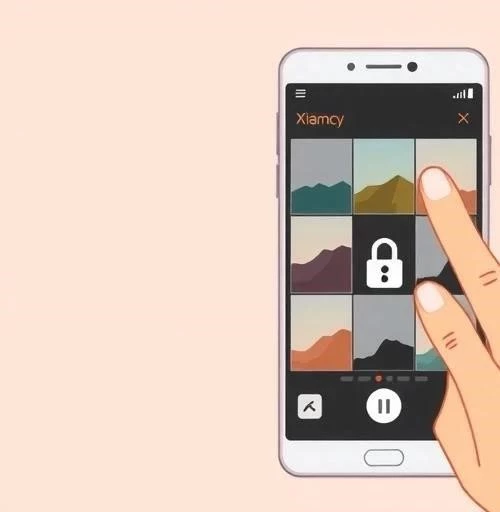
Xiaomi’s Gallery app can hide private photos and videos from the regular album list. On many MIUI and HyperOS phones, you can open the hidden album with a gesture in Gallery. The exact labels may vary slightly with your phone model, software version, and Gallery app update.
Open it with the Albums gesture
- Open the Gallery app and tap Albums at the bottom of the screen.
- Place your finger near the top of the album list, then swipe downward. Keep pulling until a lock icon or a prompt to release appears.
- Release the screen. If asked, enter your privacy protection password, pattern, or fingerprint.
- Your hidden album should appear. Tap it to view the photos and videos stored inside.
If the first swipe only scrolls the list, try again from the very top and pull down a little farther. This gesture is different from refreshing a page: continue until Gallery gives a visual indication that the private area is ready to open.
If the swipe does not work
Some versions provide a menu instead. In Gallery, open the three-dot menu or Settings and look for View hidden albums, Hidden albums, or a similarly named option. Choose the album you want to access. Menu names and locations differ between devices, so check both Gallery settings and the Albums screen.
You can also check Settings > Privacy protection or Privacy for options related to private files and the privacy password. These settings may help you confirm that a password is configured, but they do not always contain a direct shortcut to the album.
Show an album again
To remove an album from the hidden area, open it and select the desired items. Use the menu option such as Unhide, Show, or Move to album, then choose a regular album if prompted. Read the confirmation carefully: moving an item may change where it appears, but should not be confused with deleting it.
Troubleshooting and privacy
- Forgot the password? Use the recovery option shown on the privacy-password screen, if available. Avoid repeated guesses; recovery steps vary by software version.
- Still cannot find the album? Update Gallery and your system, then check the Albums tab and Gallery settings again. A restart can also resolve a temporary app issue.
- Protect your files: Do not share your privacy password. Hiding an album is not the same as making a backup, so keep important files backed up securely.
Hidden albums are normally opened through Xiaomi Gallery, not the File Manager. If your menus differ, search Settings for “hidden albums” or consult the support information for your exact Xiaomi model and software version.


8 Comments. Оставить новый
I appreciate the reminder to keep swiping until the lock icon appears. That detail could save a lot of trial and error.
Clear and practical guide. The warning to read the confirmation carefully before moving or unhiding items is particularly valuable.
Helpful overview for anyone who cannot find private photos. It would be even better with screenshots for different Gallery versions.
This explains the gesture in a straightforward way without assuming every Xiaomi phone has the same menus.
Concise and easy to follow. I like that it covers both opening a hidden album and showing items in a regular album again.
The step-by-step instructions make it easy to find the hidden album, and the note about software differences is helpful.
The troubleshooting section is useful, especially the suggestion to check both the Albums screen and Gallery settings.
The distinction between privacy settings and a direct album shortcut is a useful clarification.