
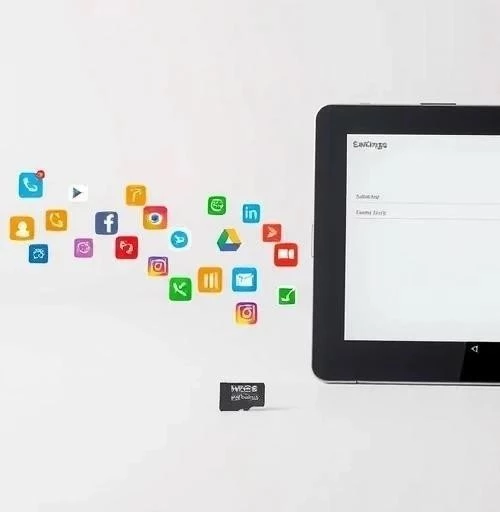
Your Huawei tablet has a tiny apartment problem: games, videos, photos, and apps are all trying to move into the same limited internal storage․ A microSD card can feel like a spare room—but it does not always have a key to every door․ Whether an app can be moved depends on the tablet model, its Android or HarmonyOS version, the app itself, and the way Huawei has configured storage․
This guide shows you how to check for the move option, what to do when it is missing, and how to free space safely․ The important distinction: moving an app is not the same as moving its photos, downloads, or other files․ A card may store plenty of those even when the system will not let apps live there․
First, check what kind of storage your tablet supports
Huawei tablets vary․ Some have a microSD slot; others do not․ Some versions of Android and EMUI offer a per-app storage-location setting, while newer software builds may not․ HarmonyOS menus can differ too․ Even on a tablet that accepts a card, the system or an app developer may require an app to remain in internal storage․
- Check your tablet’s model specifications or the user guide to confirm that it supports a memory card and which card types and capacities are compatible․
- Open Settings and look for Storage, About tablet, or a similar menu․ Names and locations differ by software version․
- Insert the card according to the device instructions․ If prompted to format it, read the warning first: formatting erases data on that card․
If your tablet has no card slot, a microSD card cannot be added internally․ Depending on the model, an external USB storage device may be an alternative for files, but that does not make it a place where apps can be installed or moved․
Try the built-in app-moving option
On some Huawei tablets, the move control is available in an app’s information page․ On others, it is absent․ The following route is a safe check, not a promise that every model will show the same buttons:
- Insert and set up a compatible microSD card․ If the tablet offers to format it, back up anything already on the card before proceeding․
- Open Settings and go to Apps or Apps & services․
- Choose Apps or App management, then select the app you want to inspect․
- Tap Storage or Storage usage․ Look for a control such as Change, Move to SD card, or a storage-location choice․
- If the option is available, select the card and follow the on-screen instructions․ Keep the tablet powered on and avoid removing the card during the move․
Some software versions put storage controls elsewhere, so search Settings for terms such as SD card or default storage․ If you cannot find the control, that does not necessarily mean the card is faulty․ The tablet may simply not allow that app—or any apps—to be moved․
Why the “Move to SD card” button may be missing
Apps are not ordinary suitcases․ They may contain executable components, protected data, widgets, background services, or files that the system expects to access quickly․ For reliability and security, Huawei’s software and an app’s own design can keep those pieces in internal storage․ A card can also be slower or less dependable than built-in storage, and an app installed there may stop working if the card is removed․
Common reasons you will not see a move option include:
- The software does not support it․ Some Huawei models or software versions provide no general app-to-card feature․
- The developer has restricted the app․ Banking apps, system components, launchers, widgets, and apps with persistent background tasks may need internal storage․
- The card is not ready․ It may be unmounted, unreadable, incorrectly formatted, or unsupported by the tablet․
- The app is already stored where the system requires it․ The storage page may show usage without offering a destination switch․
Updating the system can change menu names or available features, but it is not a guaranteed way to add app migration․ Check the update notes and your model’s support information before expecting a particular function․
Move the files that are movable
Even when apps must stay put, the card can still rescue internal storage by holding personal files․ Think of it as moving the furniture out of the hallway rather than relocating the building’s wiring․
Use the Files app
- Open Files or File Manager․
- Browse to a folder such as Downloads, Documents, Pictures, or Movies․
- Select the files or folders you want to move, then choose Move or Copy․
- Choose the SD card as the destination and confirm․ Open a few moved files afterward to make sure they work․
Use Move when you want the files removed from their original location after transfer․ Use Copy when you want to keep a second version․ Do not delete the originals until you have confirmed that the card contains usable copies․ Avoid moving unfamiliar folders from Android’s system or app-data directories; deleting or relocating the wrong data can break an app or lose information․
Change storage settings inside individual apps
Camera, music, video, reading, and podcast apps may offer their own settings for where new files are saved․ Open the relevant app and look for Settings, Storage location, Download location, or Save to SD card․ This usually redirects new media, not the app itself․ Existing files may need to be moved separately through the app or File Manager․
For offline videos, maps, music, and books, check the app’s download settings․ Some services store downloads in a protected area and do not permit them to be copied manually․ If an app provides its own location control, use that rather than moving its folders by hand․
Free up internal storage without moving apps
If the app-migration door is closed, there are still several useful routes through the storage maze:
- Remove apps you no longer use․ Review Settings > Apps, and uninstall games or utilities you have forgotten․ Reinstalling later may restore them, but app data may not return unless it was backed up or synced․
- Clear a cache carefully․ In an app’s storage page, Clear cache usually removes temporary files․ Clear data is different: it can sign you out and erase local settings, downloads, or unsynced content․
- Clean large downloads․ Check video, music, messaging, and browser apps for offline files, duplicate downloads, and items you can stream or download again․
- Back up photos and videos․ Copy them to the SD card, a computer, or a trusted cloud service, then verify the backup before deleting anything from the tablet․
- Use the tablet’s storage-cleanup tool․ If available, Huawei’s built-in storage or optimization tools can identify temporary files and large items․ Review what will be removed before confirming․
Some Huawei devices include a setting for a default save location․ If you see one under storage or within an app, it may apply only to particular file types or future downloads․ Do not assume that changing it will transfer apps already installed․
Should you format the card as internal storage?
Some Android devices in some configurations support adopting a card as internal storage․ Availability varies, and Huawei tablets may not offer this feature; Do not rely on online instructions for another brand or model: menu options and behavior can differ․
If your tablet explicitly offers an internal-storage format, read every prompt carefully․ The process may erase the card, tie it to that device, and make it unreadable elsewhere without reformatting․ A slow or failing card can also affect app performance․ Back up the card first, use a compatible, reputable card, and proceed only if the tablet itself provides the option and you understand the consequences․ Formatting a card as portable storage is not the same thing as adopting it for apps․
Why rooting or “force move” tricks are a poor shortcut
Third-party tools and root procedures sometimes claim to move any app to any card․ Treat sweeping promises with caution․ Rooting can weaken security, cause software instability, interfere with updates, and risk data loss․ Apps that rely on protected services may still fail, and a damaged or removed card can leave moved apps unusable․ Avoid unknown utilities that request broad access to your data․ For most users, the safer plan is to keep apps in internal storage and move personal files or downloads instead․
If the card is not detected
- Power down the tablet before reseating the card if the user guide recommends it․
- Check that the card is inserted in the correct orientation and that the slot is clean and undamaged․
- Open Settings > Storage to see whether the card appears․ If prompted to format it, remember that formatting deletes its contents․
- If practical, test the card in another compatible device or reader․ Back up files before attempting repairs or reformatting․
- If the tablet still cannot read a known-compatible card, consult the model’s user guide or Huawei support rather than repeatedly formatting it․
Quick answers
Can every app be moved to a Huawei tablet’s memory card?
No․ It depends on the tablet’s software, the app, and the card setup․ If the app’s storage screen has no move control, the tablet may not support moving it․
Will moving an app move its downloads and documents too?
Not necessarily․ App installation files, app data, and personal downloads can be stored separately․ Check the app’s own storage settings and verify important files after changing anything․
Can I remove the card after moving an app?
A moved app may not open or may behave unpredictably while its card is absent․ Keep the card inserted whenever you need that app, and do not remove it while files are being written․
Does a larger card automatically give apps more space?
No․ A larger card provides more capacity for the storage uses your tablet permits; it does not automatically expand internal app storage or create a missing migration option․
The simplest safe plan
Start by checking your exact Huawei tablet model and software version․ Insert a compatible card, then inspect an app’s storage page for a built-in move control․ If the control appears, use it and leave the card in place․ If it does not, do not force the issue: move photos, videos, documents, and supported downloads instead, and clear unwanted data carefully․
A microSD card is a useful sidecar, not a magic elevator․ Let it carry the files your tablet allows, keep essential apps in the storage location the system expects, and back up anything you cannot afford to lose․ That approach is less dramatic than a secret settings hack—and much kinder to your apps, your data, and your afternoon․
4 Comments. Оставить новый
A refreshingly honest tech guide: it treats Huawei’s changing menus like a map with several editions, not a puzzle the reader has somehow failed to solve. The clear difference between apps and personal files is the article’s most helpful compass.
The “spare room” metaphor makes a fiddly storage issue feel instantly understandable. I especially like the reminder that a memory card can hold files without being allowed to host apps—that distinction saves readers from chasing a setting their tablet may never offer.
The practical tone works well, and the advice to check the exact model before buying a card could prevent an expensive little disappointment. The excerpt ends mid-instruction, though, so I’d love to see the rest of the walkthrough complete the journey.
This guide does a good job of resisting the tempting but misleading promise that every app can be moved. Its calm, model-by-model approach is more useful than a universal shortcut, and the formatting warning is a small but important safety net.