
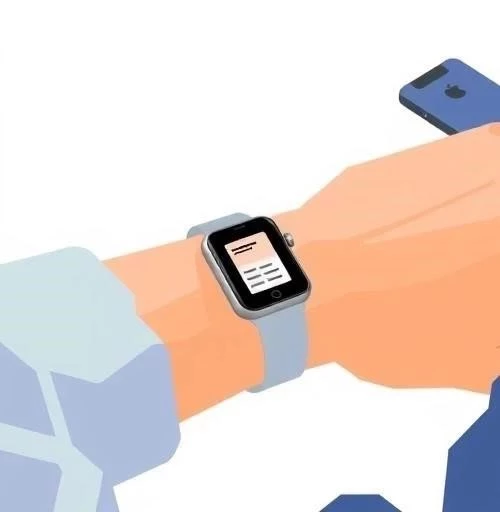
The short answer: you can’t launch Safari from an app icon on Apple Watch—there is no official Safari app for watchOS. But your watch can open certain web pages in a small, built-in browser when you tap a link. Think of it as a tiny porthole to the web, not a miniature iPhone.
Open a web page from a message
- On your iPhone, send yourself a web address in a text message, or ask someone to send you a link.
- Wait for the message to appear on your Apple Watch. Check that notifications for Messages are enabled if it doesn’t arrive.
- Tap the notification, open the conversation, and tap the link. The page should load on your watch.
You can also open links in Mail: raise your wrist, open the email, and tap a web address. Depending on your watchOS version and settings, tapping a link in another supported app may work too.
Try Siri for a quick search
Raise your wrist and say, “Hey Siri, search for the weather in Boston,” or ask a question that produces a web result. If Siri shows a tappable link or result, tap it to open the page. Siri’s results vary, so this is a shortcut to try—not a guaranteed Safari launch command.
What the watch browser can—and can’t—do
The page opens in watchOS’s built-in web view, rather than a full Safari app. You won’t find a Safari icon, a normal address bar, or the familiar collection of desktop browsing controls. Pages may be simplified, and some sites, videos, sign-ins, or complex features may not work well on the small screen. Scrolling and zooming can take patience; your finger is navigating a postcard-sized window.
For a better reading experience, use the Digital Crown to scroll, if supported. Keep pages brief, and avoid entering passwords or payment details on a tiny display when you can use your iPhone instead. To continue on your phone, open the same link in Messages or Mail there.
If the link won’t open
- Check that the watch is connected to your iPhone, Wi‑Fi, or cellular service.
- Try a different link, then restart the watch if the page still fails.
- Update watchOS and iOS if updates are available; menus and behavior can differ by version.
Bottom line: you can browse from an Apple Watch by tapping a web link, but you can’t “go into Safari” as you would on an iPhone. For regular browsing, the iPhone remains the doorway; the watch is the peephole.


7 Comments. Оставить новый
I like how the instructions begin with the ordinary route—tap a link you already received—rather than promising a hidden browser app. It feels grounded in how people actually use a watch.
The “tiny porthole” image makes the watch’s web limits instantly clear. This is less a Safari tutorial than a useful reminder to bring the right-sized screen for the task.
I appreciate the careful distinction between asking Siri to find something and commanding the watch to launch a browser. That small dose of realism saves readers from chasing a magic phrase that may not exist.
The article treats the tiny display like a design constraint rather than a personal failure. That’s refreshing: sometimes the smartest wearable trick is knowing when to hand the job to your phone.
Useful and measured, especially in explaining that results can vary by app and watchOS version. The ending appears cut short, though; a finished troubleshooting section would make this little guide feel complete.
The comparison to a postcard-sized window is delightfully apt. It gives readers a vivid sense of what browsing on the wrist feels like before they try to pinch, scroll, and negotiate with a miniature page.
A clear, practical guide with a nice safety instinct. The reminder about passwords and payment details turns a simple how-to into advice that could genuinely prevent a frustrating mistake.