
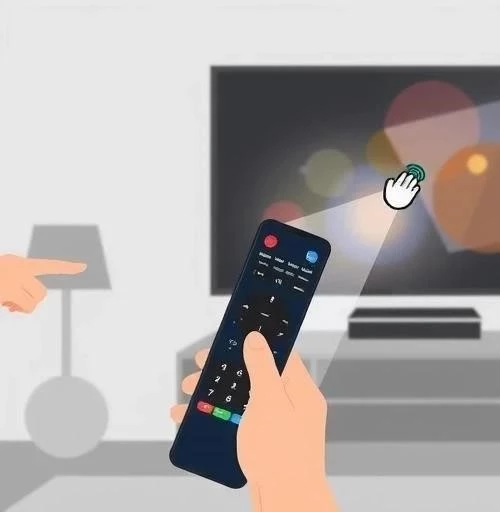
On most Xiaomi TVs, “mouse mode” is not a separate setting that turns the remote into a pointer․ To control on-screen elements with a cursor, connect a compatible USB or Bluetooth mouse․ Menu names and support can vary between Android TV, Google TV, and region-specific models, so check your TV’s manual if an option is missing․
Option 1: Connect a USB mouse
- Turn on the TV and plug the mouse into a USB port on the TV․ If it is a wireless mouse with a USB receiver, plug in the receiver instead․
- Wait a few seconds for the TV to recognize it․ Move the mouse: a pointer should appear on the screen․
- Use the mouse to move the pointer, click items, and scroll where supported․ You usually do not need to enable a special mode in Settings․
If the TV has only one accessible USB port, or the receiver is too large to fit beside another plug, try a USB hub․ Use a powered hub if the mouse or other connected devices need more power․
Option 2: Pair a Bluetooth mouse
- Put the mouse into pairing mode․ Follow its instructions; this often involves holding a pairing button until an indicator flashes․
- On the TV, open Settings and look for Remotes & Accessories, Bluetooth, or Add accessory․ The exact wording depends on the software version․
- Select the mouse when its name appears, then confirm pairing if prompted․ Move it to check that the pointer responds․
If you cannot find Bluetooth settings, your particular model or software may not support Bluetooth mouse input․ A USB mouse or a wireless mouse with a USB receiver is usually the simplest alternative․
If the pointer does not appear
- Reconnect the mouse or receiver, then restart the TV․ Try another USB port if available․
- For a wireless mouse, check its batteries and switch it on․ For Bluetooth, remove the device from the paired-device list and pair it again․
- Test the mouse on another device to rule out a fault․ If using a hub, connect the mouse directly to the TV․
- Update the TV software through Settings if an update is available․ Menu paths differ by model, so do not assume every Xiaomi TV has identical options․
What to expect
A pointer may work on the home screen and in some apps, but not everywhere․ Certain streaming apps are designed for the TV remote and may ignore mouse clicks or scrolling․ In those cases, use the original remote or a compatible app-specific control method․ A mouse does not necessarily replace the remote for changing channels, adjusting volume, or navigating all system menus․
In short: connect a USB mouse for the quickest test, or pair a Bluetooth mouse through the TV’s accessories settings․ If it connects but does not control a particular app, that is often an app limitation rather than a setting you have missed․