
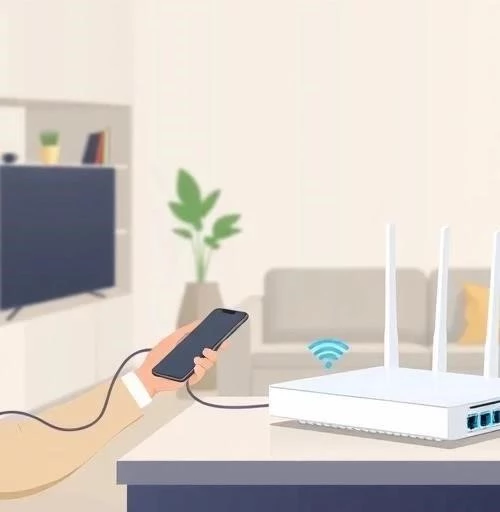
A new router is a little like a tiny airport: cables are the runways, the internet connection is the incoming flight, and your devices are impatient passengers. Set up your Xiaomi BE5000 in the right order and the whole household can take off smoothly. Menu names and features may vary slightly by region or firmware, so treat the router’s own setup screens as the final authority.
Prepare the landing zone
Place the BE5000 in an open, central spot—not inside a cabinet or behind a television. Keep it away from thick walls, metal objects, microwaves, and other sources of interference. If your internet provider’s modem or optical terminal is already installed, leave it powered on.
- Connect the provider’s Ethernet cable to the router’s WAN/Internet port. If the ports are not clearly labelled, check the diagram on the router or in its manual.
- Connect the supplied power adapter and switch the router on.
- Wait for the status light to show that it is ready. The exact colour and blinking pattern can depend on the model version.
If your provider uses a combined modem-router, you may need to put that device into bridge mode, or connect the Xiaomi to a LAN port and accept a double-router setup. Ask your provider if you are unsure; changing network modes blindly can interrupt service.
Connect to the router
Use a phone or computer to join the temporary Wi‑Fi network shown on the BE5000’s label, or connect a computer to a LAN port with an Ethernet cable. Open a browser and try miwifi.com or 192.168.31.1. These are common Xiaomi access addresses, but the label or quick-start guide may give a different one for your version.
You can also use Xiaomi’s router or Home app if it is available in your region. Install it from your device’s official app store, sign in if required, and follow its prompts to add a router. Avoid third-party setup apps: a router deserves fewer mysterious helpers, not more.
Follow the internet setup wizard
The first-run wizard usually detects the connection type automatically. If it asks you to choose, select the option supplied by your internet provider:
- DHCP / Automatic IP: common for cable connections and many modem or optical-terminal installations. The router receives its settings automatically.
- PPPoE: enter the username and password provided by your ISP. They are not necessarily your Wi‑Fi password.
- Static IP: enter the address, gateway, subnet mask, and DNS details supplied by your provider.
If the connection fails, check that the cable is in the WAN port, restart the modem or terminal, and confirm the connection details with your ISP. Some providers also bind service to a device’s MAC address or require VLAN settings; those values must come from the provider, not guesswork.
Name your Wi‑Fi and secure it
Choose a network name (SSID) that is easy for your household to recognise but does not reveal personal details. Create a long, unique Wi‑Fi password—ideally a memorable phrase with several unrelated words. Set a different administrator password when prompted. The admin password controls router settings; it is not the password visitors use to get online.
If the interface offers a combined network name for 2.4 GHz and 5 GHz, keeping one name is convenient: compatible devices can choose a suitable band. Separate names can help when troubleshooting older smart-home gadgets. The 2.4 GHz band generally reaches farther; 5 GHz can offer faster performance nearby. A BE5000’s supported bands and options depend on its exact regional version.
Choose WPA2-AES or WPA2/WPA3 security when available. Use WPA3 only if your devices support it; otherwise, a mixed mode is more compatible. Avoid open networks and outdated security modes. If you see an optional Wi‑Fi 7 feature such as MLO, enable it only when both the router firmware and your client devices support it.
Finish, update, and test
Save the settings and let the router restart. Reconnect your phone and other devices using the new network name and password. Open a few websites, then test from a room farther away. If the router offers a firmware update, install it through the official interface and keep the router powered on until the update finishes.
Finally, check that the administrator password is stored somewhere safe, and review the connected-device list for anything unfamiliar. If coverage is weak, first move the router into a more open position. If you add a compatible mesh unit, follow its pairing instructions rather than placing it in the dead zone: it needs a decent signal from the main router to pass one along.
Quick fixes when the internet refuses to fly
- No setup page? Confirm you are connected to the Xiaomi network, try the address printed on the router, or use a wired connection.
- Wi‑Fi works, but there is no internet? Check the WAN cable and ISP connection type; reboot the modem first, then the router.
- An old device will not connect? Try a separate 2.4 GHz network name and a compatible security mode.
- Nothing helps? A factory reset can erase the setup. Use the reset button only as described in the manual, then run the wizard again.
Once the status light settles and your devices reconnect, the BE5000 is ready for its quietest job: making the internet feel as if it simply appears wherever you need it.


6 Comments. Оставить новый
A refreshingly practical guide: it doesn’t pretend every modem, region, or firmware behaves alike. The bridge-mode warning is the sort of small detail that can save someone an evening of mysterious internet turbulence.
The tiny-airport metaphor makes router setup feel less like wrestling with blinking lights and more like preparing a calm departure gate. Especially useful is the reminder to check the router’s own instructions before trusting generic advice.
A thoughtful guide with a nice little spark of humor—the line about mysterious helper apps made me smile. I’d happily see the remaining setup steps continue in this same careful, plain-English style.
The article gives beginners a useful runway without promising that every screen will look identical. That blend of clear steps and sensible caution makes the tech feel approachable rather than magical.
This is the rare router guide that remembers the walls, cabinets, and provider equipment are part of the story too. Clear, grounded advice—and a welcome nudge to ask the ISP before changing network modes.
I like how this treats Wi‑Fi placement as part of setup, not an afterthought. “Open, central spot” is simple advice, but it may do more for a connection than an hour spent blaming the router.