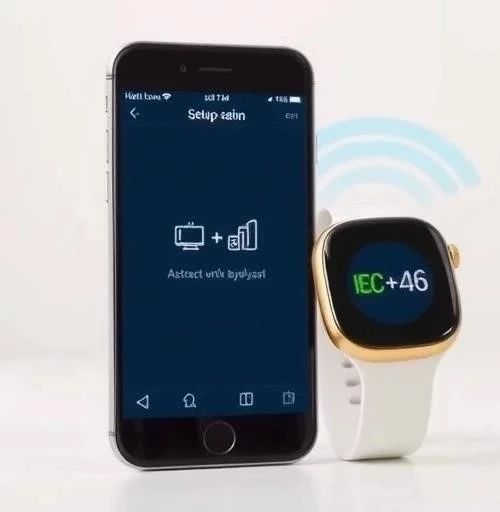
Pairing a watch with an iPhone should feel like opening a tiny door, not solving a mystery. The first thing to know is that “Smart Watch 7” can mean two different things: an Apple Watch Series 7, or a third-party watch sold under a similar name. The setup is different, so identify your model before you begin. Look for the Apple logo and the Watch app on the watch, or check its box and manual.
If you have an Apple Watch Series 7
- Prepare your iPhone. Turn on Wi-Fi and Bluetooth, make sure Airplane Mode is off, and update iOS if an update is available. Keep the phone and watch close together and charge both devices. Apple Watch Series 7 needs a compatible iPhone and iOS version; if setup says the software is too old, follow the update prompt.
- Switch on the watch. Press and hold the side button until the Apple logo appears. Wait for the welcome screen.
- Open the right app. On the iPhone, open Apple’s built-in Watch app and tap All Watches or Start Pairing, then Set Up for Myself.
- Match the moving picture. Hold the iPhone over the animation on the watch so it appears inside the viewfinder; If the camera cannot read it, tap Pair Apple Watch Manually and follow the on-screen instructions.
- Finish setup. Choose whether this is a new watch or a restore from backup, sign in to your Apple Account if requested, and set a passcode. Then choose settings for features such as Location Services, Siri, and notifications. Keep the devices close while syncing; the watch may show a progress wheel.
When the watch face appears and the Watch app lists the device, pairing is complete. You can add apps, choose a face, and decide which iPhone alerts should tap your wrist. If a cellular model offers a mobile plan, you can set that up with your carrier later; it is not required for ordinary Bluetooth pairing.
If “Smart Watch 7” is a third-party watch
Many watches with “Smart Watch 7” in the product name do not use Apple’s Watch app. Find the companion-app name in the watch’s menu, instruction booklet, or QR code on its screen. Download that app from the App Store, check that its developer and name match the manual, and grant the requested Bluetooth permissions. Then add the watch inside the companion app. Some models also ask you to connect a separate audio device in iPhone Bluetooth settings for calls; follow that model’s instructions.
A QR code should lead to an official App Store listing, not a random profile, configuration file, or payment page. If the manual’s app is unavailable in your region, contact the seller or manufacturer rather than installing an unknown file.
If pairing gets stuck
- Restart both devices, bring them within arm’s reach, and try again with Bluetooth and Wi-Fi on.
- For an Apple Watch, use the Watch app to unpair it if it was previously connected to another iPhone. The previous owner may need to remove Activation Lock from their Apple Account; a reset alone does not bypass it.
- For a third-party watch, forget an old Bluetooth entry only if the manual recommends it, then reconnect through its companion app. Check that the app has Bluetooth permission under iPhone Settings.
- Confirm the model supports iPhone. A watch designed only for Android may not pair, even if Bluetooth sees it.
The simplest rule: Apple Watch Series 7 pairs through Apple’s Watch app; a generic Smart Watch 7 pairs through the manufacturer’s named app. Choose the correct path, keep the devices nearby, and let the first sync finish before testing notifications. A minute spent identifying the watch can save an hour of tapping the wrong “Pair” button.