
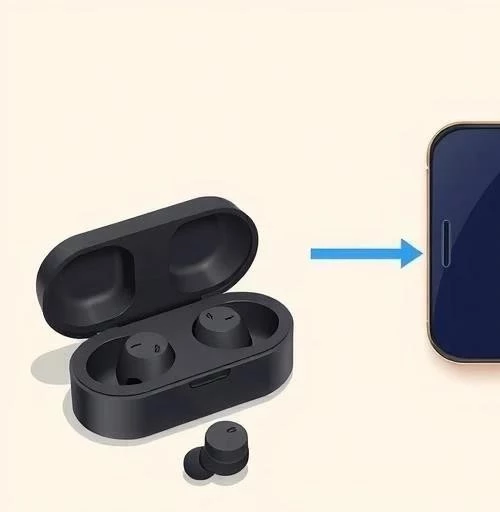
Redmi AirDots 2 connect to a phone or computer over Bluetooth. The first pairing usually takes only a few minutes. The steps below cover preparation, connection, and common fixes if the earbuds do not appear or only one side plays sound.
Before you begin
- Charge the case and both earbuds. If the battery is very low, charging first can prevent connection interruptions.
- Keep the earbuds close to the phone and make sure they are seated correctly in the case before removing them.
- If the earbuds were previously paired with another phone, turn off Bluetooth on that device or disconnect the earbuds there.
Pair with an Android phone
- Open Settings on the phone and select Bluetooth or Connected devices. Turn Bluetooth on and leave this screen open.
- Open the charging case and take out both AirDots 2. They should turn on automatically. Wait briefly while the earbuds connect to each other. Their indicator lights may flash during this process.
- In the phone’s list of available devices, select Redmi AirDots 2 or a similarly named entry. If a pairing request appears, confirm it.
- Wait for the status to change to Connected. Audio should then play through both earbuds. On later occasions, opening the case or taking out the earbuds may reconnect them automatically, provided Bluetooth is on and the phone is nearby.
Pair with an iPhone or computer
The process is similar on other devices. On an iPhone, open Settings > Bluetooth, enable Bluetooth, and choose Redmi AirDots 2 under the available devices. On a Windows computer, open Bluetooth settings, choose the option to add a device, select Bluetooth, and pick the earbuds from the list. Menu names can vary by operating-system version. If the name does not appear, return both earbuds to the case, then take them out again.
If the earbuds will not connect
First, check that both earbuds have charge and that Bluetooth is enabled on the device. Make sure the AirDots are not already connected to a nearby phone, tablet, or computer. Bluetooth connections can be remembered by several devices, but the earbuds may connect to one source at a time. Disconnect them from the other device, then try again.
If the phone shows an old or failed connection, open its Bluetooth settings, select the AirDots entry, and choose Forget, Unpair, or Remove device. Turn Bluetooth off and on again, then repeat the pairing steps with both earbuds together. Restarting the phone can also help if its Bluetooth list does not refresh.
Reset and pair again
If one earbud remains silent or the two earbuds appear as separate devices, remove their saved entries from every previously used phone or computer. Put both earbuds in the charging case, then take them out together. Use the earbuds’ physical buttons to switch them off and reset them; on many AirDots 2 units, holding both buttons for several seconds resets the pairing state. Indicator patterns may differ, so consult the product manual if the reset response is unclear.
After resetting, wait for the earbuds to synchronize with each other before selecting their name in Bluetooth settings. Choose a single AirDots entry rather than pairing each side separately. If the problem continues, charge the earbuds, repeat the reset, and test with another phone. Persistent problems may require service or support from the seller.
2 Comments. Оставить новый
The article gives clear, practical pairing steps for Android, iPhone, and Windows users. The troubleshooting suggestions are useful, though a reset procedure could help readers whose earbuds remain unavailable.
The guidance is organized in a helpful sequence, from preparation to pairing and basic troubleshooting. The note that menu names may vary is useful for readers using different operating-system versions.