
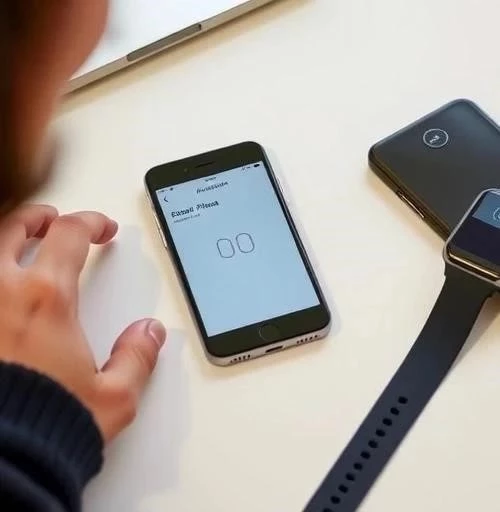
An Apple Watch Series 6 is more than a tiny clock: it is a pocket-sized coach, a notification lighthouse and, occasionally, a very persuasive reminder to stand up. Setting it up well takes a little more than fastening the band. Follow this guide to pair the watch, shape its settings around your life and make sure its health features are ready to help.
Before the watch wakes up
Charge the watch and keep your iPhone nearby, connected to Wi-Fi or mobile data, with Bluetooth turned on. The Series 6 pairs with an iPhone through Apple’s Watch app; compatibility depends on the iPhone model and software version, so update the phone if the app asks. Have your Apple Account password handy. If you bought the watch second-hand, ask the previous owner to remove it from their account first: Activation Lock cannot be bypassed by ordinary setup.
Press and hold the side button until the Apple logo appears. Choose your language and region. When the pairing animation appears, open the Watch app on the iPhone and tap Start Pairing. Point the iPhone camera at the swirling pattern on the watch. If the camera will not cooperate, choose manual pairing and follow the prompts.
Pair it, then choose your kind of day
Tap Set Up as New Apple Watch if this is your first one, or restore a backup if you are replacing a watch. Agree to the terms, sign in when prompted and decide whether to enable Location Services, Find My and Siri. These choices affect useful features such as maps, locating a misplaced watch and voice control; you can revisit many of them later in the iPhone’s Settings app.
Next, create a passcode. It helps protect personal information and is required for some features, including Apple Pay. You can enable wrist detection so the watch locks when it is taken off. Choose whether to install all available apps or select them later. Starting with a smaller collection keeps the Home Screen from becoming a miniature shopping mall.
If the watch offers a software update, let it install while the watch is on its charger and the iPhone remains nearby. Updates can take a while. Keep both devices connected and avoid restarting them just because the progress circle seems to be thinking deeply.
Make the face yours
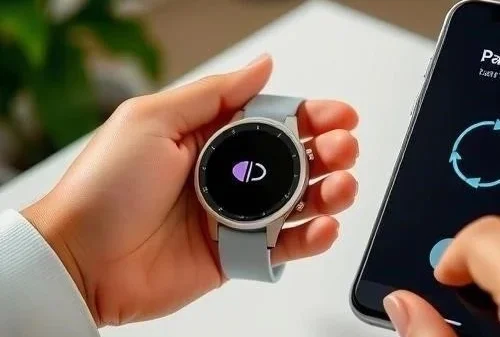
In the Watch app, open Face Gallery to choose a face, colors and complications—the small information windows around the time. Try a simple face for quick reading, then add only the details you actually use: weather, calendar, activity or a timer. Press and hold the watch face to switch between saved designs. A face is not merely decoration; it is your day arranged in a glance.
Adjust the band so the watch sits comfortably and its back touches your skin. For heart-rate and other sensor readings, it should be snug without pinching. Clean and dry the skin and watch after exercise. If you use a wrist tattoo or have fit issues, sensor readings may be less consistent; the watch is a helpful tracker, not a medical diagnosis.
Set up the health tools thoughtfully
In the Health app on iPhone, enter your correct date of birth, height, weight and other requested details. In the Watch app, set up Activity: choose Move, Exercise and Stand goals that feel achievable rather than heroic. You can change them as your routine changes. Turn on reminders only if they encourage you; your wrist should be a companion, not a tiny supervisor.
Series 6 includes heart-rate monitoring, an ECG app and a Blood Oxygen app, but availability and eligibility can vary by region, age and software. Read the instructions shown during setup, and check that the watch is worn correctly before taking a measurement. These tools can offer useful information, but they do not replace professional medical advice or emergency care.
In the Health app, consider setting up Medical ID and emergency contacts. Medical ID can display important details to responders from the passcode screen if you choose to allow that. You can also configure fall detection and emergency SOS in the Watch app under Emergency SOS. Review what each feature does before relying on it, and keep your emergency information current.
Notifications, sound and battery: tune the volume of life
Open Notifications in the Watch app and decide which iPhone apps may tap your wrist. Allowing every app is like inviting the whole internet to dinner. Keep messages, calls, calendar alerts or other genuinely useful notices; silence the rest. Set a comfortable haptic alert, explore Focus settings, and use Theater Mode when a glowing screen would be impolite.
Series 6 supports an always-on display. You can adjust it in Display & Brightness, or turn it off if you prefer to conserve power or keep the screen dark. Check Battery settings to see usage, and enable Low Power Mode when you need extra time away from a charger. Battery life varies with settings and use, so there is no single perfect setup.
Try the first-day checklist
- Open the Workout app and choose a short walk to learn its controls.
- Ask Siri to set a timer, or test a call with the iPhone nearby.
- Open Control Center from the watch face to find quick controls such as silent mode and battery status.
- Use the Find My app on your iPhone to learn how to locate the watch before it goes missing.
If pairing gets stuck
Keep the devices close, make sure Bluetooth and Wi-Fi are on, and restart both if necessary. If the watch shows a pairing screen but the iPhone cannot connect, follow the on-screen instructions rather than repeatedly tapping at random. A watch already linked to someone else’s Apple Account must be removed by that account’s owner. For persistent setup or update problems, consult Apple Support.
That is the real secret to setting up an Apple Watch 6: begin with the essentials, then add features as you discover what earns a place on your wrist. When the face shows what matters, the alerts stay quiet enough to hear yourself think, and the goals fit your actual life, the watch stops feeling like a gadget. It becomes a small, useful instrument for the day you are already living.
6 Comments. Оставить новый
Warm, useful, and refreshingly human. The reminder that settings can be revisited later is especially welcome—your first setup doesn’t have to predict your whole life; it just has to get the watch started.
The guide turns setup into a calm little ritual rather than a wrestling match with menus. I especially like the reminder about Activation Lock—it’s the digital equivalent of checking for a name tag before taking home a found umbrella.
“A notification lighthouse” is a lovely way to describe a watch that can so easily become a tiny siren. The advice to begin with fewer apps is spot-on: let the watch earn its place on your wrist before inviting the whole app store to move in.
This guide understands that setup is really a series of small choices about privacy, convenience, and attention. I’d happily see more guides treat those decisions as part of the experience, not just hurdles between the box and the wrist.
A clear, reassuring walkthrough, especially for anyone staring at that pairing animation as if it were a message from another planet. The practical checkpoints make the process feel less like tech support and more like a well-marked trail.
The second-hand watch warning is a quiet hero here. It can save a buyer from discovering that their shiny new wrist computer is, in fact, a very elegant paperweight.