
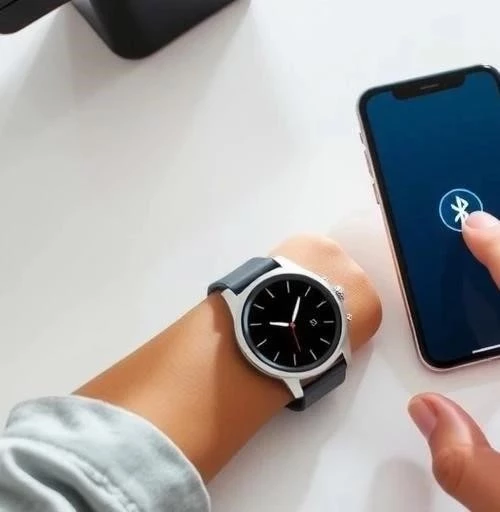
You can pair many Huawei watches and fitness bands with an iPhone using the HUAWEI Health app. The app handles setup, synchronization, watch faces, activity data, and many notification settings. The exact options depend on the watch model, its software, your iPhone’s iOS version, and the country or region associated with your App Store account. Some features available when a Huawei watch is paired with an Android phone may be limited or unavailable on iPhone.
The key rule is to begin pairing in the Huawei Health app—not by selecting the watch in the iPhone’s Bluetooth menu. Pairing directly in iOS first can sometimes create a partial connection that prevents the app from completing setup.
Before you begin
- Check compatibility. Look up your exact watch model on Huawei’s support pages or in the product documentation and confirm that it supports iOS. Requirements vary by model and software release.
- Update iOS. Install an iOS version supported by both your phone and the watch. On the iPhone, open Settings > General > Software Update.
- Charge the watch. A low battery can interrupt an update or initial setup. Keep the watch close to the iPhone while pairing.
- Install HUAWEI Health. Search for the official app in the Apple App Store. Check the developer name and app details before installing. App availability can differ by region; avoid unofficial download sites.
- Turn on Bluetooth and Wi-Fi. Bluetooth is needed for pairing and routine communication. Wi-Fi or mobile data helps the app sign in, download updates, and synchronize information.
- Have your account details ready. The app may ask you to sign in to a Huawei ID or create one. Account prompts and available services can vary by region and app version.
If the watch is still linked to another phone, disconnect or unpair it there first. If you bought it used, or the previous phone is unavailable, you may need to reset the watch. A reset can erase settings and locally stored information, so check the manual and back up anything important before proceeding.
Step-by-step pairing instructions
- Install and open the app. Download HUAWEI Health from the App Store, launch it, and follow the on-screen notices. Sign in or create an account if prompted. Review the privacy information and choose the permissions you are comfortable granting.
- Prepare the watch. Turn it on and select a language and region if asked. Keep it on the pairing screen. On a watch that has already been set up, open its settings and look for a connection, pairing, or reset option; menu names differ between models.
- Add the device in Huawei Health. In the app, open Devices and choose Add or the plus icon. Select the appropriate category, such as watch or band. The app may search for nearby devices or ask you to select your model from a list.
- Choose a discovery method. If your watch displays a QR code, scan it with the app when prompted. Otherwise, select the watch from the nearby-device list. Allow camera access if you want to scan a code. You can usually choose manual selection instead if scanning is not available.
- Confirm the connection request. A pairing code or confirmation prompt may appear on the iPhone, the watch, or both. Check that the codes match, then tap Pair or confirm on the watch. Do not approve a request if you are not setting up that device.
- Allow iOS permissions. Follow the prompts for Bluetooth, notifications, contacts, location, or other access. The requests depend on your model and the features you use. You do not necessarily have to grant every permission for basic pairing, but a feature cannot work if its required permission is denied.
- Finish setup. Give the app time to connect, synchronize, and install any required watch software. Keep the phone and watch near each other, leave the app open if requested, and keep both devices charged. An update may restart the watch or disconnect it temporarily; wait for the process to finish.
When setup is complete, the watch should appear under Devices in Huawei Health, usually with a connected status or battery level. The watch may also show a phone or Bluetooth icon. Exact indicators vary by model.
Set up notifications and calls
Notifications
There are usually two parts to notification setup: iOS must be allowed to show an app’s alerts, and Huawei Health must be allowed to forward supported alerts to the watch.
- On the iPhone, open Settings > Notifications, choose the app you care about, and enable the alert types you want. Check that notifications are not being silenced by Focus, a scheduled summary, or another setting.
- Open HUAWEI Health, go to Devices, select your watch, and find Notifications or a similarly named option. Turn on notification access and choose which apps may send alerts to the watch.
- Check the watch’s own settings for notification display, vibration, or Do Not Disturb options. Some watches only show an alert when they are being worn, unlocked, or connected to the phone.
Menu labels vary with app versions. If notifications do not arrive, first send a test message while the iPhone is unlocked and nearby. Then check both the iPhone’s notification settings and the per-app list in Huawei Health. An alert may be delivered to the phone or watch depending on the iPhone’s state, the watch’s settings, and the model.
Bluetooth calls
Some Huawei watches have a microphone and speaker for answering calls over Bluetooth; others only display incoming-call alerts. If your model supports calls, look for a call or Bluetooth-audio option in the watch settings or Huawei Health. Accept any iOS request needed for the calling connection, and allow contacts access only if you want caller names or contact details to appear. Test with a short call. Keep the watch near the phone: Bluetooth calling through the iPhone is not the same as an independent cellular connection.
Features such as eSIM service, voice assistants, message replies, music controls, and contact synchronization are especially model- and region-dependent. Do not assume that a feature advertised for a Huawei phone will work in the same way with an iPhone.
Health data, Apple Health, and watch faces
After pairing, open Huawei Health and check the dashboard for steps, workouts, sleep, heart-rate measurements, or other data supported by your watch. Some measurements require you to enable them on the watch or in the device settings. They may take time to appear, and the phone and watch need to reconnect for synchronization.
If you want to share information with Apple Health, look in HUAWEI Health for a data-sharing, privacy, or Apple Health setting. The location of this option can change, and the available data categories depend on the app version, iOS, device, and region. You can also check Settings > Health > Data Access & Devices on the iPhone to see whether HUAWEI Health is listed and which categories it can read or write. Enable only the categories you want to share. Not every Huawei metric is necessarily exported, and synchronization may not be instant or work in both directions.
Watch faces and device settings are generally managed from the watch’s page in Huawei Health. The selection of downloadable faces, paid content, and customization tools can differ by model and location. If a face does not appear on the watch immediately, keep the devices connected and allow the transfer to complete.
Common connection problems
The watch does not appear in Huawei Health
- Move the watch close to the iPhone, wake its screen, and make sure it is on the pairing screen.
- Confirm that Bluetooth is enabled in iPhone Settings. If the app requests Bluetooth access, allow it under Settings > Privacy & Security > Bluetooth.
- Close and reopen Huawei Health, then try Devices > Add again. Restarting both devices can clear a temporary discovery problem.
- Check whether the watch is already paired to another phone or account. Disconnect it from the old phone, or follow the model’s reset instructions if you have permission to erase it.
- Update Huawei Health and iOS. If your model is not listed or the app says it is unsupported, verify compatibility rather than repeatedly attempting to pair.
The app finds the watch, but pairing fails
Cancel the request on both devices and start again from Huawei Health. If the watch appears under Settings > Bluetooth as an old or failed connection, tap its information button and choose Forget This Device, if that option is available. Then return to Huawei Health and initiate pairing there. Do not remove a working connection casually; first note whether your model uses a separate Bluetooth connection for calls.
Also check that the watch is not in airplane mode, that the iPhone has an internet connection for account or update steps, and that the pairing code shown on both screens matches. If the watch was previously configured, a factory reset may be required—but use this only after checking the consequences for stored data.
The devices connect but keep disconnecting
Keep Bluetooth on, leave the watch within normal Bluetooth range, and check that neither device is in airplane mode; Restart both devices and install available updates. iOS may suspend background activity to save power, and battery-saving modes can affect synchronization. Open Huawei Health after bringing the devices together and see whether it reconnects. If connection drops occur only at a distance or through walls, they may simply be outside the reliable Bluetooth range.
Notifications or health data are missing
Confirm that the relevant iPhone app is allowed to send notifications and that Huawei Health is permitted to forward them; Check Focus and Do Not Disturb settings on both devices. For health information, check the watch’s measurement settings, open Huawei Health to trigger synchronization, and review Apple Health access if you are sharing data. Some categories may not be supported for export, so a missing Apple Health entry does not always indicate a pairing fault.
The App Store does not show Huawei Health
Availability can depend on the App Store country or region. Confirm that you are searching for the official app and check Huawei’s current instructions for your location and watch model. Avoid installing modified apps or profiles from unknown websites: they can create security risks and may not provide reliable updates. Changing an Apple Account’s region can affect subscriptions, balances, and other services, so do not change it solely as a quick workaround without checking Apple’s requirements.
Unpairing, changing iPhones, or starting over
To remove a connection, use the device-management option in Huawei Health when possible, then follow any confirmation steps on the watch. If you are moving to a new iPhone, install the app on the new phone, sign in to the appropriate account, and follow the app’s transfer or pairing instructions. Depending on the model, you may need to remove the old connection first or reset the watch. A reset can delete local settings and data that have not synchronized, so allow a final sync and check account backups before erasing the device.
What to expect when using a Huawei watch with an iPhone
Pairing gives you a useful combination: the watch can track supported activities and measurements, display selected phone notifications, and synchronize with Huawei Health. However, a Huawei watch does not turn into an Apple Watch when connected to an iPhone. Apple’s own platform restrictions and differences between Huawei models can limit replying to messages, installing apps, using certain services, exporting metrics, or configuring advanced features. Check the feature list for your exact model and region before relying on a specific function.
Quick checklist
- Confirm that the exact Huawei watch model supports your iPhone and iOS version.
- Install the official HUAWEI Health app from the App Store available to you.
- Turn on Bluetooth, charge the watch, and keep both devices close together.
- Start pairing from Huawei Health > Devices > Add, then confirm the request on the devices.
- Grant only the permissions needed for the functions you want, and configure alerts in both iOS and Huawei Health.
- For problems, restart, update, remove stale Bluetooth entries, and pair again through the app.
In most cases, the process takes only a few minutes once the app is installed and the watch is ready to pair. If the steps do not match the menus on your screen, use the instructions for your specific model: Huawei changes app layouts and watch settings over time, and not every model offers the same iPhone features.

7 Comments. Оставить новый
Good tip about disconnecting a watch from its previous phone first. That is easy to overlook when setting up a secondhand device.
I’m glad the article recommends downloading the official app from the App Store and avoiding unofficial sources. Clear and practical guidance.
The note that resetting a used watch can erase locally stored information is important. It encourages readers to check before taking that step.
A useful, easy-to-follow introduction for iPhone users. Checking compatibility before beginning is a sensible first step.
The preparation checklist makes setup feel straightforward, especially the advice to charge the watch and keep it near the phone during pairing.
The reminder to start pairing in HUAWEI Health rather than the iPhone’s Bluetooth settings is especially useful. That step can save a lot of troubleshooting.
Helpful overview. I appreciate that it points out feature availability can vary by watch model, iOS version, and region instead of promising every feature will work.