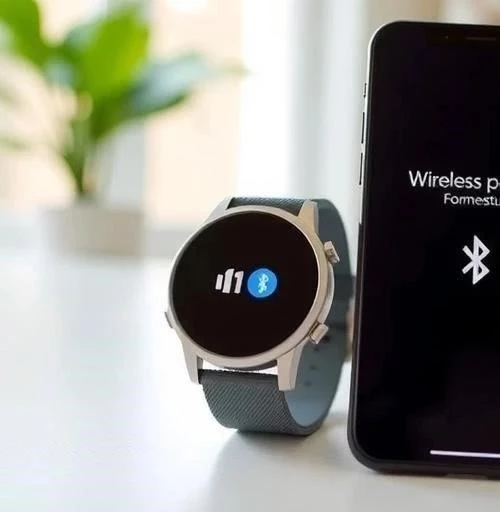
Pairing a Huawei watch with a smartphone lets you receive notifications, track workouts and health data, and manage watch settings from an app. The exact screens can vary by watch model, phone, and software version, but the general process is the same: install Huawei Health, prepare both devices, and add the watch through the app. For the most reliable results, do not begin by pairing the watch in the phone’s Bluetooth settings.
Before you start
- Check compatibility. Confirm that your watch supports your phone’s operating system and version. Available features can differ between Android and iPhone, and between watch models.
- Charge the watch. Make sure it has enough battery to complete setup. Turn it on and keep it close to your phone.
- Enable Bluetooth. Switch on Bluetooth on the phone. Keep the phone connected to the internet, since the app may need to download updates or device information.
- Install Huawei Health. Use the official Huawei Health app. Depending on your phone and region, it may be available through Huawei AppGallery, the Google Play Store, or Huawei’s official website. Check that the publisher and app are genuine, and update the app if you already have it.
- Prepare your account. Sign in with a Huawei account if the app asks you to. Some functions or data syncing may require an account, and availability can vary by region;
Pair the watch using Huawei Health
- Open Huawei Health. Accept the initial prompts and grant the permissions needed for the features you want. Depending on your phone, these may include Bluetooth or nearby-device access, notifications, and permission to run in the background.
- Go to the device section. Tap Devices at the bottom of the screen, then choose Add or the plus sign. The wording and layout may differ slightly between app versions.
- Select your watch. Choose the correct model from the list. If it does not appear, use the option to scan for nearby devices or scan the QR code shown on the watch, if your model offers one.
- Confirm the connection. When the watch appears, tap its name. A pairing request or code should appear on both devices. Check that the codes match, then confirm on the phone and the watch. Keep the devices close together while they connect.
- Finish setup. Follow the on-screen instructions to choose preferences, install any available watch update, and allow notification access if requested. Do not close the app or move out of Bluetooth range while an update is installing.
- Check the connection. The watch should appear under Devices in Huawei Health, usually with a connected status. Open its device page to configure notifications, health features, watch faces, and other settings supported by your model.
Android and iPhone differences
On Android, Huawei Health may need permission to run in the background. Some phones aggressively close background apps to save battery, which can delay notifications or interrupt syncing. If the connection is unstable, open your phone’s battery or app-management settings and allow Huawei Health to run in the background. Menu names differ between manufacturers.
On an iPhone, approve the Bluetooth and notification requests that appear during setup. iOS controls which data and functions third-party apps can access, so certain options available on Android may not be offered. Keep Huawei Health installed and Bluetooth enabled for normal syncing. Check the watch’s compatibility information if the app cannot find it or a feature is missing.
Some Huawei phones may offer additional setup prompts or services; You do not need to use a different pairing method just because your phone is made by Huawei: start with Huawei Health and follow the instructions shown for your particular watch.
Allow notifications and syncing
A successful Bluetooth connection does not automatically mean every alert is enabled. In Huawei Health, open the watch’s device page and look for Notifications or a similarly named setting. Select the apps whose alerts you want to receive. On the phone, also check that those apps are permitted to show notifications and that Huawei Health has the relevant notification access. For calls, messages, or other alerts, the watch and phone must usually remain connected and within range;
Health information normally syncs through Huawei Health. Open the app after setup and allow it a short time to update. If you use another health platform, check the available integrations and permissions; support is not identical across phones, regions, and watch models.
If the watch will not connect
- Check the basics. Turn Bluetooth off and on, keep the devices close, and make sure the watch is powered on. Restart both devices if needed.
- Use the app to pair. If you previously tried to connect from the phone’s Bluetooth menu, remove or forget that pairing there, then restart the process in Huawei Health. If the watch is already listed in the app, use its connection or removal options before trying again.
- Update the software. Install the latest compatible Huawei Health version and phone updates. If the watch is already connected, check for watch firmware updates in its device page.
- Review permissions. Allow nearby-device or Bluetooth access, and notification access where applicable. On Android, review battery restrictions that may stop the app from working in the background.
- Resolve an old pairing. A watch may remain linked to another phone or Huawei Health account. Disconnect it from the old phone or account first, if possible. A factory reset can erase data stored on the watch, so use it only as a last resort and follow the model’s instructions.
- Try another discovery method. If available, scan the watch’s QR code from the add-device screen or select the model manually. Make sure you have chosen the exact model, not a similar-looking device.
After pairing
Wear the watch as instructed by its manual, keep the phone’s Bluetooth enabled, and open Huawei Health occasionally to confirm that data is syncing. If you change phones, unpair the watch from the old phone when possible and add it to the new one through Huawei Health. Some models may need to be reset before they can pair with a different phone; check the model-specific guidance before resetting.
In short, install the official Huawei Health app, add the watch from its Devices section, confirm the pairing request on both screens, and grant the permissions required for your chosen features. If setup fails, check compatibility, remove stale pairings, and retry with updated software.