
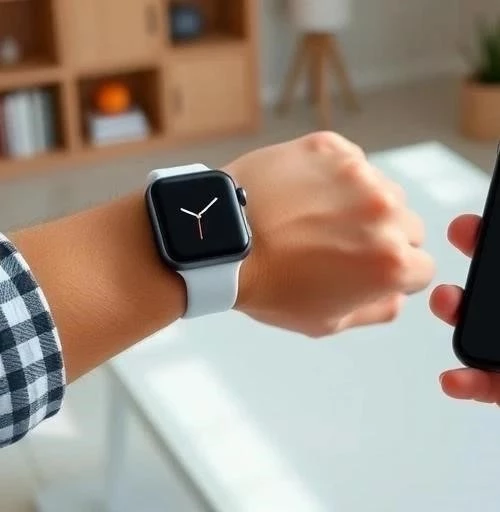
Connecting an Apple Watch Series 8 means pairing it with an iPhone through Apple’s Watch app. Pairing links the devices so the watch can sync information, show notifications, and use features such as Apple Pay. It is not enough to select the watch in the iPhone’s Bluetooth settings: follow the setup flow in the Watch app instead. The exact options may vary with your iPhone, software version, region, and watch model.
Before you begin
- Check compatibility. Make sure your iPhone supports the version of watchOS installed on the Series 8. Requirements can change with software updates, so check Apple’s current compatibility guidance if setup says the devices cannot be used together.
- Update and prepare the iPhone. Install an available iOS update, turn on Wi-Fi and Bluetooth, and sign in to your Apple Account. Keep the iPhone connected to the internet during setup.
- Charge both devices. A low battery can interrupt setup or syncing. Place the watch on its charger if prompted, and keep the iPhone nearby.
- Know the watch’s history. If it was previously paired, it may need to be erased or unpaired first. If it is protected by Activation Lock, the Apple Account previously used with it must be entered by its owner.
Pair the watch automatically
- Turn on the watch. Press and hold the side button until the Apple logo appears. Wait for the welcome screen, then place the watch close to the unlocked iPhone.
- Start pairing. When a message to set up the watch appears on the iPhone, tap Continue. If no message appears, open the Watch app, choose All Watches or Start Pairing, and select Add Watch. Menu wording can differ by iOS version.
- Choose who will use it. Tap Set Up for Myself if the watch is yours. Follow the prompts to position the watch animation inside the frame shown on the iPhone. This lets the devices identify each other.
- Use manual pairing if needed. If the camera cannot read the animation, tap the option to pair manually. Select the watch when it appears, then enter the code displayed on its screen.
- Set up or restore. Choose Set Up as New Apple Watch for a fresh configuration, or restore a backup if one is offered and you want to bring back compatible settings and data; A backup is useful when replacing a watch, but it does not remove Activation Lock.
- Follow the security and personalisation steps. Sign in to your Apple Account if requested, create a watch passcode, choose your wrist, and review options such as location services, Siri, and automatic updates. Read each prompt and enable only the features you want.
- Finish syncing. Keep the watch and iPhone close together and connected to power if possible. Setup may take several minutes; wait until the progress indicator finishes before moving away or restarting either device.
Set up cellular service, if applicable
Some Series 8 models support cellular; GPS-only models do not. For a cellular watch, open the Watch app’s cellular or mobile service settings and follow the carrier’s instructions. Your carrier must support Apple Watch service, and a suitable plan may be required. Cellular activation can be completed during initial setup or later. If you do not need the watch to connect without your iPhone nearby, you can skip this step and use Wi-Fi and Bluetooth connections instead.
If pairing does not work
- Keep the iPhone unlocked and close to the watch. Check that Wi-Fi and Bluetooth are on and Airplane Mode is off.
- Restart both devices, then reopen the Watch app and try again. If an update is offered, install it before repeating setup.
- If the watch shows a normal clock face rather than the setup screen, it may already be paired. Unpair it from its current iPhone, or erase it using the watch’s settings if you own it. Erasing alone does not bypass Activation Lock.
- If setup reports that the watch is still linked to another Apple Account, ask the previous owner to remove it from their account and Find My. Do not share passwords or attempt unofficial lock-removal services;
- If the pairing animation stalls, cancel and begin again. As a last resort, erase the watch and retry, understanding that this removes content and settings not backed up.
After connection
Open the Watch app to adjust notifications, app installation, watch faces, privacy, and other preferences. Test a notification and check that the watch and iPhone show the expected connection status. If you have a cellular model, verify its service separately; successful iPhone pairing does not necessarily mean cellular service has been activated.
In short: update and prepare the iPhone, bring it close to the powered-on watch, and complete pairing in the Watch app. Staying nearby until syncing finishes—and resolving any previous-owner lock through the owner’s account—prevents most setup problems.
4 Comments. Оставить новый
The article gives a clear distinction between pairing through the Watch app and simply connecting through Bluetooth, which is an important detail for first-time users. The preparation checklist also helps prevent common setup interruptions.
The guidance is practical because it covers both ordinary setup and complications such as a previously paired watch or Activation Lock. Pointing readers to current compatibility information is sensible, since software requirements can change.
The article is accessible to readers who may not know where to begin, and it appropriately notes that menu labels can vary by software version. Including manual pairing as an alternative makes the instructions more useful.
I appreciate the step-by-step structure and the reminder to keep the devices charged, nearby, and connected to the internet. These small preparations can save time when pairing.