
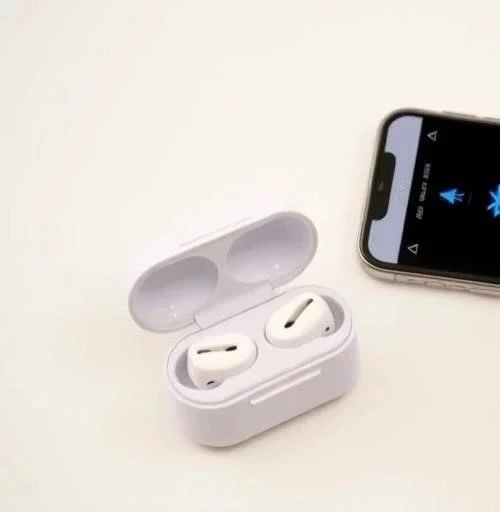
Huawei FreeBuds 5i connect to phones, tablets, and computers over Bluetooth. The basic process is the same across most devices: put the earbuds into pairing mode, open the Bluetooth settings on the device you want to use, and select HUAWEI FreeBuds 5i from the available devices. Once paired, they should reconnect automatically when Bluetooth is on and the earbuds are taken out of their charging case.
This guide explains how to pair the FreeBuds 5i with Android phones, iPhones, Windows PCs, and Macs. It also covers the Huawei AI Life app, switching between devices, and steps to try if the earbuds do not appear in the Bluetooth list.
Before you begin
- Make sure the charging case and earbuds have some battery. If the case is empty, charge it before troubleshooting.
- Keep the phone or computer close to the case while pairing.
- Turn on Bluetooth on the device you want to connect.
- If the earbuds have already been paired with another device nearby, disconnect them from it or temporarily turn off Bluetooth on that device.
The FreeBuds 5i can be paired with devices that support Bluetooth audio. Menu names can differ slightly between operating-system versions, but the connection steps are generally similar.
Put FreeBuds 5i into pairing mode
- Place both earbuds in the charging case and leave the lid open.
- Find the function button on the side of the case.
- Press and hold the button for about two seconds, until the indicator starts flashing white.
- Release the button. The earbuds are now discoverable and ready to pair.
On a new pair of FreeBuds 5i, opening the case near a compatible device may prompt a connection message. If no message appears, use the button procedure above and connect through the device’s Bluetooth settings. Keep the lid open while pairing; closing it may interrupt the process.
Connect to an Android phone
- Open the charging case with both earbuds inside.
- Press and hold the case button until the indicator flashes white.
- On the phone, open Settings and go to Bluetooth. Depending on the Android version, the menu may be called Connected devices or Connections.
- Switch Bluetooth on and choose Pair new device, Scan, or the equivalent option if the phone does not search automatically.
- Tap HUAWEI FreeBuds 5i in the list of available devices.
- Confirm the pairing request if one appears. Wait for the status to show that the earbuds are connected.
Some Huawei phones can show a pop-up card when the case is opened near the phone. Follow the on-screen prompts if they appear. This shortcut depends on the phone model, software version, and Huawei services available in your region. It is not required: pairing from the Bluetooth menu works without the pop-up.
Connect to an iPhone or iPad
- Open the FreeBuds 5i case and hold its function button until the indicator flashes white.
- On the iPhone or iPad, open Settings and select Bluetooth.
- Turn Bluetooth on, if necessary, and wait for the FreeBuds to appear under Other Devices.
- Tap HUAWEI FreeBuds 5i. When the device appears under My Devices with a connected status, pairing is complete.
After pairing, audio from supported apps should play through the earbuds. If sound continues to come from the iPhone or iPad, open the audio-output selector in Control Centre or in the app you are using, then choose the FreeBuds. The exact names of controls can vary by iOS or iPadOS version.
Connect to a Windows computer
Windows 11
- Put the earbuds into pairing mode: keep them in the open case and hold the case button until the indicator flashes white.
- On the PC, open Settings and select Bluetooth & devices.
- Turn Bluetooth on, select Add device, and choose Bluetooth.
- Choose HUAWEI FreeBuds 5i from the list and complete any confirmation shown on the screen.
Windows 10
- Open Settings, then go to Devices and Bluetooth & other devices.
- Switch Bluetooth on and select Add Bluetooth or other device.
- Choose Bluetooth, select HUAWEI FreeBuds 5i, and wait for Windows to finish pairing.
If the PC says the earbuds are paired but audio does not play through them, select the sound icon on the taskbar and choose the FreeBuds as the output device. For calls, check the input device in the meeting app or Windows sound settings as well. A computer may list separate playback and headset profiles; the headset profile can be useful for calls, while the stereo playback profile is usually preferable for listening to music.
Connect to a Mac
- Place the earbuds in the open case and hold the function button until the indicator flashes white.
- On the Mac, open the Apple menu and choose System Settings, then Bluetooth. On some macOS versions, the page is called System Preferences.
- Make sure Bluetooth is enabled and wait for HUAWEI FreeBuds 5i to appear.
- Select Connect beside the device name.
If the Mac connects but uses its built-in speakers, open System Settings > Sound > Output and select the FreeBuds. Select them under Input too if you want to use their microphones for calls.
Use the Huawei app for settings
The Huawei AI Life app can provide device information and access to available earbud settings. Depending on the phone, region, and app version, it may also offer firmware updates, control customisation, noise-control options, or battery information. App features and availability can differ, so Bluetooth pairing does not depend on installing the app.
- Install Huawei AI Life from an official app store or Huawei’s official distribution channel available in your region.
- Enable Bluetooth and, if requested, allow the permissions the app needs to find and manage nearby devices.
- Open the app and follow its instructions to add the FreeBuds 5i. If prompted, put the earbuds in pairing mode.
- Check the product page in the app for settings or firmware updates offered for your device.
If the app does not find the earbuds, first pair them using the phone’s Bluetooth settings. Then reopen the app and check whether the device appears. Avoid installing unofficial app files from untrusted websites. The app name or installation method may differ by region and phone model.
Reconnect or pair with another device
After the first successful pairing, the earbuds normally reconnect to a device they have already been paired with. Turn on Bluetooth on that device, open the case, and take out the earbuds. If they do not connect automatically, open the Bluetooth menu and select HUAWEI FreeBuds 5i. Check that the earbuds are not already connected to another nearby phone or computer.
To use the FreeBuds with a new device, put them in pairing mode again and select them from the new device’s Bluetooth list. If the new device cannot find them, temporarily disconnect the earbuds from the device currently using them. Some Huawei earbud software versions support connections with two devices, but available behaviour may depend on firmware and settings. Do not assume that audio from both devices will play at the same time; check the product settings and switch the active audio source as needed.
If FreeBuds 5i do not appear or will not connect
Try these checks in order. After each one, return to the Bluetooth screen and search again.
- Check pairing mode. Keep the lid open and hold the case button until the indicator flashes white. A steady light alone may not mean the earbuds are discoverable.
- Move closer. Keep the case beside the phone or computer and temporarily move away from other Bluetooth devices.
- Check the battery. Charge the case and earbuds, then retry. A low charge can interfere with pairing or cause a connection to drop.
- Disconnect other devices. Turn off Bluetooth temporarily on a previously paired phone, tablet, or computer, or disconnect the FreeBuds from its Bluetooth menu.
- Toggle Bluetooth. Turn Bluetooth off and back on on the phone or computer. If that does not help, restart the device.
- Remove the old pairing. In the Bluetooth settings, select the FreeBuds and choose Forget, Unpair, or Remove device. Then put the earbuds into pairing mode and pair them again.
- Check the device list carefully. Select the entry that matches HUAWEI FreeBuds 5i; do not choose a similarly named device that belongs to another accessory.
- Try another phone or computer. This can help determine whether the problem is with the earbuds or with the original device’s Bluetooth settings.
If the FreeBuds are connected but there is no sound, check the selected audio output, raise the volume on both devices, and test another app. For calls, confirm that the call app has permission to use Bluetooth audio and that the FreeBuds are selected as the microphone and speaker where those options are provided.
Reset the earbuds
A factory reset removes the earbuds’ saved connection information and can help when they repeatedly fail to pair or behave inconsistently. It is different from simply forgetting the device on a phone: after resetting, you will need to pair the FreeBuds again.
- Remove the FreeBuds from the Bluetooth lists of devices that have previously used them, if possible.
- Place both earbuds in the charging case and leave the lid open.
- Press and hold the case function button for about ten seconds, or until the indicator flashes red to signal a reset.
- Release the button. Wait for the reset to finish, then use the pairing procedure again and select the FreeBuds on your phone or computer.
Indicator behaviour can be difficult to see in bright light, and instructions can vary with firmware. If the light does not respond as expected, charge the case, check the model-specific user guide, and repeat the procedure without removing the earbuds. Do not press the button repeatedly during the reset.
Frequently asked questions
Do FreeBuds 5i work with an iPhone?
Yes. They can connect to an iPhone through standard Bluetooth pairing. Some Huawei-specific app functions may be limited or unavailable depending on the app, region, and iOS version, but the basic wireless audio connection does not require a Huawei phone.
Do I need a Huawei phone?
No. The FreeBuds 5i can be paired with compatible Android and Apple devices, as well as Bluetooth-enabled computers. Huawei phones may offer additional prompts or settings, but they are not essential for connecting the earbuds.
Why does the case need to stay open?
The open case makes it possible to use the function button to place the earbuds in pairing mode. Keeping the lid open also helps ensure that the device can discover them during setup.
Can I pair the earbuds without the Huawei app?
Yes. Use the Bluetooth settings on the phone, tablet, or computer. The app is optional and is mainly useful for compatible settings, device information, and updates.
Why do the earbuds connect to the wrong device?
They may reconnect to a previously paired device that is nearby. Disconnect them there or turn off Bluetooth on that device, then select the FreeBuds from the Bluetooth menu of the device you want to use.
Will pairing erase my settings?
Pairing with another device normally does not reset the earbuds. A factory reset does clear stored connection information, so you will have to pair them again. Custom settings may also return to their defaults after a reset.
Quick connection checklist
- Charge the case and earbuds.
- Put both earbuds in the case and leave the lid open.
- Hold the case button until the indicator flashes white.
- Open Bluetooth settings on the phone, tablet, or computer.
- Select HUAWEI FreeBuds 5i and confirm the connection.
- If pairing fails, disconnect old devices, remove the saved pairing, and try again.
In most cases, connecting Huawei FreeBuds 5i is a straightforward Bluetooth setup. The essential steps are to open the case, activate pairing mode with the function button, and choose the earbuds in the device’s Bluetooth menu. If the connection remains unreliable after removing old pairings and restarting Bluetooth, charge the case, reset the earbuds, and consult the user guide or Huawei support for the exact indicator behaviour for your model and firmware.


6 Comments. Оставить новый
The guidance covers useful basics, including keeping the case open and placing the device nearby during pairing.
The instructions are organized into practical sections, making it easy to locate the relevant setup information.
The article notes that Bluetooth menu names may vary, which is helpful for readers using different operating-system versions.
The guide gives a clear overview of the basic pairing process and explains when to use the charging-case button.
The preparation checklist is useful, particularly the reminder to disconnect other nearby devices before pairing.
The explanation of the flashing white indicator helps clarify when the earbuds are ready to connect.