
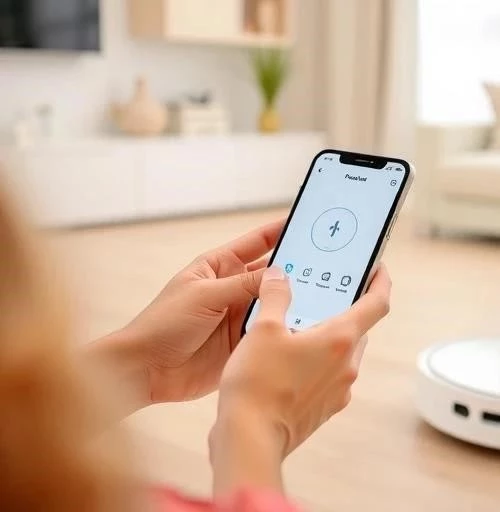
Connecting the Xiaomi Robot Vacuum S10 to your phone is more than a convenience: it is what lets you start or schedule cleaning remotely‚ check the robot’s status‚ and manage available settings in the Xiaomi Home app․ The process is usually straightforward‚ but it can fail if the phone is using the wrong Wi-Fi band‚ the app has the wrong region selected‚ or the vacuum has retained an old network configuration․ Following the steps in order is therefore more reliable than repeatedly trying to add the device without checking the basics․
Before you begin
- Install Xiaomi Home․ Download the official Xiaomi Home app‚ also called Mi Home in some regions‚ from your phone’s app store․ Avoid unofficial apps or installation files from unfamiliar websites․
- Sign in to a Xiaomi account․ Create an account if needed‚ and allow the app to use Bluetooth‚ local-network access‚ and location permissions when requested; Permission names vary by phone; these services can help the app find and configure nearby devices․
- Use a compatible Wi-Fi network․ The S10 generally requires a 2․4 GHz Wi-Fi network for setup․ A phone connected only to a 5 GHz network may not be able to complete pairing․ If your router combines both bands under one network name‚ temporarily separating the bands or selecting 2․4 GHz can make setup easier․
- Check the password and signal․ Have the correct Wi-Fi password ready and place the robot near the router for initial setup․ A strong signal removes one common cause of pairing failure․
- Prepare the robot․ Remove its packaging‚ place it on its charging dock‚ and make sure the dock is powered․ Starting with a charged robot on a stable surface is preferable to pairing it while it is moving or nearly out of battery․
These checks matter because pairing involves both the phone and the robot joining the same home network․ The app cannot compensate for an incorrect password or a network the vacuum does not support․ Fixing those conditions first is faster than treating every failed attempt as a fault in the robot․
Step-by-step connection
- Connect your phone to the intended Wi-Fi․ Open the phone’s Wi-Fi settings and connect to the 2․4 GHz home network you want the vacuum to use․ Keep the phone near the robot and router during setup․ If your phone automatically switches to mobile data or another saved network‚ pause that behaviour temporarily․
- Open Xiaomi Home and choose the region; Sign in‚ then select the region or server requested by the app․ Region settings affect which devices the app can find and control‚ so the vacuum may not appear if the selected region does not match its market․ Use the region appropriate for your account and device; changing regions can affect access to devices already added․
- Add the vacuum․ Tap the plus sign or Add device․ If the S10 appears in the nearby-device list‚ select it․ Otherwise‚ use the search field and enter “Xiaomi Robot Vacuum S10‚” then choose the matching model․ Check the model name before continuing‚ since similarly named Xiaomi vacuums can have different setup instructions․
- Put the S10 into pairing mode․ Follow the instructions displayed in Xiaomi Home․ If the app says the Wi-Fi needs to be reset‚ press and hold the robot’s power/clean and dock/recharge buttons together for several seconds—commonly about seven—until the voice prompt indicates that the network is ready to be configured or reset․ Button wording and prompts can vary slightly by software version‚ so follow the on-screen directions for your particular unit․ Do not press a small reset control or dismantle the robot unless the app or the S10 manual specifically instructs you to do so․
- Confirm the Wi-Fi details․ Select your 2․4 GHz network and enter its password carefully․ Passwords are case-sensitive․ If the app offers a choice of networks‚ do not select a guest network that blocks communication between devices․
- Allow pairing to finish․ Keep the app open‚ leave the phone close to the vacuum‚ and wait for the connection process to complete․ The app may send the network information to the robot and then wait while the robot joins the router․ Avoid restarting the phone‚ robot‚ or router during this stage․
- Name the device and check its status․ When the app confirms the connection‚ assign the S10 a useful name‚ such as “Living room vacuum‚” and choose a room if the app offers that option․ Open the device page and verify that the robot appears online before testing its controls․
Once connected‚ use the app to start a short test clean or send the robot back to its dock․ A successful test is more meaningful than the “added” message alone: it confirms that the app can communicate with the vacuum after setup․ If the robot responds and its status updates‚ the basic connection is working․
What to do if the S10 will not connect
Confirm that the network is 2․4 GHz
The most productive first check is the Wi-Fi band․ Many routers broadcast 2․4 GHz and 5 GHz under a single network name‚ while others let you choose separate names․ If pairing repeatedly fails‚ temporarily give the bands distinct names in the router settings and connect the phone to the 2․4 GHz network before trying again․ Then repeat the app’s setup process․ Do not assume that a phone’s successful connection to Wi-Fi proves the vacuum can use that same band․
Re-enter the password and check router settings
Delete the network details from the setup attempt and type the password again‚ checking capital letters and special characters․ Also check that the router is not using a guest-network isolation setting that prevents connected devices from communicating․ If you have recently changed your Wi-Fi name or password‚ the robot may still be trying to use its old details; reset its network configuration and add it again․
Reset the vacuum’s Wi-Fi configuration
If the app cannot find the vacuum or says that it is already configured‚ use the network-reset procedure shown in the app or the S10 user manual․ On commonly supplied S10 versions‚ this involves holding the power/clean and dock/recharge buttons together until the voice prompt announces the Wi-Fi reset or network-configuration mode․ Then return to Xiaomi Home and start adding the robot again․ A Wi-Fi reset is intended to clear network pairing; it is not the same as a full factory reset‚ so avoid broader reset procedures unless there is a clear reason․
Check permissions‚ Bluetooth‚ and app condition
Update Xiaomi Home through the official app store‚ close and reopen it‚ and make sure the permissions it requests are enabled․ Turn Bluetooth on if the app asks for it‚ even though the vacuum’s ongoing connection uses Wi-Fi․ On some phones‚ location permission is required for discovering nearby devices․ If the app remains stuck‚ restart the phone and try again․ Reinstalling the app should be a later step‚ not the first one‚ because it may require you to sign in and configure devices again․
Review the region and try a clean setup
If the S10 is missing from the device list‚ verify the region selected in Xiaomi Home and search by the complete model name․ If the vacuum was previously connected to another account or router‚ remove any stale entry from the app if possible‚ reset its Wi-Fi settings‚ and add it to the current account․ Avoid switching regions at random: region changes can make existing devices appear unavailable and are not a substitute for resetting the robot’s network settings․
Restart the router only when appropriate
If other devices are also having network trouble‚ restart the router and wait until Wi-Fi is fully available before repeating setup․ Check that the router is not blocking new devices through an access-control list or a device limit․ Do not change advanced security settings indiscriminately․ If a router configuration must be adjusted‚ use settings supported by both the router and your household devices‚ and restore any temporary changes after pairing․
After connection: useful first checks
Once the vacuum is online‚ review the options shown on its device page․ Depending on the app version and region‚ you may be able to start or pause cleaning‚ send the robot to its dock‚ set a schedule‚ adjust cleaning preferences‚ and view a map or cleaning history․ The exact menu can change with app updates‚ so rely on the controls currently displayed rather than expecting every version to look identical․
Before scheduling a full clean‚ clear loose cables‚ small objects‚ and other hazards from the floor․ Check that the charging dock is positioned according to the product instructions and that the robot can return to it without obstruction․ These practical steps improve cleaning and docking; a stable Wi-Fi connection alone cannot prevent the robot from getting caught on an object or being unable to reach its dock․
If the app offers a firmware update‚ keep the S10 on its dock and connected to a reliable network while the update runs․ Do not switch it off or interrupt the router during installation․ Afterward‚ check that the device is still online and that its basic controls respond․ Firmware and app features can differ by region‚ so the absence of a particular menu does not necessarily mean that pairing failed․
Important connection points
- The phone and robot should be configured on the same compatible home network‚ usually 2․4 GHz for the S10․
- The Xiaomi Home region and the device’s supported market can affect whether setup succeeds․
- If the robot has old network details‚ reset its Wi-Fi configuration before trying to pair it again․
- Keep the robot near the router and on its dock during setup‚ and wait for the app to finish before testing controls․
- Use the app’s instructions and the manual for the exact button sequence if they differ from general guidance․
To connect a Xiaomi Robot Vacuum S10‚ install Xiaomi Home‚ sign in‚ select the appropriate region‚ connect the phone to a 2․4 GHz Wi-Fi network‚ and add the correct S10 model in the app․ Put the vacuum into network-configuration mode when prompted‚ enter the Wi-Fi password‚ and wait for the app to confirm that the robot is online․ If pairing fails‚ check the band‚ password‚ permissions‚ region‚ and any old network configuration before attempting more drastic changes․ This order is worth following because it addresses the most common causes first‚ protects existing settings‚ and gives you a clear way to verify that the connection actually works․


5 Comments. Оставить новый
The guidance is accessible to less technical users while still explaining why network compatibility matters. A concise reminder to consult the router or vacuum documentation if setup continues to fail would make the troubleshooting advice even more complete.
I appreciate the reasoned order of the preparation steps: checking the network and password first can save time before attempting to add the vacuum. The note about combined Wi-Fi bands is particularly valuable for readers whose routers use one network name.
This provides sensible troubleshooting context without promising that every pairing issue has the same cause. Keeping the robot charged and near the router is straightforward advice that makes the initial connection process more reliable.
This is a clear and practical setup guide because it addresses common obstacles before asking readers to repeat the pairing process. The explanation of the 2.4 GHz requirement and the advice to place the robot near the router are especially useful.
The article appropriately emphasizes using the official app and checking permissions, which helps readers avoid unreliable downloads and missed setup prompts. It would also be helpful to clarify that permission names and requirements can differ across phone operating systems.