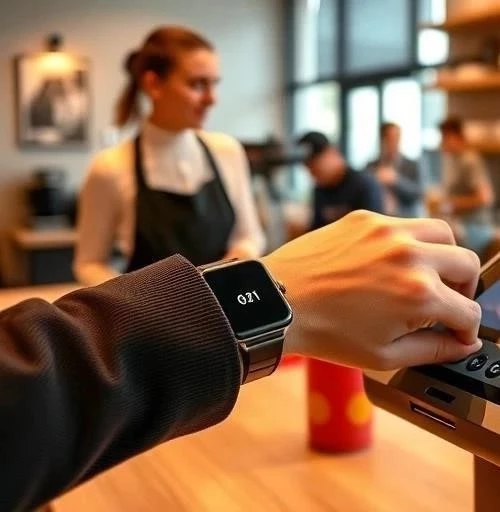
Paying with an Apple Watch is quick, but it works only when Apple Pay is supported in your country and by your bank, card issuer, and the merchant’s payment terminal. Once a compatible card is set up, you can usually pay without taking your iPhone or wallet out. The watch uses a secure payment token rather than sending your actual card number to the shop.
Before you begin
Check that your Apple Watch model, watchOS version, region, and card are eligible for Apple Pay. Your iPhone should be paired with the watch, and both devices should have passcodes enabled. A passcode matters: it protects the watch and is required for Apple Pay setup. Availability and supported cards vary, so check Apple’s current country and bank lists if you cannot add your card.
Add a card to Apple Wallet
- On your paired iPhone, open the Watch app and tap My Watch.
- Choose Wallet & Apple Pay, then tap Add Card. You can also add a card in the Wallet app on the iPhone and follow the prompts.
- Scan the card or enter its details, accept the issuer’s terms, and complete any verification requested by your bank, such as a text message or banking-app approval.
The issuer—not Apple—decides whether to approve the card. If verification fails, contact the bank or try its app. Once approved, the card appears in Wallet on the watch; adding it to the iPhone does not always add it to the watch automatically.
Make a contactless payment
- At checkout, look for the contactless symbol or ask whether the terminal accepts Apple Pay.
- Double-click the watch’s side button. Your default card appears. To use another eligible card, turn the Digital Crown or swipe to select it.
- Hold the watch display near the contactless reader, with the screen facing the terminal. Keep it there until you feel a tap or hear a beep and see confirmation.
You generally do not need to open an app or have your iPhone with you. For a purchase that requires a PIN, receipt, or additional verification, follow the terminal’s instructions.
If payment does not work
Make sure the card is active, the watch is unlocked and on your wrist, and the terminal accepts contactless payments. Try positioning the watch closer to the reader or ask the cashier to retry. Check that Apple Pay is supported for the card and transaction in your region. Restarting the watch, updating watchOS, or removing and re-adding the card may help; contact your bank if the card is declined.
Security and practical tips
Apple Pay transactions use device-specific security credentials, and your card number is not shared with the merchant in the usual payment flow. Still, protect your passcode and remove cards from a lost watch through Find My or your Apple Account. You can set a default card in Wallet & Apple Pay and review recent transactions there or in your bank’s app. These steps make watch payments convenient without treating them as universally available: confirm compatibility first, then double-click, select, tap, and wait for confirmation.