
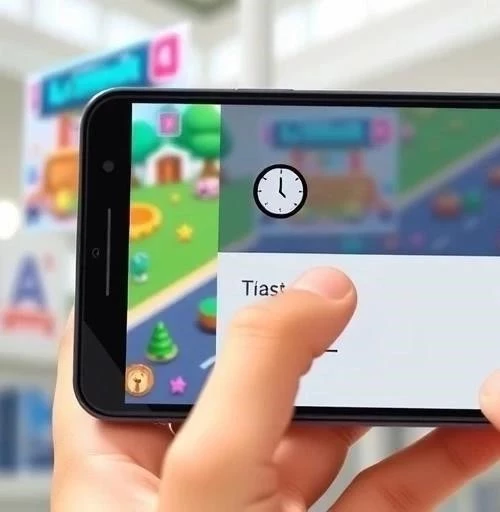
A timer displayed while playing on a Xiaomi phone can come from several places․ It may be a Game Turbo overlay, an app-use limit, a countdown started inside the game, or the phone’s screen-timeout setting․ The right fix depends on what the timer looks like and where it appears․ The instructions below cover the common causes on MIUI and HyperOS; menu names can differ slightly by phone model and software version․
Check the Game Turbo overlay
Game Turbo is Xiaomi’s gaming utility․ Its sidebar can show shortcuts and gaming information over a game, and a timer or stopwatch may have been added or opened there․ To check it:
- Open Settings and search for Game Turbo․ Depending on the version, it may be under Special features, Additional settings, or in the Security app․
- Open Game Turbo and select the game where the timer appears․
- Launch the game, then swipe inward from the marked edge of the screen to open the Game Turbo sidebar․ The gesture and edge can vary․
- If a timer, stopwatch, or countdown is active, tap it and choose the close, stop, or remove option․ If it is a sidebar shortcut, open the sidebar’s edit or settings control and remove that shortcut․
If you do not need the sidebar at all, open the Game Turbo settings and switch off Game Turbo or its in-game shortcut/sidebar option, if available․ On some versions, disabling the feature for one game is possible from that game’s profile․ This may also hide other gaming tools, such as screen recording, performance controls, or notifications, so check the available options before turning the feature off globally․
Look for an app timer or usage limit
If the timer counts down the time you are allowed to play, rather than measuring a session, it may be an app limit․ Android’s Digital Wellbeing controls, Xiaomi’s parental controls, or a family-management app can limit how long an app is available․ In that case, removing a Game Turbo overlay will not solve the issue․
- Open Settings and search for Digital Wellbeing, App timer, or Screen time․
- Check the game’s usage limit and change or remove it if you are authorized to do so․
- If the phone is managed through parental controls or a family account, the limit may need to be changed by the parent or account manager․
On some Xiaomi phones, app limits are available through the Security app or a screen-time management feature․ Search Settings for terms such as “limit,” “usage,” or “parental controls” if the listed menu is not present․ A countdown enforced by a game itself must instead be changed in that game’s settings, where permitted․
Distinguish a timer from the screen timeout
If the display dims or turns off after a period of inactivity, this is usually the screen timeout, not a game timer․ Go to Settings > Display or search Settings for Sleep or Screen timeout․ Choose a longer interval․ Some games keep the display awake automatically, while others do not․ Increasing this setting can use more battery and does not remove an on-screen countdown or usage limit․
Check the game and other overlays
A timer that remains after Game Turbo is closed may belong to the game itself or another app that can display over other apps․ Look in the game’s menus for options named Timer, Countdown, HUD, or Overlay․ Also check recently installed floating-tool, clock, screen-recording, accessibility, or gaming apps․
To review overlay access, open Settings and search for Display over other apps or Appear on top․ Find the app that supplies the timer and disable its permission only if you recognize it and no longer need the feature․ Menu paths vary across Android versions․ Avoid disabling permissions for unfamiliar system components․
If the timer will not disappear
- Close the game completely and open it again․ If needed, restart the phone․
- Update the game and install available MIUI or HyperOS system updates․
- Reopen Game Turbo and check whether the timer is still active or pinned to the game’s sidebar․
- Temporarily turn off Game Turbo for that game, then test whether the display changes․
- If the timer is part of a game restriction, check the relevant screen-time or parental-control settings rather than clearing game data․
Clearing an app’s data or uninstalling it may remove saved settings or progress, so those steps should not be the first choice․ If the timer appears across several games, note whether it is a small floating widget, a usage countdown, or a notification; that detail helps identify the responsible feature․
Quick guide
- Small floating clock or stopwatch: check the Game Turbo sidebar and its shortcuts․
- Countdown until the game is blocked: check app limits, Digital Wellbeing, or parental controls․
- Screen dims or turns off: adjust the screen-timeout setting․
- Timer appears only inside one game: check that game’s own interface and settings․
In most cases, the timer can be removed by stopping its widget in Game Turbo or changing the specific app limit that created it․ The exact wording and location of settings depend on the Xiaomi model, Android version, and MIUI or HyperOS release․


5 Comments. Оставить новый
The explanation of app limits provides a useful alternative to checking the Game Turbo sidebar.
It is helpful that the article explains how disabling Game Turbo may affect other gaming tools.
The guidance is organized around common causes and avoids assuming that every timer comes from the same setting.
The article clearly distinguishes between an active gaming overlay and a time limit, which helps narrow down the cause.
The steps are practical, and the note that menu locations vary by software version is useful.