
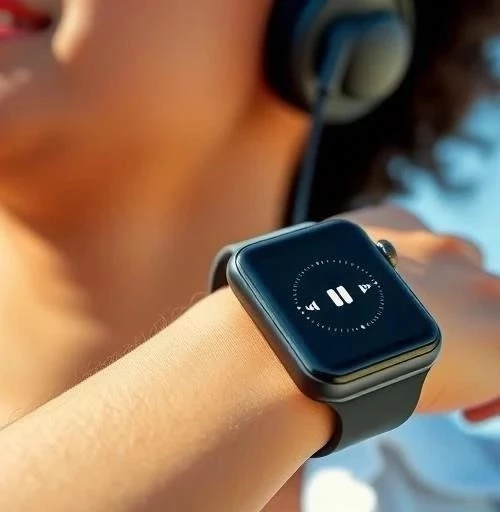
You can leave your iPhone at home and still enjoy music from Apple Watch. The key is to either download tracks to the watch in advance or stream them over Wi-Fi or cellular. For playback, you will generally need Bluetooth headphones or earbuds paired with the watch; Apple Watch does not play music through a built-in speaker for ordinary listening.
Option 1: Download music for offline listening
Offline playback is useful for running, travelling, or anywhere you may not have a connection. Add songs, albums, or playlists to your watch before you go. The exact options depend on the music service, your watch model, available storage, and the app’s current features.
Apple Music
- On your iPhone, open the Watch app and tap My Watch, then Music.
- Choose Add Music and select albums or playlists from your library. In some watchOS versions, you can also add music from the Music app on the watch.
- Keep the watch near the iPhone, connected to power if needed, and allow the music to sync. Downloads may take time, especially for large playlists.
- When you leave your phone behind, open Music on the watch, choose the downloaded music, and connect your Bluetooth headphones.
An Apple Music subscription is typically required for subscription-catalog tracks. Music you own or have purchased may also be available, subject to syncing and account settings. Check that the items have finished downloading before relying on them offline.
Other music apps
Some services, including Spotify, offer watch apps that can download playlists or albums for offline playback, often with a paid plan. Open the service’s app on the watch and look for its download or offline controls. Follow the app’s instructions, then test playback with the iPhone switched off or left behind. Features and plan requirements can change, so check the service’s current support information.
Option 2: Stream without downloading
If your Apple Watch supports cellular and has an active plan, compatible apps can stream music when you are away from your iPhone. A Wi-Fi connection may also work when the watch can access a known network. Open a music app, choose a track or playlist, and select your headphones as the audio output. Streaming uses data and can drain the battery faster than playing downloaded files.
A GPS-only watch can still use Wi-Fi in suitable circumstances, but it cannot connect to mobile networks independently. Availability also depends on the app, region, carrier, and network coverage. Do not assume that every service supports direct streaming on every watch.
Pair headphones and start playback
- Put your Bluetooth headphones in pairing mode.
- On Apple Watch, open Settings > Bluetooth and select the headphones. If they were previously paired with your iPhone, they may connect automatically.
- Open Music or your preferred audio app, select downloaded content or a stream, and press Play.
You can adjust volume with the Digital Crown. If sound comes from the wrong device, open the audio output controls in the playback screen and choose your headphones.
Troubleshooting and tips
- No music offline? Confirm downloads have completed and that the correct Apple Account or service account is active.
- Nothing plays? Check Bluetooth pairing, headphone battery, and the selected audio output.
- Streaming fails? Check Wi-Fi or cellular coverage, the watch’s mobile plan, and the app’s permissions or subscription.
- Storage is limited? Remove old downloads and sync a shorter playlist. Keep watchOS and music apps updated.
For a reliable phone-free workout, download a playlist beforehand, charge your watch and headphones, and test playback before leaving. This avoids depending on coverage and helps conserve battery. If you plan to stream, verify that your watch model, plan, and chosen app support it. With the right setup, Apple Watch can provide convenient listening without carrying your iPhone.
8 Comments. Оставить новый
I like that the guide covers both Apple Music and other services instead of assuming everyone uses the same app. The offline listening steps are straightforward.
This is a clear, practical explanation of how to listen to music on an Apple Watch without carrying an iPhone. The distinction between downloading tracks and streaming them is especially helpful.
A handy guide for anyone who wants to leave their phone at home. The clear separation between offline downloads and streaming makes the choices easy to understand.
Helpful and easy to follow, especially for someone setting up music on an Apple Watch for the first time. The Bluetooth headphone detail is good to know.
A useful overview of the main options. Mentioning storage, watch model, and app support helps set sensible expectations before syncing a playlist.
The article does a good job noting that music app features and subscription requirements can vary. That makes the advice feel more realistic and useful.
This is concise without skipping important setup details. I found the advice about allowing time for downloads particularly useful.
I appreciate the reminder to test offline playback before heading out. That small step could save a lot of frustration during a run or a trip.