
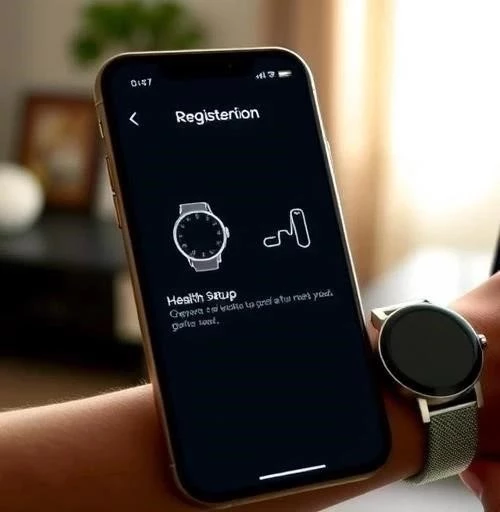
“Registering” a Huawei watch can mean two different things: setting it up in the Huawei Health app so it can connect to your phone, or registering the product for warranty and support. Pairing is required to use most smart features; warranty registration is optional or handled differently depending on the country and model. The steps below explain both. Menu names may vary slightly with your watch, phone, app version and region.
Before you start
- Charge the watch and keep it close to your phone. A low battery or distance between devices can interrupt setup.
- Check that your phone has Bluetooth enabled and a working internet connection.
- Find the exact watch model in its packaging, on the case or in the device settings. This helps you select the correct entry in the app and find model-specific instructions.
- Install or update Huawei Health using an official Huawei source available in your region. On many Android phones, Huawei recommends getting the app through Huawei AppGallery or its official consumer support pages. Availability and installation instructions differ by country and phone.
- On iPhone, look for Huawei Health in the Apple App Store where it is available. Follow the app’s own instructions if the app or a feature is not offered in your region.
Avoid unofficial download sites and unknown installation files. They may provide an outdated or altered app. If your phone asks whether to allow an installation from an external source, proceed only when you have verified that the file came from Huawei’s official channel, and review the permission prompt carefully.
Set up the watch and pair it
- Turn on the watch. Press and hold its side button or crown until the Huawei logo appears. Select a language if prompted. If the watch has already been used, follow its reset instructions before pairing it with a new phone. A reset can erase data stored on the watch.
- Open Huawei Health. Sign in with a Huawei ID if the app requests one, or create an account by following the on-screen instructions. Account options and verification requirements depend on your location. Use details you can access, since they may be needed for verification or account recovery.
- Allow the requested permissions. Bluetooth access is essential for pairing. The app may also request notifications, location or other permissions for nearby-device discovery, weather, maps or particular health and phone features. Read each prompt and allow only what you need; some features will not work if their required permission is denied.
- Add the device from the app. In Huawei Health, open Devices, tap the add-device button, and choose the watch from the list or use the scan option if available. Select the exact model rather than a similar-looking band or watch.
- Confirm the connection. The watch may show a pairing code or confirmation screen. Check that the code shown on the phone matches the watch, then approve pairing on both devices. If a permission or notification prompt appears, choose the setting that suits you.
- Finish setup. Keep the phone and watch near each other while the app completes setup. If a firmware update is offered, charge the watch, maintain the connection and do not restart either device during installation. Updates can take several minutes or longer.
When pairing is complete, the watch should appear on the Devices screen in Huawei Health. Open its device page to configure notifications, watch faces, health tracking, alarms and other available options. Some functions depend on the model, phone operating system, app version, account region and local service availability. For example, calling, message replies, payment and music features are not supported on every watch or phone.
Register the watch for warranty or support
Connecting the watch to Huawei Health does not necessarily register it for warranty. In some countries, warranty coverage is based on the purchase date and proof of purchase, while a local Huawei support app, website or service centre may offer a separate product-registration option. Check the official Huawei consumer-support site for your country, or open the official Support app if it is available on your phone.
If a registration form is provided, enter the product information exactly as requested. This may include the model, serial number, purchase date, retailer and country of purchase. The serial number may be shown on the packaging, in the watch’s settings or on a purchase document; its location differs by model. Keep your receipt and do not post the serial number publicly. If the form says the device is already registered, or your country has no registration service, contact Huawei support for guidance rather than submitting the same details repeatedly.
If setup does not work
- The watch is not listed: turn on Bluetooth, move the devices closer, reopen Huawei Health and try adding the watch again. Make sure you have selected the right model and installed an up-to-date official app.
- Pairing fails or the code does not match: cancel the request on both devices, restart the phone and watch, then begin pairing from Huawei Health. Do not pair through the phone’s Bluetooth menu first unless the model’s instructions specifically tell you to.
- The watch was paired to another phone: disconnect it from the old phone or follow the watch’s reset procedure. A device may not accept a new pairing while it remains linked to another account or phone.
- The app cannot find the watch: check the phone’s Bluetooth and nearby-device permissions. On some Android versions, location permission or location services may be required for Bluetooth discovery; this does not mean the watch uses location for every function.
- Updates or syncing stall: charge both devices, keep them close, check internet access and try again later. Avoid repeatedly resetting the watch, because a reset may delete unsynced information.
Privacy and practical tips
Use the official app and account-recovery options, and protect your Huawei ID with a unique password. Review which health, location and notification data the app syncs, and check the privacy controls available in your region. Health readings from a consumer watch are intended for general wellness and are not a substitute for medical advice or diagnosis.
Keep the purchase receipt, model details and warranty information together. If the watch still will not connect, consult the manual for that exact model and contact Huawei support in your country with the phone model, operating-system version, Huawei Health version and a description of the error. Do not share passwords or verification codes with anyone claiming to register the watch for you.



9 Comments. Оставить новый
Mentioning the exact model is a worthwhile detail because selecting the wrong watch entry could lead to confusion or model-inappropriate instructions.
The advice about reviewing external-installation permission prompts is measured and useful. It encourages verification without treating every installation outside an app store as automatically safe.
The preparation checklist makes practical sense. Charging the watch, keeping it nearby, and checking Bluetooth beforehand can prevent common setup interruptions.
The article is organized in a helpful order, starting with basic checks before moving to pairing. This makes the setup process easier to follow for someone using the watch for the first time.
The distinction between pairing a watch and registering it for warranty support is useful, since those are often mistaken for the same process. The article also appropriately notes that warranty procedures vary by region.
The reminder that a reset may erase watch data is important. It helps readers understand the consequences before trying to pair a previously used device with a new phone.
Noting that menu names and steps can vary by model, region, and app version keeps the guidance realistic rather than implying every user will see identical screens.
I appreciate the emphasis on official app sources and caution around unfamiliar installation files. That security guidance is especially relevant when app availability differs between countries.
This guidance balances practical setup advice with regional caveats. That is helpful for Huawei users, since app access and available features may differ across phones and locations.