
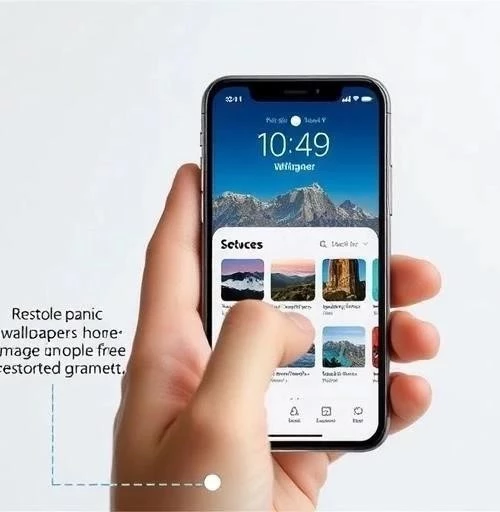
If your Xiaomi phone’s wallpaper has disappeared, changed unexpectedly, or been replaced by a plain background, you can usually set it again without resetting the phone. The exact names of menus differ between MIUI and HyperOS versions, and may also vary by region, but the same options are generally available through Settings, the Themes app, or Gallery.
First decide what you want to restore: the wallpaper that came with your phone, a wallpaper from a theme you used before, or a personal photo. The steps below cover all three. They also explain how to stop rotating lock-screen images from changing your wallpaper again.
Set a wallpaper from Settings
- Open Settings.
- Look for Wallpaper, Wallpaper & personalization, or a similarly named option. On some versions, open Personalization first.
- Choose a wallpaper category, such as system wallpapers, local photos, or recently used images.
- Tap the image you want to use and preview it.
- Tap Apply or Set wallpaper, then choose Home screen, Lock screen, or Both.
If you want the same image on both screens, select Both. If you prefer a separate lock-screen image, set the lock screen first and repeat the process for the home screen. Check the preview before confirming: a portrait photo may be enlarged or cropped to fill the display.
Restore the original Xiaomi wallpaper
If you want the wallpaper that was supplied with your phone, open the Themes app and look for Wallpapers, My account, My page, or My stuff. The wording varies by version. Check for built-in, default, or previously downloaded wallpapers, select the one you want, and apply it to the desired screen.
You can also try Settings > Wallpaper and browse the system or preset collection. Some Xiaomi phones show the original image in a category such as System, Classic, or Default. Select the image and apply it. If you installed a full theme and want to return to the standard appearance, open Themes, choose the default theme, and apply it. On some models, themes control icons, fonts, and the lock screen as well as the wallpaper, so review the options before applying.
Not every model includes every wallpaper from every older theme. If the exact image is not in the built-in collection, check whether you previously downloaded it in Themes, saved it in Gallery, or backed it up to a cloud service. Avoid downloading system images from unfamiliar websites; files may be mislabeled, low quality, or unsafe.
Restore a personal photo from Gallery
If the wallpaper was a photo, open Gallery and find the image. Open it, tap the menu or More button, and select Set as wallpaper or Use as. Adjust the crop and confirm whether it should appear on the home screen, lock screen, or both. If Gallery does not show that option, use the wallpaper controls in Settings instead.
Look through albums such as Camera, Downloads, Pictures, and any folders created by messaging or social apps. The image may still be on the phone even if it no longer appears in the wallpaper picker. Search by date if you remember roughly when you took or downloaded it.
If the photo was deleted
Check Gallery > Albums > Recently deleted or Trash, if your version has that folder. Select the picture and choose Restore. Deleted items are kept only for a limited time, and the retention period can vary. If you use Google Photos, check its Trash and the correct Google account. You can also look in Xiaomi Cloud if Gallery syncing was enabled in your region and account.
Restoring a picture from a backup brings back the image file; it does not necessarily restore the wallpaper setting automatically. Once the photo is back in Gallery, set it as wallpaper using the steps above. If you cannot find the file in Gallery or a backup, the old wallpaper may not be recoverable. A wallpaper setting is not always stored as a separate, accessible photo.
Stop the lock screen from changing by itself
If different pictures appear whenever you wake the phone, a rotating lock-screen feature may be enabled. It can be called Wallpaper Carousel, Glance for Mi, or simply Carousel, depending on your software and region. Open Settings and search for “Carousel” or “Glance.” If you find the feature, turn it off or choose a fixed lock-screen wallpaper.
You may also find the control in Settings > Lock screen or in the Themes app. After disabling rotation, set your preferred lock-screen image again. If the wallpaper changes only on the home screen, check whether an installed theme or a launcher is applying its own background. Set the image from the app that controls that screen, or temporarily switch to the default theme to test.
Use the Home screen shortcut
On many Xiaomi phones, you can touch and hold an empty area of the home screen, then tap Wallpaper or Personalization. Choose an image and apply it. If holding the screen opens a layout or widget menu instead, use Settings or Themes; the shortcut is not identical on every launcher and software version.
Fix common problems
- The wallpaper looks zoomed in: Reopen the image in the wallpaper preview and adjust its position or crop. A tall image may not fit the phone’s screen proportions without cropping. Try a higher-resolution image with a similar aspect ratio.
- The image is missing from the picker: Find it in Gallery first. If it is on an SD card or in a cloud-only folder, download it to the phone before setting it as wallpaper.
- The wallpaper changes after applying a theme: Themes can include their own backgrounds. Apply the wallpaper after the theme, or use the default theme if you want to keep the standard interface.
- The lock screen stays different: Confirm that you selected Lock screen or Both, and check that Carousel or Glance is disabled.
- The options have different names: Use the search box in Settings and search for wallpaper, personalization, or lock screen. Menu locations can change after a software update;
If the wallpaper still does not apply, restart the phone and try again through Settings. Check for a pending system update, but do not remove personal files or reset the phone just to restore a background. A factory reset erases data and is rarely necessary for this problem. If you use a third-party launcher or wallpaper app, temporarily switch to Xiaomi’s default launcher and test whether it is overriding the setting.
Quick checklist
- Choose whether you need the original system image or a personal photo.
- Look in Settings, Themes, or Gallery for the image.
- Apply it to the home screen, lock screen, or both.
- Turn off Carousel or Glance if the lock screen keeps rotating.
- Check Recently deleted and your backups if the photo is missing.
In most cases, restoring a Xiaomi wallpaper takes only a few taps. The key is to set the image on the correct screen and disable any feature or theme that replaces it automatically. Menu labels differ across devices, so if one path does not match your phone, search Settings for “wallpaper” and use the closest available option.


3 Comments. Оставить новый
I appreciate the practical reminder to check the preview before applying an image, since cropping can change how a photo looks on the screen. Including both Settings and Themes gives readers helpful alternatives.
The article is organized around what users actually want to restore, which makes it easy to scan. It would be even more helpful with screenshots for a few common HyperOS and MIUI menu layouts.
This is a clear and useful guide, especially because it acknowledges that menu names can differ across MIUI and HyperOS versions. The distinction between restoring a preset wallpaper and choosing a personal photo makes the instructions easy to follow.