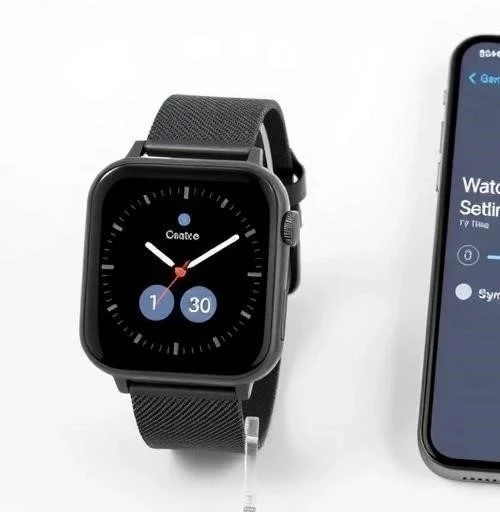
On most Huawei watches, you do not set the time by turning a crown or entering the digits manually. The watch gets its time from the phone it is paired with, then updates automatically. This is usually the most reliable approach: the phone supplies the correct time zone and can adjust for daylight saving time, while manual changes may cause the watch to drift or show the wrong time. If your watch displays an incorrect time, check the phone and connection before changing settings on the watch itself.
Set the time automatically through your phone
- Set the correct time on your phone. Open the phone’s date and time settings. Turn on options such as Set time automatically and Set time zone automatically, if available. Confirm that the displayed time zone matches your location. Menu names vary between Android and iPhone models.
- Connect the watch to the phone. Turn on Bluetooth and keep the devices near each other. Open the Huawei Health app and make sure the watch appears as connected. If it is not connected, follow the app’s prompts to reconnect it.
- Allow synchronization. Keep Huawei Health open briefly and wait for the watch to update. If the time does not change, pull down on the app’s device screen to refresh or disconnect and reconnect Bluetooth.
For a watch already paired with your phone, this is normally all that is needed. A separate “set time” control may not be available, because the watch is designed to follow the phone rather than maintain an independently entered time. Correcting the phone’s time first is therefore more effective than searching through watch menus for a manual setting.
Check time, time zone, and daylight saving settings
A watch can show the wrong hour even when its minutes are correct if the phone is using a different time zone. In the phone’s settings, verify both the current time and the selected region. Automatic time-zone detection can be inaccurate when location services are off, a VPN is active, or the phone has not connected to a network recently. If needed, select the correct time zone manually on the phone, then reconnect it to the watch.
When travelling, allow the phone to update its time zone and give the watch a moment to synchronize. If automatic adjustment is unavailable or unreliable, set the correct zone on the phone itself. Do not change the watch’s time repeatedly while it is still receiving updates: the phone may simply overwrite the manual adjustment.
If the watch is not paired with a phone
Some Huawei models can be used with limited functions before pairing, but setup options differ by model and software version. During initial setup, the watch may ask you to connect to a phone or complete activation in Huawei Health. Follow the instructions shown on the device. If there is an on-watch date-and-time menu, use it only when the model permits independent adjustment; many models do not offer this option. Check the user guide for the exact model rather than assuming that every Huawei watch has identical controls.
Troubleshooting an incorrect time
- Confirm the connection. Check Bluetooth and the connection status in Huawei Health. Keep the phone nearby, and ensure the app has permission to use Bluetooth and run as required by your phone’s system.
- Refresh synchronization. Open Huawei Health, select the watch, and wait for the device screen to update. Restarting Bluetooth or both devices can resolve a temporary connection problem.
- Update the software. Check Huawei Health and the watch for available updates. Older software can sometimes cause synchronization or display problems.
- Check the watch face. If the time appears displaced, confirm that the selected face is showing local time rather than a second time zone, such as world time.
- Re-pair only as a last resort. If ordinary troubleshooting fails, remove the pairing and set up the watch again through Huawei Health. Follow the app’s instructions and check whether your data is synced before resetting anything.
A factory reset should not be the first fix: it can erase settings and local data, and it does not correct a wrong time zone on the phone. Try the simpler checks first, especially automatic time settings and a fresh connection.
Can you set the time manually?
That depends on the model. Many Huawei watches synchronize their clocks with the paired phone and do not provide a standard manual time-entry option. Some devices may offer related settings, but their location and behavior can differ. If you cannot find a time control on the watch, this is not necessarily a fault; use the paired phone and Huawei Health instead. Avoid changing the phone’s clock just to alter the watch, since this can affect alarms, calendar events, messages, and other apps.
In brief
For most Huawei watches, the correct method is to enable automatic date, time, and time-zone settings on the phone, connect the watch in Huawei Health, and allow synchronization to finish. If the display remains wrong, check the phone’s time zone, Bluetooth connection, software, and watch face. This phone-first approach is safer and more dependable than trying to force a manual change on a watch that is designed to sync automatically.