
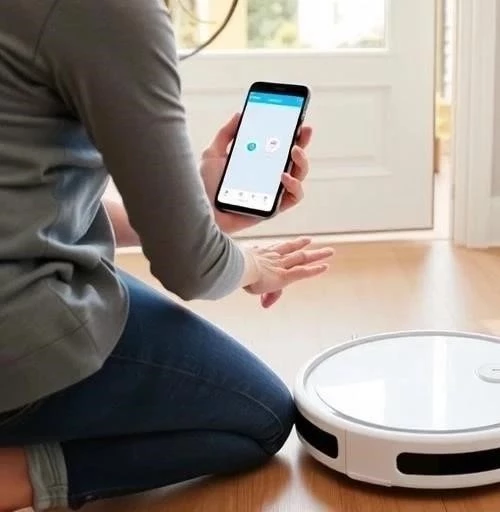
The Xiaomi G1‚ commonly sold as the Mi Robot Vacuum-Mop Essential‚ can be operated with its buttons or configured through the Mi Home app․ A first-time setup involves preparing the charging dock‚ connecting the robot to Wi-Fi‚ and checking its cleaning and mopping parts․ App labels and available features may differ by region‚ firmware‚ and app version‚ so use the instructions for your specific model if a menu looks different․
Prepare the robot and the room
Unpack the robot‚ charging dock‚ power adapter‚ dust container‚ water tank‚ mop attachment‚ and any supplied spare parts․ Remove packaging‚ protective film‚ and transit stickers from the robot and dock․ Check that the main brush‚ side brush‚ wheels‚ and sensors are not obstructed․ If a part is supplied separately‚ install it as described in the product manual; do not force a component into place․
Choose a level‚ dry location for the dock beside a wall and close to a power outlet․ Leave open floor space around it so the robot can approach and turn․ The exact clearance recommended can vary; as a practical starting point‚ keep the area in front of the dock clear and avoid placing it beside stairs‚ reflective surfaces‚ or obstacles that could interfere with docking․ Plug in the adapter and arrange the cable so the robot cannot pull it into its wheels․
Before the first cleaning run‚ pick up cables‚ clothing‚ toys‚ and small objects․ Secure dangling curtains and remove items that could jam the brush․ Open doors to the rooms you want cleaned․ If there are stairs or a drop‚ check that the robot’s sensors can detect the edge and block off any risky area if needed․ The robot may not identify every hazard‚ so do not leave it unattended in an unsafe space․
Charge the battery
Place the robot on the dock‚ aligning its charging contacts with the contacts on the base․ Alternatively‚ use the robot’s return-to-dock control if it has enough charge to locate the dock․ Check for a charging light‚ voice prompt‚ or status in the app․ If charging does not begin‚ reposition the robot‚ check that the dock is powered‚ and wipe the contacts with a clean‚ dry cloth․
For a first run‚ allow the battery to charge adequately․ Keeping the dock connected to power gives the robot a place to recharge between jobs․ Avoid charging the unit in a wet location or covering the dock․ If the battery is very low‚ the robot may need time on the dock before it can start a full cleaning session․
Install Mi Home and add the device
- Install the official Mi Home app‚ also called Xiaomi Home in some regions‚ from your phone’s app store․
- Sign in to a Xiaomi account or create one․ Allow the app the permissions it requests for device discovery and local network access․ Bluetooth or location access may also be requested during setup‚ depending on the phone and app version․
- Connect your phone to a 2․4 GHz Wi-Fi network․ Many robot-vacuum versions do not support 5 GHz Wi-Fi for pairing․ If your router combines 2․4 GHz and 5 GHz under one network name‚ temporarily separate the bands or use another 2․4 GHz network if setup fails․
- In Mi Home‚ tap the add-device button‚ then select the G1 or the closest matching robot vacuum from the list․ You may also be able to scan a setup code supplied with the device․ Follow the prompts shown in the app․
- Choose the Wi-Fi network and enter its password carefully․ Keep the phone‚ robot‚ and router close together during pairing․ Wait for the app to confirm that the device has been added․
Use the correct country or region setting in the app․ Device availability can depend on the region selected‚ and a product intended for one market may not appear under another․ If the G1 is not listed‚ check the model name on the label and consult the manual before changing regions․ Changing regions can affect access to other devices and services already linked to the account․
If Wi-Fi pairing does not work
- Confirm that the password is correct and the phone is connected to 2․4 GHz Wi-Fi․
- Move the robot closer to the router and make sure the network has a stable internet connection․
- Check that the router is not using a setting that prevents new devices from joining‚ such as device isolation or a restrictive access list․
- Restart the app and‚ if necessary‚ restart the router․ Keep the robot powered on while pairing․
- Reset the robot’s Wi-Fi only by following the model’s manual or the app’s on-screen instructions․ On some versions‚ a button combination is used; do not assume that a procedure from a different Xiaomi model applies․
After a Wi-Fi reset‚ the robot may need to be added again in Mi Home․ A reset of the network connection is not necessarily a factory reset‚ but factory-reset procedures can remove settings․ Read the confirmation screens before proceeding․
Learn the basic controls
The G1 can generally start or pause cleaning from its main button‚ while a separate home or dock control sends it back to charge․ Button behavior can vary by version‚ so check the symbols on the unit and the supplied manual․ The app provides a convenient way to start‚ pause‚ or stop a job and to request a return to the dock․ If the robot is stuck‚ pause it before lifting or moving it‚ then place it on a clear area and restart the task․
When you start the first job‚ let the robot travel freely rather than carrying it from room to room․ It uses its sensors to navigate and clean the accessible floor․ Keep the dock in the same position while it works․ Moving the dock or repeatedly relocating the robot can make navigation and return-to-dock behavior less reliable․ If the app displays a map or cleaning history‚ treat it as a navigation aid; exact map tools and editing options depend on the model’s software․
Set cleaning preferences
Open the device page in Mi Home to view the controls available for your G1․ Depending on software and region‚ you may find options for suction level‚ cleaning mode‚ schedule‚ and water flow when the mop attachment is fitted․ Start with the standard or balanced setting․ A stronger suction setting may be useful for heavier debris but can use more battery and produce more noise․ Choose settings that suit the floor and the amount of dirt rather than assuming the highest level is always best․
Use the app’s schedule function‚ if available‚ to select a start time and repeat days․ Before relying on a schedule‚ make sure the robot is charged‚ the dock is powered‚ and the cleaning area is ready․ Close doors or remove obstacles according to which rooms should be cleaned․ Test the schedule once while you are at home‚ and check the app afterward to confirm that the job started and finished as expected․
Some versions of the app may offer additional controls‚ while others may not show options such as room selection‚ custom boundaries‚ or saved maps․ Do not assume a feature is supported merely because it appears in instructions for another Xiaomi vacuum․ If an option is missing‚ update the app and device firmware when available‚ then consult the model-specific manual․ Firmware updates should be performed with the robot sufficiently charged and a stable Wi-Fi connection․
Use the mopping function safely
To mop‚ attach the compatible water tank and clean mop cloth according to the manual․ Add clean water only unless the manufacturer’s instructions for your exact version explicitly allow another product․ Detergents‚ disinfectants‚ essential oils‚ and hot water can damage the tank‚ seals‚ or internal water system․ Do not fill the tank beyond its marked limit‚ and do not soak the robot itself․
Choose a water-flow level in the app if that control is available․ Begin with a low setting on a suitable hard floor and observe the result․ Remove rugs and carpets from the area before mopping; the G1 may not reliably avoid them․ Avoid using the mop on surfaces that should not get wet‚ including untreated wood or floors for which the flooring manufacturer prohibits damp cleaning․ Do not let the robot mop over electrical cables or pooled liquid․
When the job is complete‚ remove the mop cloth and rinse or wash it as directed․ Empty any remaining water if the manual recommends doing so‚ and allow the cloth and tank to dry․ Do not leave a wet mop attached to the robot for an extended period‚ especially on a floor that could be marked by moisture․
Maintain the vacuum
Regular maintenance helps preserve cleaning performance and reduces the chance of errors․ Switch the robot off or pause it before removing parts․ Follow the manual for how each component is released; forcing a cover or brush can break its clips․
- Dust container and filter: Empty the container after use or when the app indicates it is full․ Clean the filter as instructed․ If it is washable‚ let it dry completely before reinstalling it․ A damp filter can restrict airflow or cause damage․
- Main brush: Remove wrapped hair‚ thread‚ and debris․ Check the brush ends and the area beneath its cover․ Refit the brush securely before starting another job․
- Side brush: Clear hair and fibers from the bristles and mounting point․ Replace it if it is bent‚ damaged‚ or no longer sweeps effectively․
- Sensors and charging contacts: Wipe them gently with a soft‚ dry cloth․ Dust on sensors can interfere with navigation; dirty contacts can prevent charging․ Avoid liquids and abrasive materials․
- Wheels: Check that the wheels turn freely and that no string or debris is wrapped around them․ Do not pull hard on a stuck wheel․
- Mop parts: Wash the cloth after use and inspect the tank for dirt or leaks․ Reinstall parts only when they are clean and dry as required by the manual․
Replace filters‚ brushes‚ or other wear parts when damaged or when the app or manual recommends replacement․ The appropriate interval depends on how often the robot runs‚ the type of flooring‚ and the amount of hair and dust in the home․ Use parts made for the G1 rather than assuming that accessories for a visually similar model will fit․
Troubleshooting common problems
The robot will not charge
Check the outlet and adapter‚ confirm that the dock is on a level surface‚ and align the robot with its charging contacts․ Clean the contacts with a dry cloth and remove anything blocking the wheels or dock approach․ If there is still no charging indication‚ consult the manual or Xiaomi support instead of opening the battery compartment․
The robot cannot find the dock
Keep the dock in its original position‚ clear the route to it‚ and check that the dock is powered․ Avoid ending a session after carrying the robot to a different room․ If you must move the dock‚ place it in an open area and allow the robot to navigate from that location․ A low battery‚ changed surroundings‚ or blocked sensors may also affect docking․
Cleaning is incomplete or suction seems weak
Empty the dust container‚ check the filter and brushes‚ and remove debris from the air path․ Make sure the floor is accessible and the battery is charged․ If the robot repeatedly misses an area‚ remove obstacles and run a test․ Very dark‚ reflective‚ uneven‚ or cluttered surfaces can affect some sensors‚ and no robot can guarantee coverage of every narrow space․
The app shows the robot offline
Check the home internet connection and the robot’s Wi-Fi signal․ Restart the app and confirm that the phone and robot are using the intended network․ If the router password or network name has changed‚ reconnect the robot using the app’s setup flow․ Do not delete the device from the account unless you are ready to pair it again․
A simple first-day checklist
- Remove protective materials and inspect the robot for loose or damaged parts․
- Place and power the dock in a clear‚ stable location․
- Charge the robot and install Mi Home on your phone․
- Add the correct G1 device using a 2․4 GHz Wi-Fi network․
- Clear the floor‚ start a supervised vacuuming run‚ and observe navigation․
- Set a schedule or suction preference only after the basic run works reliably․
- Fit the mop attachment only when needed‚ and prepare the floor for damp cleaning․
- After the run‚ empty the bin‚ clean the brush if necessary‚ and check the charging connection․
Once these steps are complete‚ the Xiaomi G1 should be ready for routine use․ For unfamiliar warnings‚ unusual noises‚ leaks‚ persistent connection failures‚ or a damaged battery or cable‚ stop using the robot and refer to the official model manual or Xiaomi support․ The precise menu names and supported features can change with software updates‚ but keeping the dock accessible‚ the robot clean‚ and the floor prepared will support reliable everyday operation․




6 Comments. Оставить новый
The guide provides a clear overview of the preparation steps for setting up the Xiaomi G1.
The safety guidance is useful, particularly the cautions about stairs, obstacles, and securing the power cable.
The reminders about clearing cables and small objects help explain how to prepare a room for a cleaning run.
The article appropriately notes that app features and labels may differ between regions and software versions.
The instructions are organized into helpful sections and distinguish general setup guidance from model-specific details.
The dock placement advice is practical and highlights the importance of keeping the area accessible.