
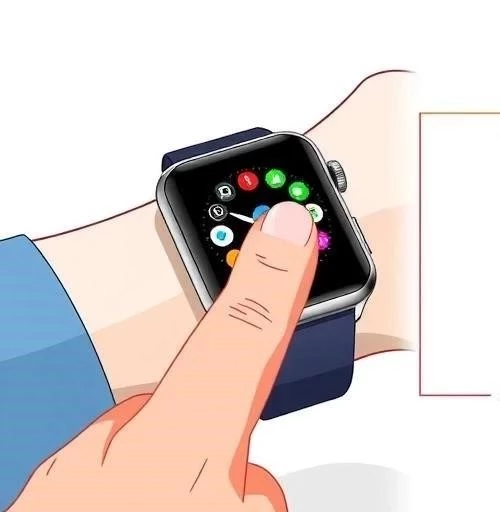
Your Apple Watch’s Home Screen is a tiny city: apps sit in a honeycomb of icons‚ or line up in a neat alphabetical list. Switching between the two takes only a moment—and can make finding your next app feel much less like a treasure hunt.
Choose a view on your watch
- Press the Digital Crown to open the Home Screen.
- Touch and hold the display until the view options appear.
- Tap Grid View for the icon-filled layout or List View for a vertical‚ alphabetized list.
On many watchOS versions‚ you can also open Settings on the watch‚ tap App View‚ then select Grid View or List View. The wording or location can vary slightly by software version‚ so if you don’t see the menu‚ check that watchOS is up to date.
Which layout suits you?
Grid View is the playful option: icons cluster like glowing tiles‚ and you can arrange them to put favorites close to the center. It’s attractive and quick once your muscle memory learns where things live‚ but tiny icons may be harder to spot at a glance.
List View trades the honeycomb for clarity. App names appear in alphabetical order‚ making it a good choice if you remember names better than icon shapes. The trade-off: you scroll through the list‚ and you can’t freely rearrange apps in this view.
Make the grid your own
With Grid View active‚ press the Crown‚ then touch and hold an app icon until the icons begin to jiggle. Drag an app to a new spot; lift your finger to place it‚ then press the Crown to finish. On some watchOS versions‚ you can also rearrange apps in the Watch app on your iPhone under My Watch and App View. If that option isn’t available‚ arrange them directly on the watch;
A quick design trick
Place your most-used apps near the center of the grid‚ where they’re easier to reach‚ and leave less-used ones around the edges. Think of the screen as a miniature control room: timers‚ workouts‚ and music up front; the occasional utility tucked away. There’s no single best layout—switch views‚ try each for a day‚ and keep the one that feels effortless.
Tip: Changing the app view doesn’t delete apps or change your watch face. It only changes how you browse the Home Screen. Press the Digital Crown whenever you want to return to your watch face.
1 Comment. Оставить новый
The “tiny city” image makes this practical guide unexpectedly delightful. I especially like the idea of treating the grid like a miniature control room—part interface advice, part invitation to design a watch face around your daily rhythm.