
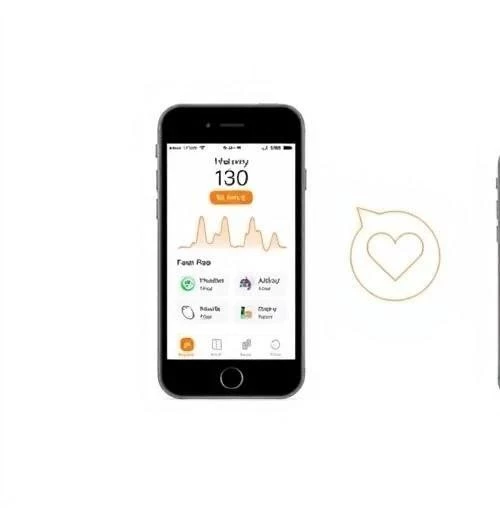
Your Huawei watch may count every step‚ heartbeat and midnight stroll‚ while Google Fit keeps a separate diary. The two apps do not always speak to each other directly. In many regions and app versions‚ Huawei Health has no built-in Google Fit connection‚ so you may need a third-party syncing app—or a route through Android’s Health Connect. The exact options depend on your phone‚ country and software versions.
First‚ understand the connection
Huawei Health is the original home for data from Huawei watches and bands. Google Fit is Google’s fitness app‚ but its older developer connections have been phased out in favour of Health Connect. That means an old tutorial promising a simple “Google Fit” switch may no longer match what you see.
A common bridge is Health Sync‚ a third-party app that can transfer selected data between supported services. Depending on its current version and your setup‚ you may be able to send Huawei Health data to Google Fit‚ or use Health Connect as the destination or intermediary. This is not a universal Huawei feature‚ and the available choices can change.
Before you begin
- Install or update Huawei Health from an official source available in your region‚ and sign in to your Huawei ID.
- Wear the watch or band and open Huawei Health at least once so your latest activity is uploaded to your account.
- Install Google Fit and‚ if offered on your Android phone‚ Health Connect. Update them through Google Play.
- Choose a reputable sync app from Google Play. Check its recent reviews‚ supported data types and privacy policy before granting access.
- Keep the phone online during the first sync. Initial transfers can take longer than routine updates.
Menu names vary by Android release and app version. If a button described below is missing‚ look for a similarly named option such as Data sharing‚ Connected apps‚ Permissions or Health Connect.
Method 1: Use a syncing app
- Open Huawei Health. Check that the watch is connected and that today’s steps or workout appear in the app. If the data is missing here‚ a bridge app cannot transfer it yet.
- Open the sync app. Select Huawei Health as the data source and Google Fit or Health Connect as the destination‚ if those choices are displayed. Follow the app’s own setup prompts; some versions may require you to sign in to your Huawei account or enable a Huawei Health permission.
- Grant only the permissions you need. For example‚ allow reading steps and workouts from the source and writing those categories to the destination. You do not have to share every health measurement just to transfer step totals.
- Choose what to transfer. Start with one or two categories—such as steps and workouts—rather than turning on everything. If the app offers a date range‚ begin with recent data.
- Run a test sync. Wait for the app to report completion‚ then open the destination and check whether the new entry appears. A sync app may need to remain allowed to run in the background.
- Enable automatic syncing only after the test works. Set a sensible interval if one is offered. Frequent checks do not necessarily mean instant updates: Huawei Health may first need to upload data‚ and Android may delay background activity to save battery.
Method 2: Try Health Connect
On supported Android phones‚ Health Connect acts like a shared‚ permission-controlled shelf for health data. It is not automatically a magic connector: Huawei Health‚ Google Fit and the intermediary app must each support the relevant Health Connect functions in your region and app version.
- Open Health Connect in Android settings or launch its app‚ then review App permissions.
- Check whether Huawei Health or your chosen bridge app can write the data you want‚ and whether Google Fit can read it. Turn on only the needed categories.
- Open Google Fit and look in its settings for connected apps or Health Connect access. If Fit is not listed as a reader‚ the route may not be available on your current setup.
- Return to the bridge app and run a small test sync. Verify the result in Google Fit rather than assuming that permission alone moved the data.
Health Connect stores and shares information according to the permissions you grant; it does not necessarily copy every old record automatically. If your goal is simply to keep a record of future activity‚ test with a new walk before attempting a large historical import.
Why your data may not appear
- No Huawei Health source option: the bridge may not support your Huawei Health version‚ account region or device. Check the app’s current compatibility notes before changing settings.
- Permissions look correct‚ but nothing moves: open Huawei Health and sync the wearable manually‚ then reopen the bridge app and run its transfer again.
- Only some categories arrive: steps‚ workouts‚ heart rate‚ sleep and calories are separate data types. The bridge may support some but not all‚ and the destination may display them differently.
- Sync stops when the screen is off: Android battery controls can restrict background apps. Allow the bridge to run in the background or exclude it from battery optimisation if you trust it and the setting is available.
- Duplicate steps or workouts appear: turn off other apps or watches that write the same category to Google Fit or Health Connect. Two sources can count one walk twice.
- Google Fit has no connection setting: this may reflect current app support‚ not a mistake on your part. Try the Health Connect route or use Huawei Health as your main dashboard.
Privacy and accuracy: the fine print
Fitness data is personal. A third-party bridge may handle your account credentials or health records‚ so read its privacy information and avoid unofficial APK downloads. Revoke access in Huawei Health‚ Android permissions or Google Fit if you stop using the service. You can also disconnect the apps from the bridge itself.
Expect occasional differences. Apps may define a day differently‚ round calories‚ combine activity periods or use different sources for steps. A transferred workout can arrive later than its step count‚ and some bridges transfer new records but not the full history. Treat the original Huawei Health record as the reference when investigating a mismatch.
The short answer
Try a trusted sync app first: select Huawei Health as the source‚ then Google Fit or Health Connect as the destination if your current version supports it. Grant limited permissions‚ test one recent activity and only then enable automatic syncing. If Huawei Health cannot be selected‚ or Google Fit cannot receive the data‚ there may be no supported direct route for your particular setup. In that case‚ keep Huawei Health as the primary tracker and use the connection options available on your phone—rather than chasing a missing switch that the apps simply do not provide.
4 Comments. Оставить новый
There’s a quiet lesson beneath the setup guide: two apps can count the same walk and still tell different stories. A careful first sync is a fine way to spot where the plot diverges.
Health Connect sounds less like a bridge and more like a thoughtful customs desk: you decide which bits of your day get through. That privacy angle deserves a place beside the syncing steps.
A helpful antidote to outdated tutorials. In app-land, yesterday’s button can become today’s archaeological find, so checking current versions before troubleshooting is genuinely good advice.
The most useful thing here is the reminder that fitness data has borders. A watch can cross them, but only if the apps, permissions and regional rules agree to open the gate.