
Your Redmi Note 7 can freeze a funny message, save a useful map, or keep a receipt exactly as it appears on screen. The trick is knowing which screenshot shortcut suits the moment. Here are the simplest methods, plus a few ways to capture, find, and share your image.
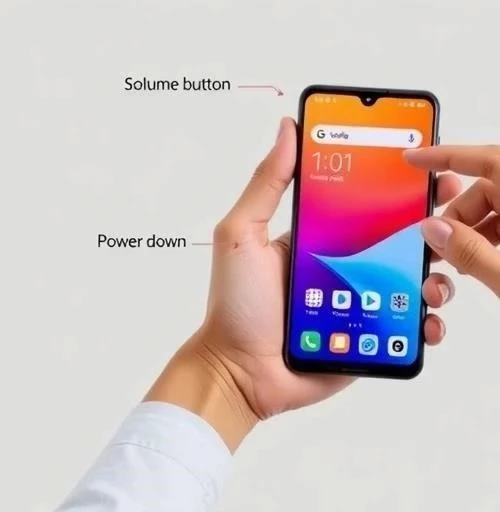
Method 1: Use the power and volume buttons
This is the quickest option and usually works regardless of which app is open.
- Open the screen you want to capture.
- Press the Power button and the Volume Down button at the same time.
- Hold them briefly, then release when the screen flashes or a screenshot preview appears.
Press both buttons together rather than one after the other. If you hold Power too long, the power menu may appear; if the volume key is pressed first, you may simply change the sound level. A short, simultaneous press is the sweet spot.
Method 2: Swipe down with three fingers
MIUI, Xiaomi’s Android interface, may offer a three-finger screenshot gesture. Once enabled, it feels like drawing a curtain over the screen.
- Open Settings.
- Look for Additional settings, then Button shortcuts or Gesture shortcuts. Names can differ slightly between MIUI versions.
- Choose Take a screenshot and select the three-finger swipe option.
- Return to the screen you want and slide three fingers down together.
If the gesture does nothing, revisit the shortcut settings and check that it is enabled. You can also try a slower, straight downward swipe with your fingers spaced slightly apart.
Method 3: Tap Screenshot in the control panel
Prefer a button on the screen? Swipe down from the top edge to open the notification or control panel, then look for the Screenshot tile. On some software versions, you may need to swipe down again to see all quick settings. If the tile is missing, tap the edit or pencil icon and add it, if your version allows that.
This method is handy when physical buttons are awkward to reach. It can also help if a button is unreliable. Keep in mind that menus and panels may look different after a system update.
Capture a long page
A regular screenshot saves only what is visible; For a long web page, chat, or settings list, take a screenshot first and tap Scroll or Long screenshot in the preview, when that option appears. Let the page move through the section you need, then tap Done or stop the capture. Review the result: long images can be tall, and some apps limit scrolling capture or protect their content.
Where screenshots go
After capture, tap the preview to crop, mark up, or share the image. If it disappears, open Gallery or Photos and look in the Screenshots album. You can also check the file manager’s Pictures or DCIM folders; the exact folder path may vary by software version. From there, share the image through a messaging app, email, or cloud storage.
When it does not work
- Nothing happens: Make sure the buttons are pressed simultaneously, or test another enabled method.
- The phone opens the power menu: Release Power sooner and use a quick, brief press.
- The gesture fails: Confirm the three-finger shortcut is switched on and try again from the home screen.
- An app blocks capture: Some banking, streaming, and secure apps prevent screenshots for privacy or copyright reasons. The phone may show a warning or save a blank image; this is an app restriction, not necessarily a fault.
Quick answer
For most Redmi Note 7 users, press Power + Volume Down together. For a hands-free-feeling shortcut, enable the three-finger swipe in Settings. Use the control panel when reaching the side buttons is inconvenient, and try the scrolling option when one screen is not enough. In a second, your screen becomes a little digital postcard—ready to keep, edit, or send.
7 Comments. Оставить новый
A refreshingly hands-on guide: short steps, useful cautions, and no technical fog. I’m adding the control-panel shortcut to my mental map.
I like that this gives three different routes instead of pretending every thumb and phone case behaves the same. The three-finger gesture sounds like a tiny bit of screen magic.
The little troubleshooting hints make this feel written by someone who has actually chased a stubborn screenshot gesture around the settings menu.
The reminder that MIUI menus can change names is a thoughtful touch. It saves readers from wandering through Settings wondering if their phone has hidden the right door.
The “sweet spot” advice is wonderfully practical—my buttons have often turned a screenshot into an accidental volume concert. Clear, useful, and easy to follow.
A screenshot guide with good instincts: start with the familiar buttons, then offer gestures and a screen-based alternative. Handy enough to bookmark.
I appreciate the focus on choosing whichever method fits the moment. Sometimes the best phone trick is simply having a backup when your hands are full.