
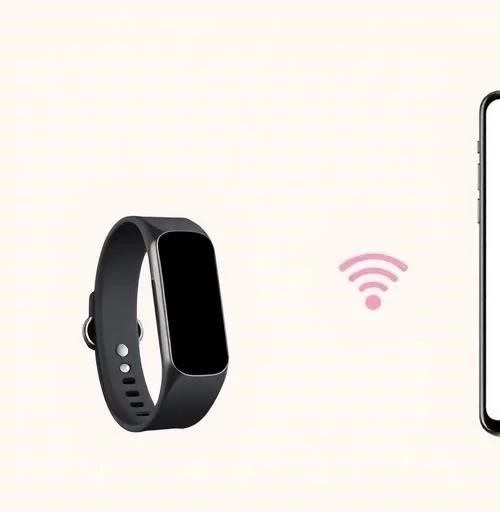
Pairing a Huawei Band 7 with a phone lets you sync activity and health data, receive call and message alerts, and adjust the band’s settings from an app․ The setup is done through Huawei Health over Bluetooth․ The exact screens may vary slightly with your phone’s operating system, app version, or region, but the general process is the same for Android and iPhone․
Before you start
- Charge the Band 7 and your phone․ If the band is new, has been stored for a long time, or will not turn on, connect its magnetic charging cable first․
- Keep the band and phone close together while pairing—ideally within a metre—and turn on Bluetooth on the phone․
- Install or update the Huawei Health app․ Use an official source: on iPhone, look in the Apple App Store; on Android, use Huawei AppGallery or the official Huawei website where available․ App availability can differ by country and phone․
- Allow Huawei Health to use Bluetooth and, when requested, grant the permissions needed for nearby-device discovery and the features you want․ Android may also request location access during discovery; this does not mean the band has GPS tracking enabled․
Do not begin by choosing the Band 7 in the phone’s ordinary Bluetooth settings․ The watch should be added from inside Huawei Health so that the app can complete setup, synchronize data, and configure alerts․ If you have already tried pairing in Bluetooth settings, remove or forget that entry before continuing․
First-time setup
- Turn on the band․ Press and hold the side button until the Huawei logo appears․ Choose a language on the band if prompted․ If the band has not been set up before, it may show a pairing screen or QR code․
- Open Huawei Health․ Sign in to a Huawei account if the app asks you to․ You may be able to continue with limited functions without signing in, depending on the app version and region; follow the options displayed on your phone․
- Start adding a device․ In Huawei Health, open Devices and tap the add icon or Add device․ If the app shows a list of categories, select Smart Band and then HUAWEI Band 7․ Menu labels can vary slightly․
- Find the band․ Keep Bluetooth enabled and wait for the scan to finish․ When HUAWEI Band 7 appears, tap it․ If the app offers a QR-code option, choose it and scan the code displayed on the band with your phone’s camera through the app․
- Confirm pairing․ A pairing request may appear on the phone, on the band, or on both․ Check that the device name or code matches, then tap Pair, Confirm, or the check mark․ Do not close the app while the request is being processed․
- Allow the connection to finish․ Huawei Health may download settings, synchronize information, or offer a firmware update․ Keep the devices near each other and leave the app open until setup is complete․ The band may restart during an update․
- Choose your preferences․ Enable the permissions and options you need, such as notifications, call alerts, health tracking, or automatic updates․ You can change most of these later in Huawei Health or in the phone’s system settings․
When setup is successful, the Band 7 should appear under Devices in Huawei Health, usually with its battery level and connection status․ The band’s time should synchronize with the phone․ Open the device page to explore available watch faces, settings, and feature controls․
Connecting an Android phone
On Android, install Huawei Health from an official Huawei source if it is not available through the store you normally use․ If you download an app package from Huawei’s website, follow Huawei’s installation instructions and check that the package is authentic․ Avoid third-party download sites and do not install a file just because a search result claims it is the Health app․
When you first open Huawei Health, accept the Bluetooth or nearby-device permission request so the app can find the band․ Some Android versions also need location permission for Bluetooth scanning․ If you denied a permission by mistake, open the phone’s Settings, find Apps or Applications, select Huawei Health, and allow the relevant permission․ The exact menu names depend on the phone manufacturer and Android version․
For reliable background syncing and alerts, check that battery-saving settings are not restricting Huawei Health․ Some phones close apps that run in the background; you may need to allow background activity or remove Huawei Health from the phone’s battery-optimization list․ Only change these settings if syncing or notifications are unreliable, since allowing background activity can use more battery․
Connecting an iPhone
Install Huawei Health from the Apple App Store, open the app, and follow the same device-addition steps․ If iOS asks to let Huawei Health use Bluetooth, choose Allow․ You can review this later under Settings on the iPhone․ If the app cannot discover the band, check that Bluetooth is on and that Huawei Health has permission to use it․
Pairing and notification options on iPhone may differ from Android․ Some phone or app features may not be available on every iOS version or in every region․ After pairing, check the notification controls in Huawei Health as well as the iPhone’s notification settings․ Keep Huawei Health available in the background if you want regular synchronization․
Set up calls and notifications
Pairing does not always enable every alert automatically․ In Huawei Health, open Devices, select HUAWEI Band 7, and look for Notifications, Health monitoring, or related settings․ Choose which apps may send notifications to the band․ On the phone, also allow notifications for those apps and make sure their alerts are not silenced by a focus mode, Do Not Disturb setting, or battery restriction․
The Band 7 can show supported call alerts and notifications, but it is not a stand-alone phone․ Keep the phone connected and within Bluetooth range to receive alerts․ The band does not use a SIM card to make independent mobile calls․ Notification details and available controls vary by phone, app, region, and software version․
If the Band 7 does not appear or pair
- Check the basics․ Make sure the band is switched on, has charge, and is close to the phone․ Turn Bluetooth off and back on, then reopen Huawei Health and scan again․
- Check permissions․ Allow Huawei Health to discover nearby devices and use Bluetooth․ On Android, allow location access if the system requests it for scanning․ On iPhone, review Bluetooth access in Settings․
- Close other connection attempts․ If the band is already connected to another phone, disconnect it there first․ A wearable is generally managed through one phone connection at a time; an old connection can prevent a new setup․
- Remove an incomplete Bluetooth pairing․ If you previously paired the band directly in the phone’s Bluetooth menu, open Bluetooth settings, select the Band 7 entry, and choose Forget or Unpair․ Then restart pairing from Huawei Health․
- Restart both devices․ Close Huawei Health, restart the phone, and restart the band using its on-screen power or restart controls․ Then try adding the band again․
- Update the app․ Install the latest Huawei Health version available from an official source․ An older app may fail to recognize the band or complete setup․
- Check for an existing pairing request․ Look at the band’s screen as well as the phone․ A confirmation prompt may disappear if left unanswered, in which case start the scan again․
If the band was previously connected to a different phone and you no longer have access to it, you may need to disconnect or reset the band before pairing it again․ A factory reset removes local settings and information stored on the band, so use it only after trying the simpler steps above․ If you choose to reset, use the band’s settings menu and then add it as a new device in Huawei Health․ The names and locations of reset controls can vary by software version․
Connection drops or data does not sync
Bluetooth range is limited by distance, walls, interference, and the phone’s power-management settings․ Keep the phone nearby and open Huawei Health to see whether the device reconnects․ If the connection drops repeatedly, toggle Bluetooth, restart both devices, and check whether the phone is restricting the app in the background․ Also make sure the band and phone have not been disconnected manually․
Give the app time to synchronize after reconnecting․ If new activity data still does not appear, open the device page in Huawei Health and refresh or start a sync if that option is shown․ Check that you are looking at the correct Huawei account, especially if you have used more than one account or changed phones․ Do not reset the band as a first response to a temporary syncing delay․
How to connect it to a new phone
If you are moving the Band 7 to another phone, first open Huawei Health on the old phone and disconnect or remove the device if possible․ On the new phone, install Huawei Health, sign in if appropriate, enable Bluetooth and permissions, and add the band as described above․ If the old phone is unavailable or the app cannot release the connection, restart the band and follow its prompts; a factory reset may be required as a last resort․ Sync important data before removing a device whenever you can․
Frequently asked questions
Can I pair the Huawei Band 7 without Huawei Health?
For normal setup and ongoing synchronization, use Huawei Health․ Pairing only from the phone’s Bluetooth menu may not complete the app connection or enable features such as data sync and notifications․
Why does the band request confirmation?
Confirmation helps ensure you are connecting to the intended device․ Compare the name or code shown on the phone and band, then approve the request on the devices as instructed․
Can I connect the same band to Android and iPhone at once?
Do not expect simultaneous management by two phones․ Disconnect it from the current phone before setting it up with another․ The exact transfer process depends on whether the band can still be accessed through the old phone;
Does pairing erase my health data?
Ordinary pairing does not normally require a factory reset․ Resetting the band can erase settings and locally stored information, however․ Synchronize through Huawei Health before resetting whenever possible․
Final check
To connect a Huawei Band 7, install Huawei Health from an official source, turn on Bluetooth, add the band from the app’s Devices section, and approve the pairing request on screen․ Keep the devices close until setup and any update finish․ If discovery fails, check permissions, remove an old Bluetooth pairing, restart both devices, and try again․ Once the band appears as connected in Huawei Health, configure notifications and other features to suit your phone and preferences․

3 Comments. Оставить новый
The clear preparation steps and reminder to pair through Huawei Health rather than the phone’s Bluetooth settings make this guide especially useful for first-time setup.
This is an easy-to-follow overview, and the note that screens and app availability can vary by device and region sets sensible expectations.
I appreciate the practical notes about charging, keeping the devices close, and checking app permissions. The explanation of Android location access helps prevent confusion.