
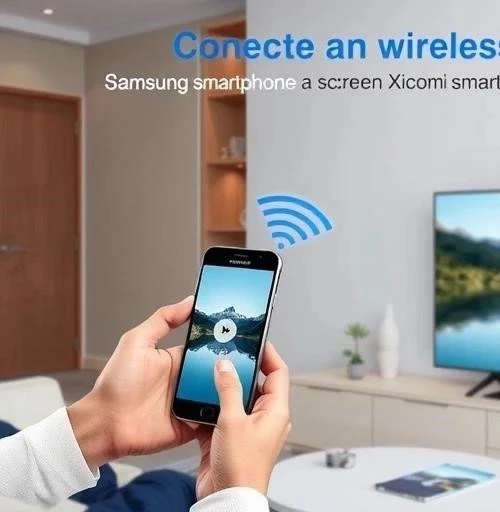
Connecting a Samsung phone to a Xiaomi television lets you show photos, play videos, mirror apps, or use the TV as a larger screen. The exact menus depend on your phone, the Xiaomi TV model, and its operating system. Most connections use the built-in screen-casting features on both devices; if those are unavailable or unreliable, you can try a streaming device or a wired adapter.
Before you start, check the names of the relevant features; On many Samsung Galaxy phones, wireless screen mirroring is called Smart View. Xiaomi televisions may offer Chromecast built-in, Google Cast, Miracast, or a screen-mirroring app. Feature names and menu locations vary, so use the instructions below as a guide rather than expecting every setting to look exactly the same.
Before connecting
- Turn on the Xiaomi TV and unlock the Samsung phone.
- For the simplest wireless setup, connect both devices to the same Wi-Fi network. If your router has separate network names for 2.4 GHz and 5 GHz, make sure the devices can communicate across them.
- Check that Wi-Fi is enabled on the phone and that the TV is connected to the internet or local network.
- Install available system updates if either device is having trouble. On the TV, the update option is usually under Settings, System, or About.
- Keep the phone near the TV during the first connection and dismiss any pairing or permission prompts only if you recognize the device.
Method 1: Cast a video with Chromecast or Google Cast
This is usually the best option when you want to play a video from a supported app. Instead of duplicating everything on the phone, the app asks the TV to stream the selected content. This can leave the phone free for other tasks and may provide smoother playback than full-screen mirroring.
- Connect the Samsung phone and Xiaomi TV to the same Wi-Fi network.
- Open a compatible app, such as YouTube, and select a video.
- Tap the Cast icon, which often looks like a screen with a Wi-Fi signal in its corner.
- Select the Xiaomi TV or its Chromecast/Google TV device name from the list.
- If a code or permission request appears on the TV, confirm that it matches the device you selected.
- Use the phone to pause, seek, adjust playback, or stop casting. To disconnect, tap the Cast icon again and choose Disconnect or Stop casting.
If the TV does not appear, open the Google Home app and check whether the television is available there. Make sure the phone is not using a guest Wi-Fi network, a VPN, or a mobile hotspot that isolates connected devices. Some hotel, office, and public networks prevent devices from finding one another even when they share a Wi-Fi name.
Method 2: Mirror the Samsung screen with Smart View
Smart View mirrors the phone display, including compatible apps, menus, photos, and presentations. Because it duplicates the screen, notifications may also appear on the television. Turn on Do Not Disturb or hide sensitive notifications first if you are showing the screen to other people.
- Swipe down from the top of the Samsung screen to open the Quick settings panel. Swipe down again if necessary to see all available controls.
- Find and tap Smart View. If it is not visible, swipe through the tiles or tap the edit button to add it. On some models, you can search for Smart View in Settings.
- Wait while the phone searches for nearby displays. Select the Xiaomi TV, Chromecast device, or other compatible receiver shown in the list.
- Read the connection prompt on the TV and choose Allow, Accept, or the equivalent option. If the TV displays a PIN, enter it on the phone when asked.
- Confirm any final prompt on the Samsung phone. The phone screen should then appear on the television.
- To finish, open Smart View from Quick settings and tap Disconnect, or use the disconnect option shown on the phone.
Some Xiaomi TV models do not appear in Smart View because they support Google Cast but not the particular mirroring protocol Smart View is trying to use. In that case, try casting from an app, use the TV’s own screen-mirroring feature, or connect a compatible streaming receiver. A television can support one wireless method without supporting every other method.
Method 3: Start screen mirroring from the Xiaomi TV
Some Xiaomi televisions include a receiver app or a dedicated screen-mirroring menu. The feature may be called Miracast, Wireless display, Screen mirroring, or Cast. Open the TV’s Apps or Input menu, or search its settings for “mirror” or “wireless display.” Leave the receiver screen open while connecting from the phone;
Next, open Smart View on the Samsung phone and select the TV if it appears. If the television asks you to approve the connection, accept it. If the devices cannot find each other, consult the TV’s manual to confirm which casting standard it supports. The name “cast” is sometimes used broadly in menus, but Google Cast and Miracast are not interchangeable in every setup.
Method 4: Connect with HDMI
A cable can be useful when Wi-Fi is unavailable, the wireless picture is delayed, or you need a more dependable connection. You will generally need an HDMI cable and a USB-C-to-HDMI adapter or hub. However, not every Samsung phone supports video output through its USB-C port. Check the specifications for your exact phone model before buying an adapter; a USB-C connector alone does not guarantee HDMI display support.
- Confirm that the phone supports wired video output and choose an adapter compatible with the phone.
- Connect the adapter to the phone, then connect an HDMI cable between the adapter and an HDMI port on the Xiaomi TV.
- Use the TV remote to select the HDMI input that matches the port you used.
- Unlock the phone and follow any prompt to enable screen output. If the phone offers Samsung DeX, choose between DeX and screen mirroring according to your needs.
- When finished, switch the TV back to its normal input before unplugging the cable.
If the TV shows “No signal,” check that the correct HDMI input is selected, reconnect both ends, and restart the phone. If the adapter requires external power, connect its power supply. A charge-only USB cable or an incompatible adapter will not send video to the television.
Using Samsung DeX
Some higher-end Samsung phones and tablets support Samsung DeX, which presents a desktop-style interface on a larger display. DeX may work wirelessly with compatible televisions or through a supported USB-C-to-HDMI adapter. Open Quick settings and look for DeX, or search the phone’s Settings for “DeX.” Select the Xiaomi TV if it is offered, then approve the connection on the TV. Availability and wireless compatibility depend on the Samsung device and television; if DeX is not listed, use Smart View or an app’s Cast button instead.
Common problems and solutions
The TV does not appear in the phone’s device list
Check that the TV is awake and that its casting or mirroring receiver is enabled. Confirm that both devices are on the same local network, then turn Wi-Fi off and on on the phone. Restarting the TV and router can refresh device discovery. If your router has an option called AP isolation, client isolation, or guest mode, it may prevent the devices from seeing one another. Disable isolation only on a network you control and trust.
The connection starts but drops or stutters
Move the phone and TV closer to the router, reduce interference, and pause large downloads on the network. If possible, connect the TV to the router with Ethernet while keeping the phone on Wi-Fi. Restart both devices and try again. For a video that supports Google Cast, casting directly from its app may be smoother than mirroring the entire phone display.
The TV connects, but the picture is black
Some streaming services restrict mirrored video because of copyright protection. In that situation, use the service’s own Cast button or its official TV app rather than mirroring the phone. Also check whether the phone is displaying a protected screen, and test with a photo or an ordinary video to see whether mirroring works in general.
There is picture but no sound
Raise the volume on both devices and check the TV’s audio output settings. Disconnect Bluetooth headphones or speakers connected to the Samsung phone, since audio may still be routed to them. Stop and restart the cast session, and test another app. With HDMI, verify that the adapter supports audio as well as video.
The picture does not fill the TV screen
Screen mirroring usually follows the phone’s portrait or landscape orientation, so black bars can be normal. Rotate the phone sideways for widescreen video and check the TV’s aspect-ratio or picture-size setting. Avoid stretching the image if it makes people or objects look distorted.
Privacy, security, and performance tips
- Accept pairing requests only when you initiated the connection and can identify the TV.
- When mirroring, close private apps and disable message previews if other people can see the screen.
- On a shared TV, remove saved devices or revoke access when appropriate. The setting may be called Connected devices, Permissions, or Screen mirroring history.
- For the best video quality, use a strong Wi-Fi connection and keep the phone charged. Screen mirroring can use more battery than ordinary viewing.
- Do not install an unfamiliar casting app simply because the TV is missing from Smart View. First check the TV’s built-in options and the documentation for your model.
Which method should you choose?
Use an app’s Cast button for watching supported online videos. Choose Smart View when you want to display the phone’s screen, browse photos, or show a presentation. Try the Xiaomi TV’s own mirroring receiver if Smart View cannot find it. Choose HDMI when wireless casting is unavailable or you need a stable wired connection, after confirming that your Samsung model supports video output. DeX is worth trying when you want a desktop-like workspace and have a compatible phone or tablet.
In most cases, the process is straightforward: put both devices on the same network, start the appropriate casting feature, select the TV, and approve the connection; If one method is not supported, that does not necessarily mean the phone and TV cannot work together; it may simply mean you need a different casting route or a compatible adapter. Because Xiaomi and Samsung update their menus over time, consult the user guides for the exact model numbers when a setting is missing or behaves differently.


4 Comments. Оставить новый
I appreciate the troubleshooting tips before the connection steps. Checking that both devices are on the same network can save a lot of frustration.
The clear distinction between casting a video and mirroring the whole screen is helpful. It makes it easier to choose the right method for what you want to do.
A useful guide for anyone trying to connect devices from different brands. The reminder that menu names vary by model is especially practical.
The instructions are easy to follow and explain the benefits of casting without making the process sound more complicated than it is.