
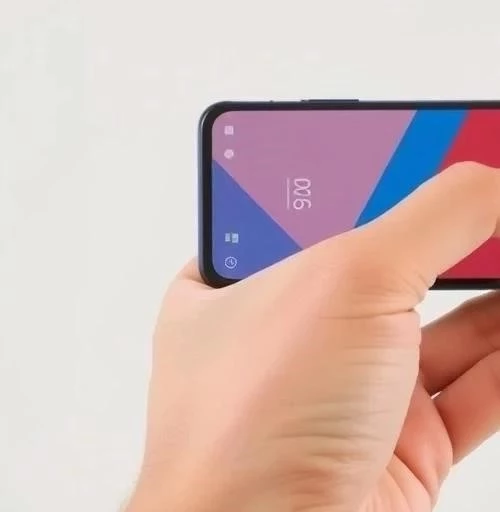
The Xiaomi Mi 11 Lite offers several ways to capture what is currently displayed on its screen. You can use the physical buttons, a three-finger gesture, or the quick settings panel. The exact names and locations of settings may differ slightly depending on the MIUI version installed on your phone. The methods below cover the usual options, as well as how to capture a long page, edit an image, and find saved screenshots.
Method 1: Use the physical buttons
- Open the screen you want to capture. Check that the information you need is visible.
- Press the Power button and the Volume Down button at the same time.
- Release both buttons promptly. The screen should flash, and a preview or thumbnail will usually appear.
Press the buttons together rather than holding them for several seconds. Holding the Power button may open the power menu, while an extended press of both buttons can trigger a different function on some software versions. If the first attempt does not work, adjust your grip and try again, making sure you press the lower volume key, not Volume Up.
Method 2: Swipe down with three fingers
On many Mi 11 Lite software versions, a downward swipe with three fingers takes a screenshot. Place three fingers on the display and slide them down together. If nothing happens, the shortcut may be disabled or unavailable in the current software configuration.
- Open Settings.
- Look for Additional settings, then Gesture shortcuts or a similarly named shortcuts menu.
- Choose the screenshot option and enable the three-finger gesture, if it is listed.
Settings labels can change between MIUI releases and regions. If the menu is not in that location, use the search box at the top of Settings and search for “screenshot” or “gesture.” When enabled, try the gesture on an ordinary screen; some apps may block screenshots for security reasons.
Method 3: Use the quick settings panel
Swipe down from the top edge of the display to open the notification or control panel. Depending on your version, you may need to swipe down a second time to see all tiles. Tap Screenshot or Screen capture. If the tile is not visible, edit the panel’s shortcuts and add it, if the option is available. This method is useful when pressing the side buttons is inconvenient.
Capture a long screenshot
A standard screenshot captures only the part of a page currently shown on screen. For a longer capture, first take a screenshot using one of the methods above. While its thumbnail or preview is displayed, tap Scroll, Long screenshot, or the equivalent control. Allow the page to move through the content, then tap the stop or save control when you have captured enough. The phone may offer to crop or edit the result before saving.
Scrolling capture is not supported in every app or view. It generally works best with pages that scroll vertically, such as a webpage or a long conversation. If the scrolling control does not appear, the app may not support this feature, or the preview may have disappeared before you selected it.
Find, edit, and share the image
Open the Gallery app and look for the Screenshots album. You can also browse the phone’s file manager for a folder named DCIM/Screenshots or Pictures/Screenshots; the exact folder can vary by software version. Open an image to crop, draw, add a note, or share it through another app. Before sharing, check whether the image contains private details such as messages, account information, or notifications.
If the screenshot does not work
- Try the button combination again, pressing Power and Volume Down at the same time.
- Check the gesture shortcut in Settings, or use the quick settings tile instead.
- Make sure the screen is not displaying protected content. Banking, streaming, and other secure apps may prevent screenshots.
- Restart the phone if the shortcuts have stopped responding, and check for available system updates if the issue continues;
The button combination is usually the quickest option on the Xiaomi Mi 11 Lite. The gesture and panel shortcuts provide alternatives, while the screenshot preview gives you a convenient way to capture a longer page or make a quick edit.
7 Comments. Оставить новый
The article presents the common screenshot methods in a clear, step-by-step format. The reminder that menu labels may vary by MIUI version is useful.
The instructions are organized by method, making it easy to identify the option that best suits the situation.
The explanation of the three-finger gesture includes helpful guidance on enabling it and what to try if it does not work.
The article offers practical alternatives for taking a screenshot and explains how software differences may affect the steps.
The physical-button instructions are straightforward, especially the note to press and release both buttons promptly.
The article acknowledges that settings can differ between software versions and suggests searching Settings for relevant options.
The note about apps restricting screenshots adds useful context for readers troubleshooting a gesture that appears not to work.