
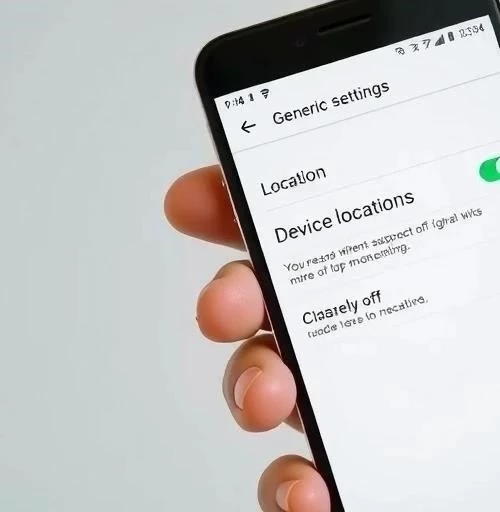
Find Device is Xiaomi’s digital lost-and-found service: it can help locate a missing phone, make it ring, lock it, or erase its data. Turning it off is useful before selling, giving away, or resetting your phone—or if you simply don’t want location-based tracking through your Xiaomi account. The switch is tucked into account settings, like a tiny key in a very organized drawer. Here’s how to find it safely.
Before you switch it off
Check that you can sign in to your Xiaomi Account and know its password. Menu names vary slightly by phone, software version, and region: MIUI and HyperOS may arrange the same feature differently. If you can’t find an option, use the Settings search bar and search for Find device or Xiaomi Cloud.
Once disabled, you may no longer be able to locate, ring, remotely lock, or erase this phone through Xiaomi’s Find Device service. If the phone is lost already, don’t turn the feature off: try locating or securing it first. Also, this setting is separate from Google’s Find My Device, which has its own controls.
Method 1: Use the phone’s Settings
- Open Settings.
- Tap Xiaomi Account or your account name near the top. On some versions, first tap Mi Account.
- Choose Xiaomi Cloud (sometimes shown as Mi Cloud).
- Find and open Find device.
- Switch off Find device and confirm the choice.
- If prompted, enter your Xiaomi Account password or complete a verification step.
Some builds place the control under Settings > Xiaomi Account > Devices, or show Find my device instead. The wording may change; the destination is the Xiaomi Cloud account’s device-finding control, not the general location-permission page.
Method 2: Check Xiaomi Cloud in a browser
If the setting is hard to locate on the handset, sign in to Xiaomi’s official account or Cloud website using the account linked to the phone. Open the device-management or Find Device area and review the available controls. Website options differ by country and account, so this route may not offer a switch for every device. Never enter your password on a link sent by an unknown person; open Xiaomi’s official site yourself.
When the switch won’t turn off
- Confirm the account: The phone must be signed in to the Xiaomi Account that owns or manages it. A different account may not have permission to change the setting.
- Get online: Connect to Wi-Fi or mobile data, then try again. Account settings may need to contact Xiaomi’s servers.
- Check the password: If you’ve forgotten it, recover access through Xiaomi’s official account-recovery process before changing security settings.
- Update and restart: Install available system updates, restart the phone, and revisit Xiaomi Cloud. A temporary account-sync problem can make a switch appear stuck.
- Look for verification: A security prompt, code, or confirmation on another trusted device may be required. Complete it only if you initiated the change.
If the phone is managed by a company, school, or family account, an administrator may control some settings. Don’t try random reset tools or unofficial “unlock” services: they can expose your credentials, damage the software, or leave the phone unusable.
Turning it off before selling or giving away the phone
Disabling Find Device is a good first step, but it is not the whole handover. Back up anything you want to keep, sign out of your Xiaomi Account, and remove the Google account too. Then perform a factory reset from the phone’s Settings. After the reset, check that the device reaches its welcome screen and no longer asks for your personal account credentials. This helps prevent the next owner from meeting an account-lock screen instead of a fresh start.
If you are wiping the phone because it is lost or stolen, think twice before removing it from your account. Keeping it linked may preserve protections that can help you secure it. Use the official locate, lock, or erase options first, and change important passwords if you suspect someone has accessed your accounts.
Does this disable every kind of tracking?
No. Turning off Xiaomi Find Device disables that particular Xiaomi service; it does not automatically switch off Google’s location features, app permissions, or every system function that may use location. To review those separately, open Settings > Location and inspect app access. For Google’s device-finding feature, check Settings > Google > Find My Device (the path can vary). Decide which services you want rather than switching off unrelated protections by accident.
The quick route
Settings > Xiaomi Account > Xiaomi Cloud > Find device > Off. Confirm with your account password if asked. If the menu differs, search Settings for “Find device,” make sure you’re using the correct Xiaomi Account, and remember what you give up: once the feature is off, Xiaomi’s digital lighthouse may not be able to guide you back to a missing phone.



5 Comments. Оставить новый
A useful map through Xiaomi’s shifting menu maze. The distinction between Xiaomi’s service and Google’s Find My Device is the kind of small detail that can prevent a very large headache.
The “tiny key in a very organized drawer” image makes a settings tutorial feel surprisingly human. I especially appreciate the warning not to disable Find Device if the phone is already missing.
The Settings search bar becomes a little compass here—an elegant shortcut when software versions refuse to follow the same map. Clear, cautious, and refreshingly jargon-light.
I like that this explains what disappears when the feature is switched off, rather than treating the toggle as a magic button. A thoughtful guide for anyone preparing a phone for its next chapter.
This guide treats privacy and preparedness as two sides of the same coin. Its calm reminder to check account access before changing the setting is practical advice, not just fine print.