
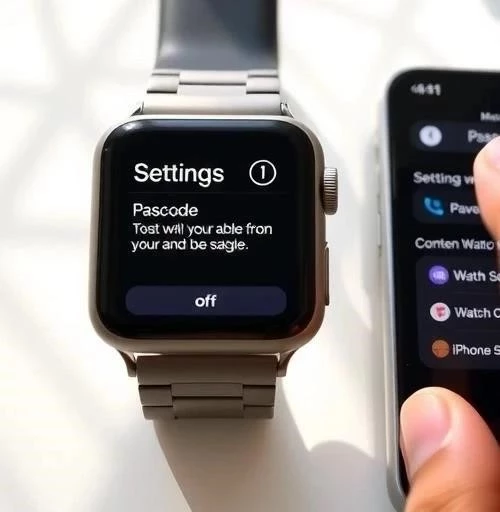
Your Apple Watch is a tiny vault on your wrist: it holds messages‚ health information‚ and payment cards behind a four- or six-digit code. If entering that code has become a daily nuisance‚ you can switch it off. The change takes only a moment—but it also removes an important layer of protection. Here’s how to do it‚ what to expect‚ and what to try if the watch won’t cooperate.
Before you begin
You need to know the passcode currently set on the watch. Turning it off is not the same as changing it‚ and Apple won’t let you bypass the code simply because you have the paired iPhone nearby. If you’ve forgotten the passcode‚ skip to the recovery section below.
Turn off the passcode on Apple Watch
- Press the Digital Crown to open the app grid or app list.
- Open Settings.
- Scroll down and tap Passcode.
- Tap Turn Passcode Off.
- Enter your current passcode when prompted to confirm.
That’s it. The watch will no longer ask for the code when you put it on or wake it. Menu wording can vary slightly by watchOS version‚ but the Passcode section is the place to look.
Use the iPhone Watch app instead
If you prefer the larger screen‚ keep your iPhone near the watch and open the Watch app. Tap My Watch‚ choose Passcode‚ then tap Turn Passcode Off. Follow any confirmation prompt on the watch and enter its current code if asked. The iPhone is a remote control for this setting‚ not a substitute key: you still need to authenticate with the watch’s passcode.
Want fewer interruptions‚ not less security?
Before switching the code off‚ consider Unlock with iPhone. In the Watch app‚ go to My Watch > Passcode and enable that option. When you unlock your iPhone‚ your watch can unlock too‚ as long as you’re wearing it and it’s in range. This keeps the watch’s passcode protection in place while making it feel less like a tiny keypad on your wrist.
Another compromise is to choose a simple‚ memorable passcode or change how often you have to enter it by keeping the watch securely on your wrist. Avoid obvious codes such as 0000 or your birthday: convenient for you can mean convenient for someone who finds your watch.
What changes when the code is off?
The biggest trade-off is security. Someone who gets hold of an unlocked watch may be able to view information or use features available on it. Most importantly‚ Apple Pay on Apple Watch requires a passcode‚ so turning the code off means you can’t use the watch to make Apple Pay purchases. If contactless payments are part of your routine‚ keeping the code and using iPhone unlock is usually the better choice.
Also distinguish the passcode setting from Wrist Detection. Wrist Detection helps the watch recognize when it is being worn and supports features such as automatic locking. Changing that setting is not a shortcut to the same thing as turning the passcode off‚ and it can affect other watch functions. Leave it on unless you have a specific reason to change it.
If you forgot the passcode
You can’t turn off a forgotten code through Settings. The watch must be erased and set up again. If you still have the paired iPhone‚ open the Watch app and go to My Watch > General > Reset > Erase Apple Watch Content and Settings. Follow the prompts. Depending on your model and setup‚ you may be asked what to do with a cellular plan.
If you don’t have the iPhone‚ place the watch on its charger. Press and hold the side button until the power screen appears‚ then press and hold the Digital Crown until the erase option appears. Tap Reset‚ then confirm. The exact screen can differ by watchOS version‚ so allow the watch to finish erasing before setting it up again.
After erasing‚ pair the watch with your iPhone and restore a backup if one is offered. Activation Lock may require the Apple Account credentials previously used with the watch; erasing does not remove that anti-theft protection. If the watch is managed by an employer or school‚ an administrator may also restrict passcode settings.
Quick checklist
- Know the current code? Settings > Passcode > Turn Passcode Off.
- Want convenience without losing protection? Enable Unlock with iPhone.
- Forgot the code? Erase the watch‚ then pair and restore it.
- Use Apple Pay on your wrist? Keep a passcode enabled.
A passcode-free watch can feel wonderfully effortless‚ like opening a window instead of unlocking a door. Just remember that the open window is open to everyone. Choose the setting that matches how you use your watch—and how much protection you want it to provide.

6 Comments. Оставить новый
This guide treats convenience and privacy as two sides of the same wristwatch. Its practical tone helps readers pause and weigh the trade-off instead of tapping through on autopilot.
Clear steps, no unnecessary detours, and a memorable image at the start—like a well-labeled trail through a very small forest of menus.
The suggestion to use Unlock with iPhone is the standout: it solves the everyday annoyance without tossing the watch’s protective layer overboard.
The “tiny vault” image makes the security trade-off instantly clear. I especially like that the guide offers a convenience-minded alternative before asking readers to remove the passcode altogether.
A reassuringly sensible explainer. It distinguishes turning off a passcode from changing or recovering one, which could save readers from expecting the wrong kind of shortcut.
A useful little map through a setting that can feel oddly buried. The reminder that a nearby iPhone is not a magic spare key is a particularly valuable detail.